Getting started
How to use Theamo, one step at a time
Take your time. Everything here is shown the way it looks on your screen, with big numbers and short sentences. Choose your device first.
Which device are you using?
Gestures and buttons
iPhone
Seven touches do almost everything on the iPhone and iPad.
- Tap the pictureShows or hides the buttons
- Swipe from the left edge, or tap the list button at the top rightThe list of channels
- Swipe the picture downKeeps it playing in a small player
- Tap the heart on a channel's picture in the guide (iPad: double tap the channel)Makes it a favorite, or takes it out of your favorites
- Tap the heart on a channel's pageMakes it a favorite
- Double tap the left or the right of the pictureGoes back or forward 10 seconds; each further double tap adds 10 more
- Pull a list downLoads the channels and the guide again
iPad
Seven touches do almost everything on the iPhone and iPad.
- Tap the pictureShows or hides the buttons
- Swipe from the left edge, or tap the list button at the top rightThe list of channels
- Swipe the picture downKeeps it playing in a small player
- Tap the heart on a channel's picture in the guide (iPad: double tap the channel)Makes it a favorite, or takes it out of your favorites
- Tap the heart on a channel's pageMakes it a favorite
- Double tap the left or the right of the pictureGoes back or forward 10 seconds; each further double tap adds 10 more
- Pull a list downLoads the channels and the guide again
Apple TV
Where to press the Siri Remote, and what each press does.
Live channel
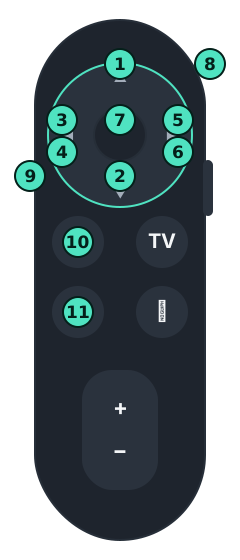
- Click the topNext channel
- Click the bottomPrevious channel
- Click the leftBack 10 seconds, if the channel keeps a recording
- Hold the leftRewinds while you hold it
- Click the rightForward 30 seconds when you are behind live
- Hold the middleA small menu with the most used things
- Menu, the button with the arrowGoes back. On a channel it hides the buttons first, then leaves, and the channel keeps playing in a small window.
- Hold Play and PauseStops the channel and shows the guide
Archive and Plex
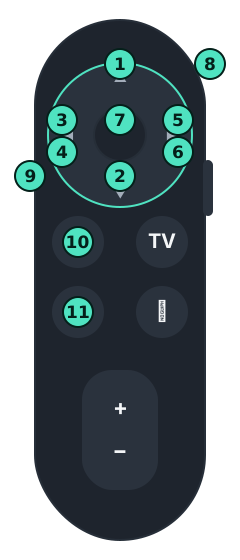
- Click the topShows what you are watching
- Click the bottomShows the progress bar
- Click the leftBack 10 seconds
- Hold the leftRewinds while you hold it
- Click the rightForward 30 seconds
- Hold the rightFast-forwards while you hold it
- Hold the middleA small menu with the most used things
- Swipe downShows what you are watching
- Menu, the button with the arrowGoes back. On a channel it hides the buttons first, then leaves, and the channel keeps playing in a small window.
- Hold Play and PauseStops it and shows its page (a program from the archive: the guide)
- Hold Play and PauseStops the channel and shows the guide
In the guide
- Click the middle
- Watches the program on now; on a past program, plays it from the archive
- Hold the middle
- A small menu: back to now, when the table shows another day; go to the first channel, however far down the list you are; refresh the channels and the guide (the pill at the end of the header does the same); and, with a channel playing in the window, stop it
- Click Play and Pause
- Opens the categories, from any channel
- Hold Play and Pause
- Stops the channel playing in the small window, on any page
- Menu, the button with the arrow
- Goes up to the tabs, from any channel; Left and Right along the tabs open them
- Hold Menu
- The Apple TV's own gesture: the Home Screen. Theamo cannot change it, so click Menu instead.
Your first five minutes
New to Theamo? Do these five things in this order. Each one opens its own topic below.
- Put your channels inAdd the playlist or tuner you already have. Nothing works before this.
- Watch a channelPick a picture with a red LIVE label.
- Make a favoriteTap the heart on a channel you like, or tap a channel twice in the Guide.
- Look at the guideSee what is on now and what comes next.
- Know where to get helpSettings has Help & feedback, with Report a problem at the top. You can always write to us.
1
Put your channels in#
Theamo brings no channels of its own. You add the ones you already have: a playlist from your TV provider, a tuner at home, or your Plex library. You do this once.
iPhone
Open Settings
Tap Settings at the bottom right of the screen. It looks like a gear.
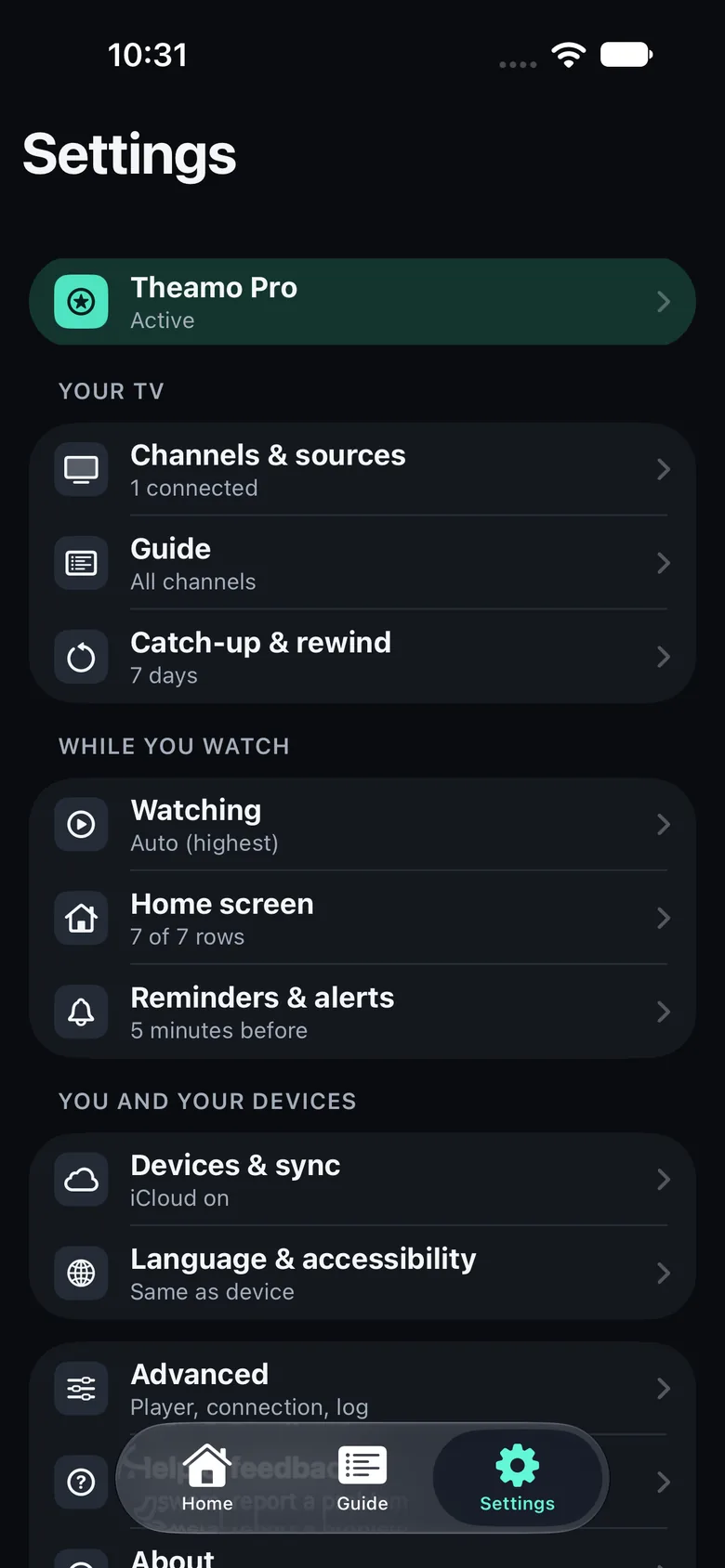
Tap Sources
Tap Sources. It is the second row. If you have no channels yet, the list is empty.
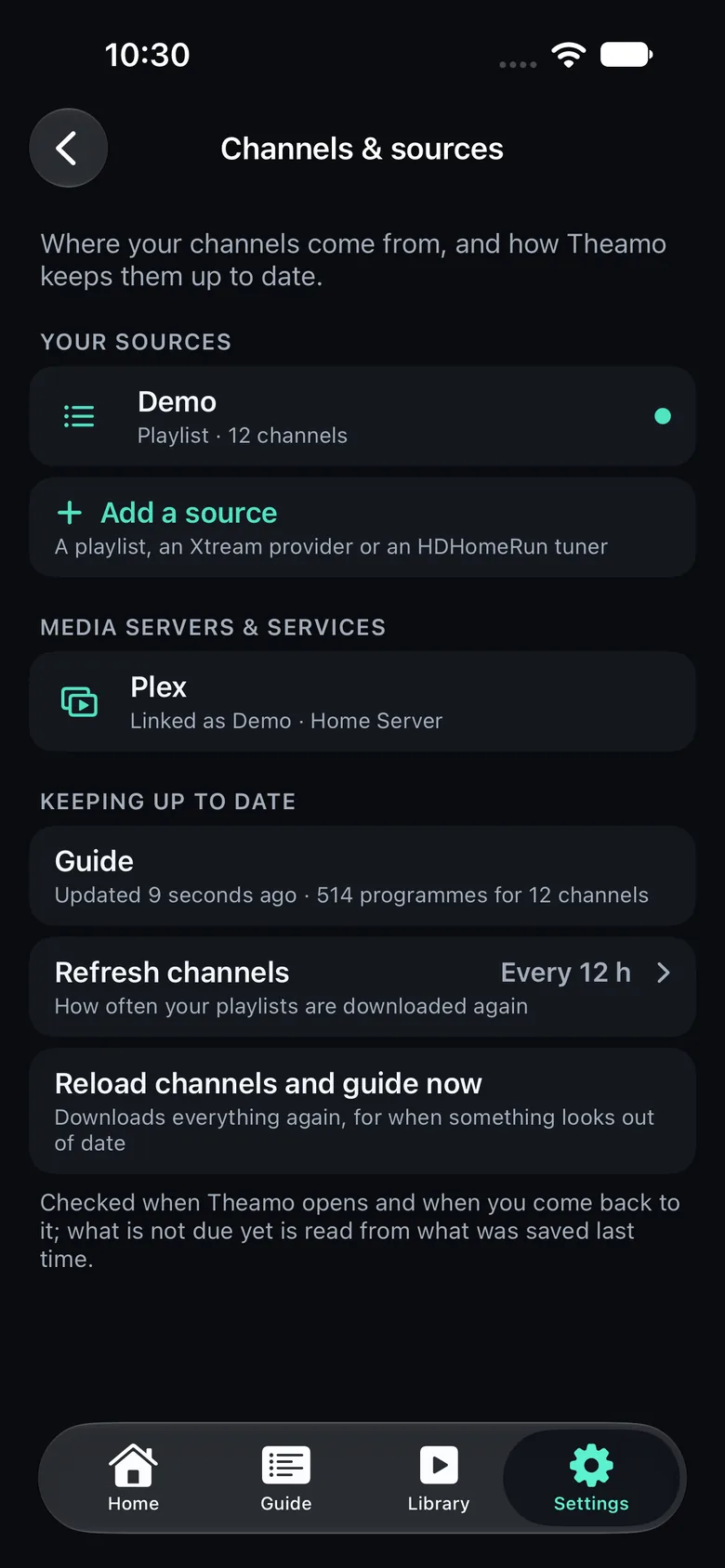
Add a source
Tap the plus button, then choose the kind: a playlist (M3U), Xtream, or an HDHomeRun tuner. Plex has its own row.
Fill in the details
Type the address and the details your provider gave you, then tap Save. Wait a moment while the channels load.
iPad
Open Settings
Tap Settings in the bar at the bottom or at the side. It looks like a gear.
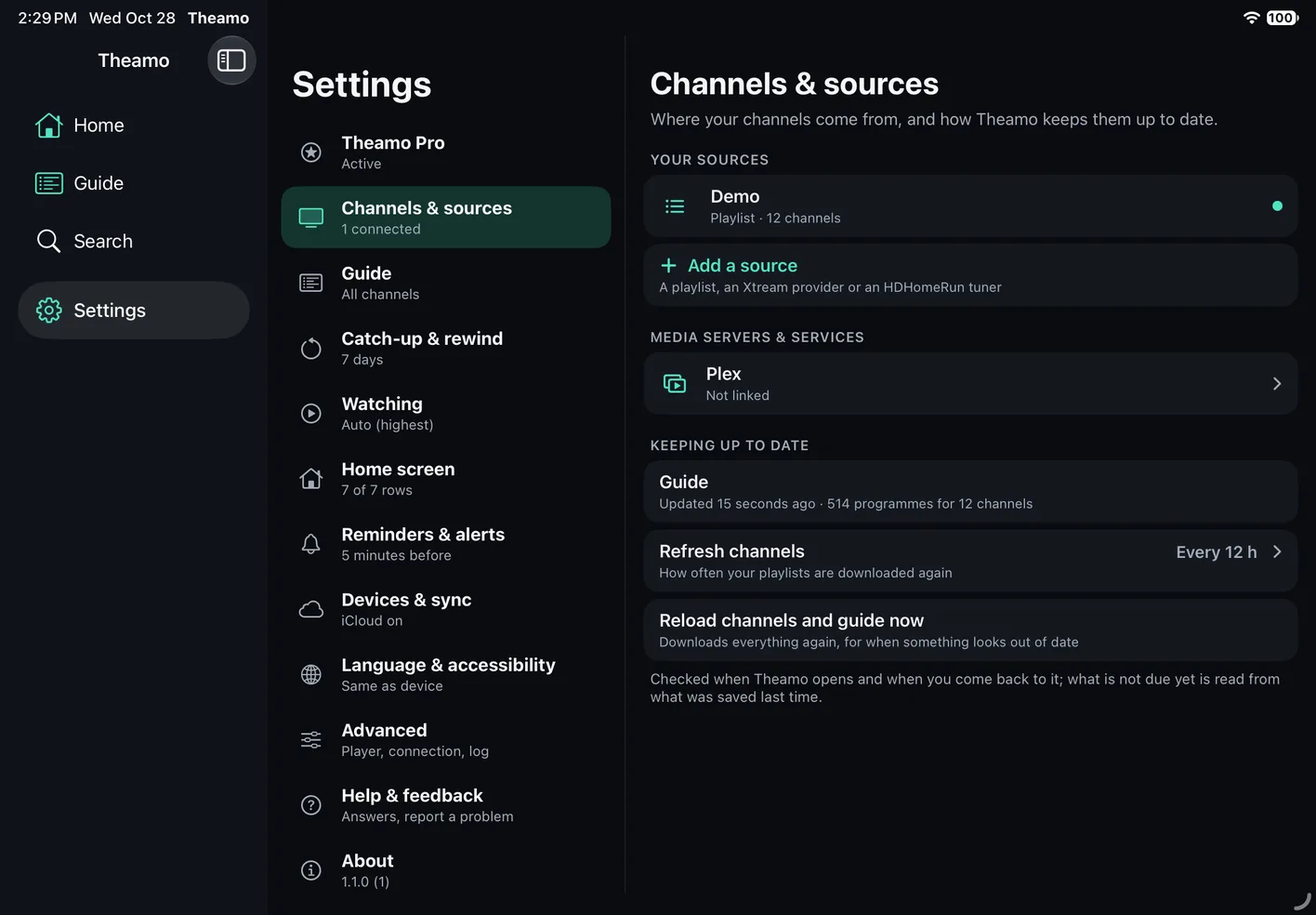
Tap Sources
The list of groups is on the left. Tap Sources.
Add a source
On the right, tap the plus button and choose the kind: a playlist (M3U), Xtream, or an HDHomeRun tuner. Plex has its own row.
Fill in the details
Type the address and the details your provider gave you, then tap Save. Wait a moment while the channels load.
Apple TV
Open Settings
On the Home screen, move up to the bar at the top and then right to Settings. Press the middle of the touch surface to open it.
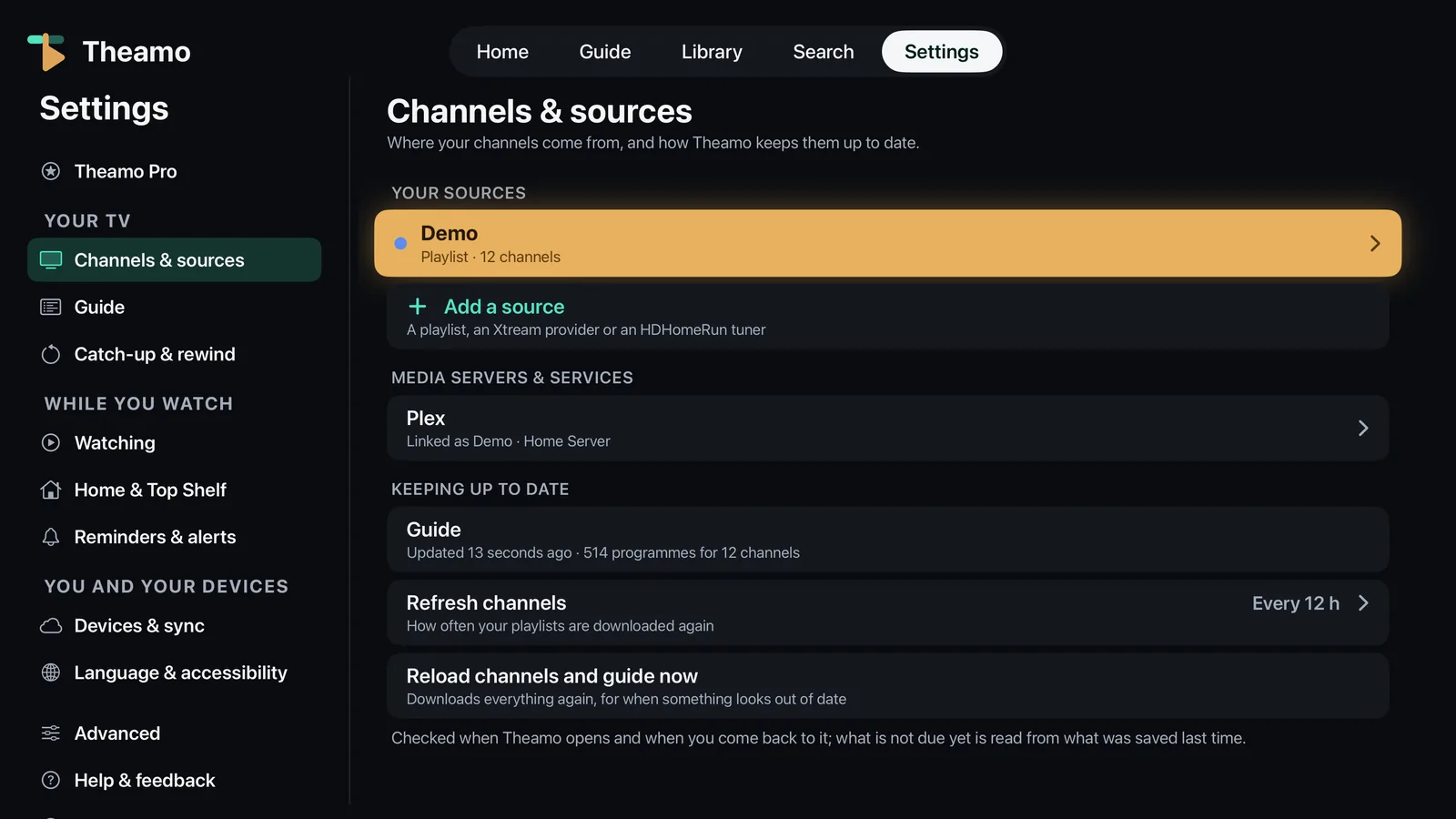
Choose Sources
The groups are listed on the left. Move down to Sources: its page shows on the right at once. Press the middle, or move right, to go into the page.
Add a source
Choose Add a source. Then choose the kind: a playlist (M3U), Xtream, or an HDHomeRun tuner.
Fill in the details
Use the on-screen keyboard to type the address, or type it on your iPhone when the Apple TV offers it. Then choose Save.
2
Watch a channel#
There are two easy ways: pick a channel on Home, or pick one in the Guide.
iPhone
From Home
Tap Home at the bottom left. Tap any picture with a red LIVE label. The channel starts.
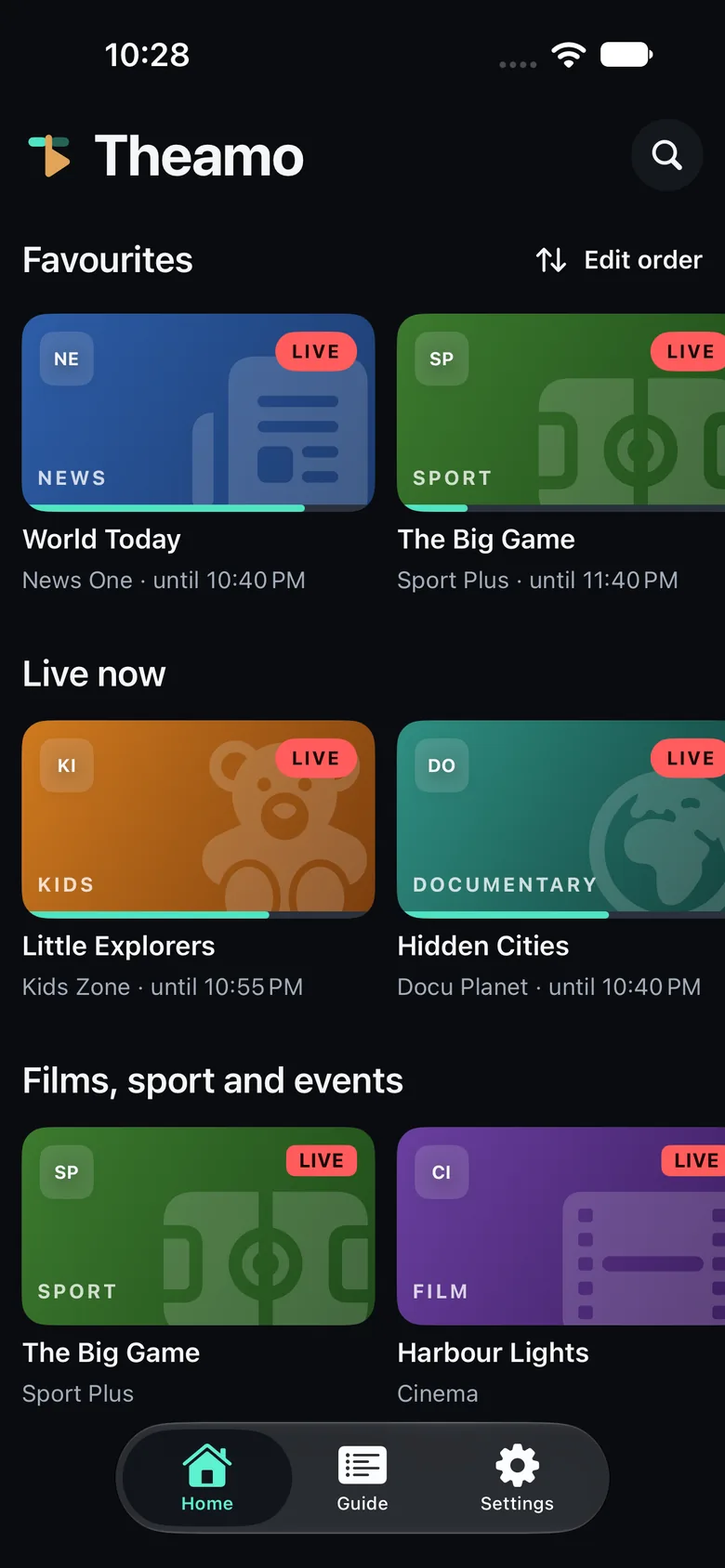
From the Guide
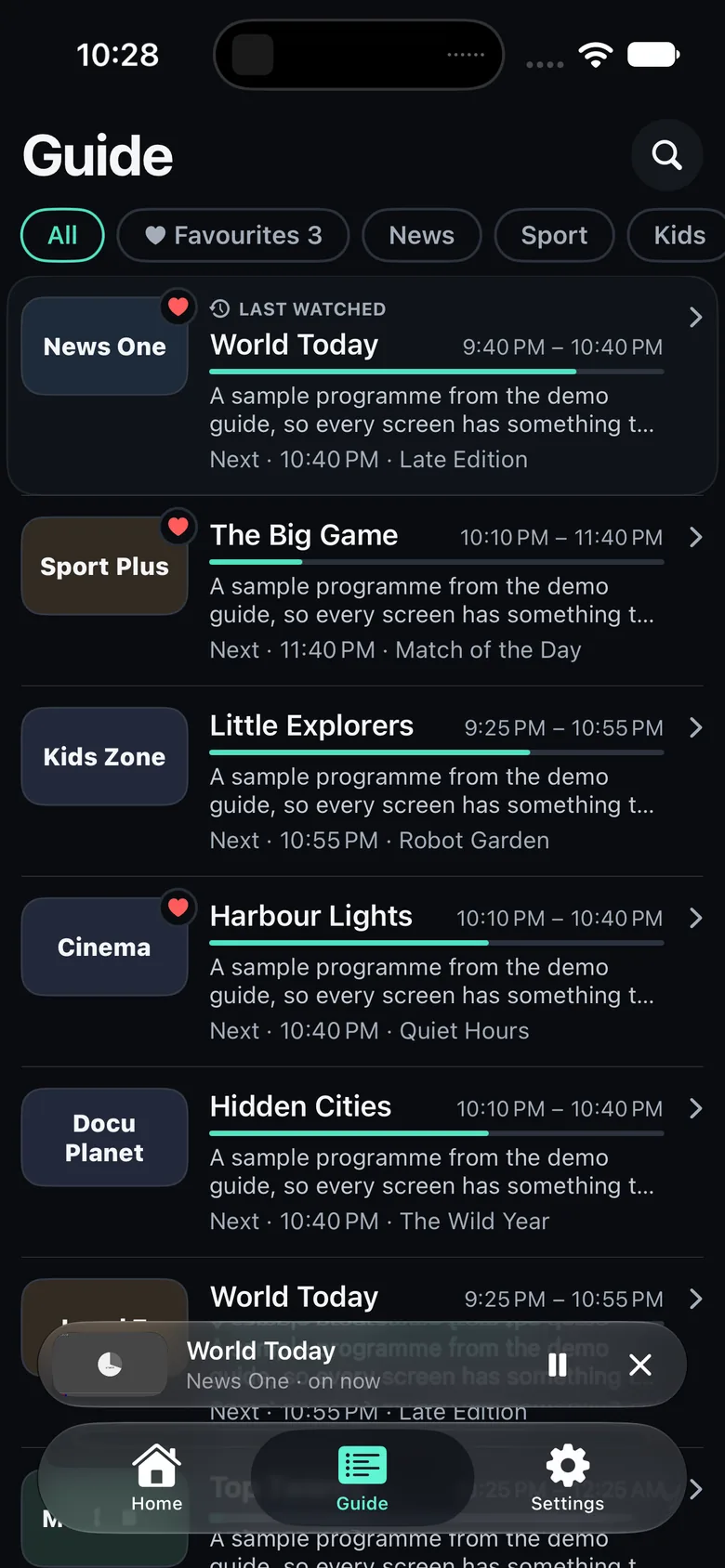
Tap Guide at the bottom. Tap the round picture or logo of a channel. The channel starts at once.
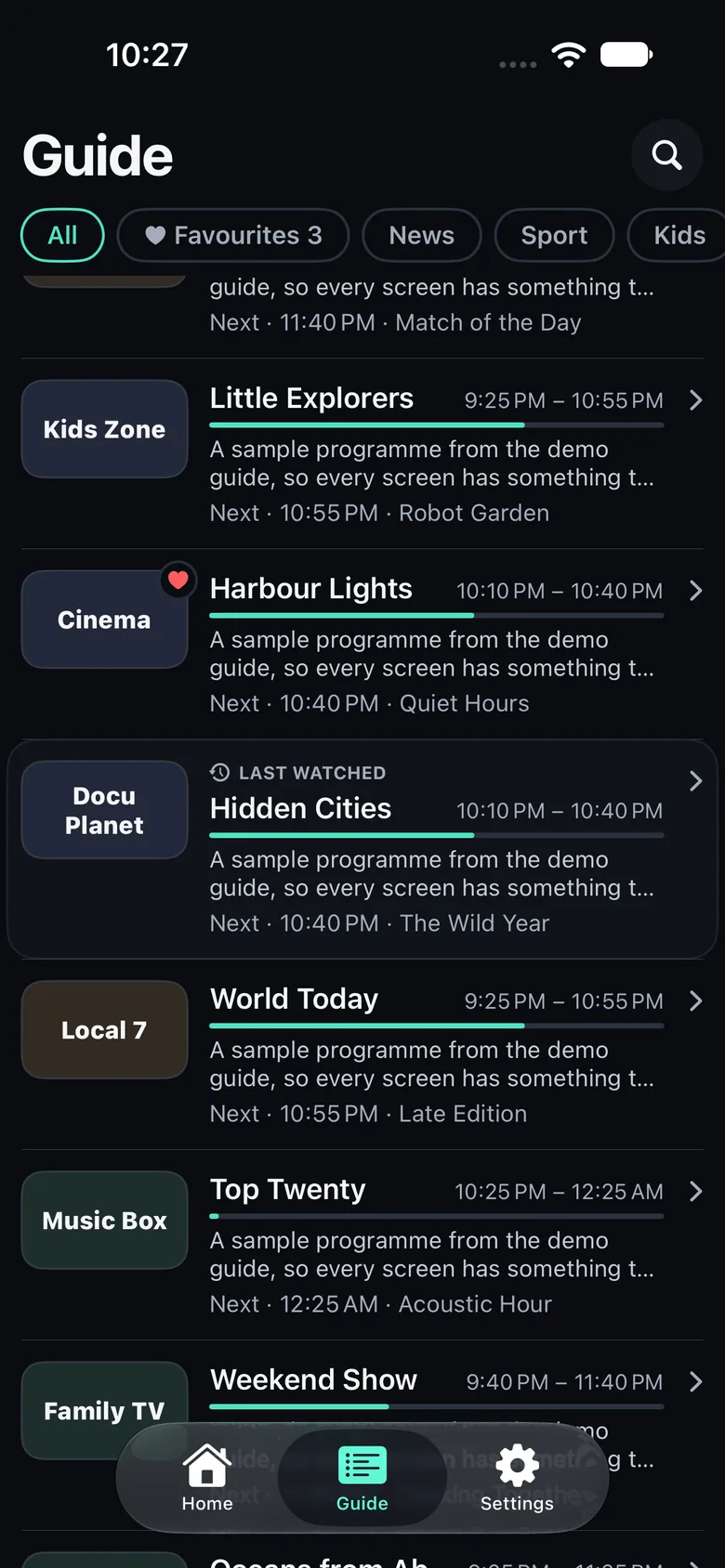
See the buttons
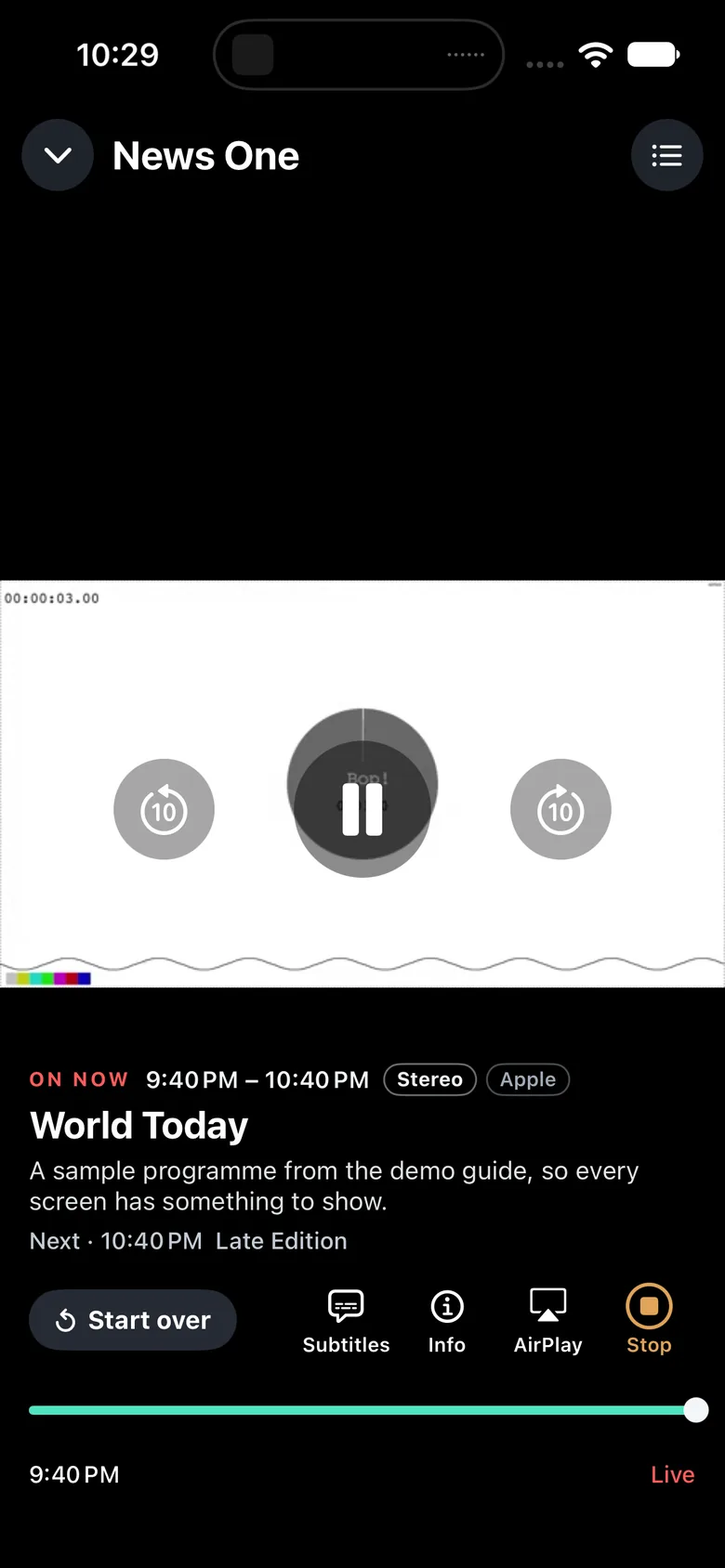
Tap the picture once to show the buttons. They hide by themselves after a few seconds.
Stop watching
Tap the amber square button under the picture to stop. Or swipe the picture down to leave it: a small player stays at the bottom, and its X stops it.
iPad
From Home
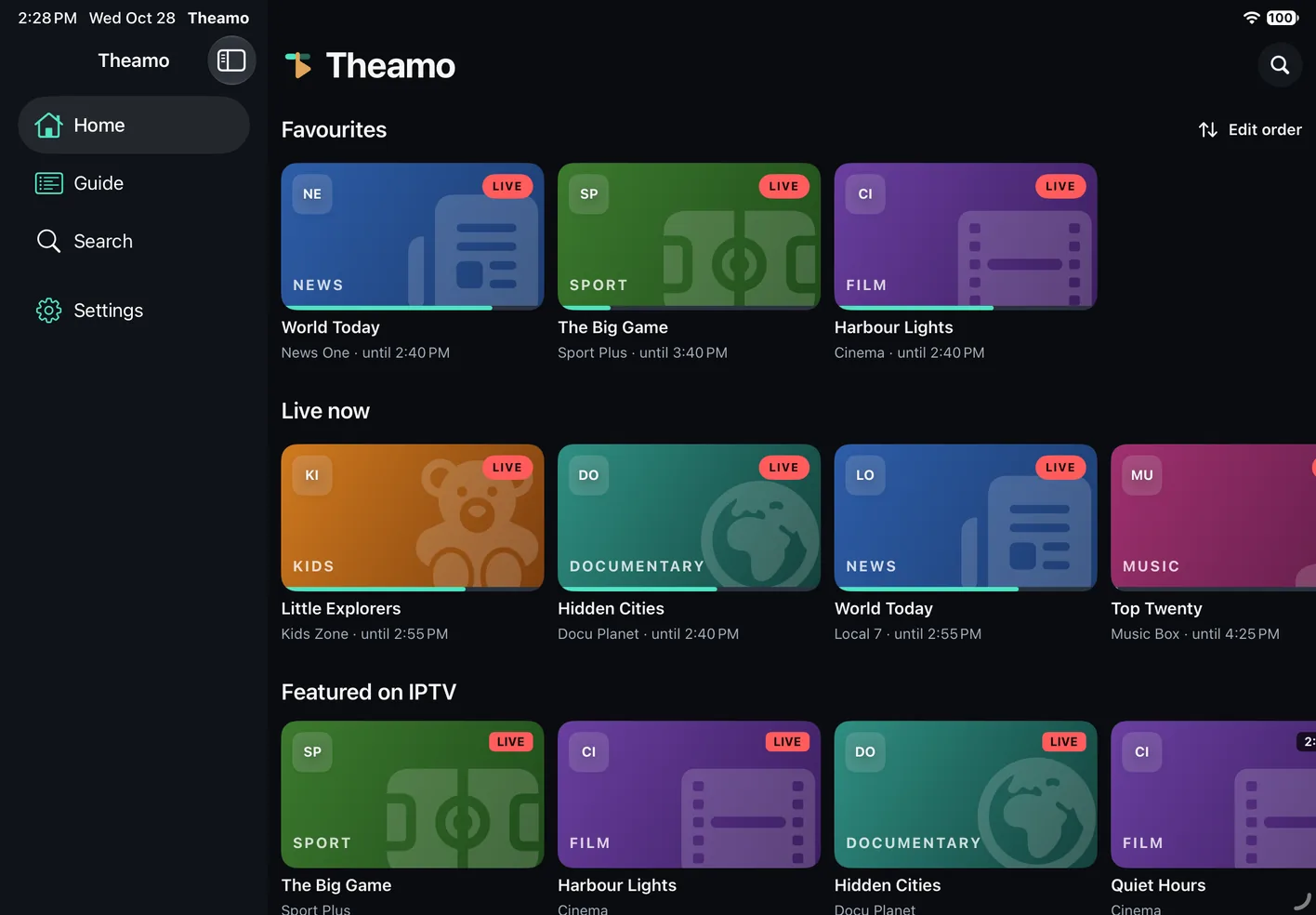
Tap Home. Tap any picture with a red LIVE label. The channel starts.
From the Guide
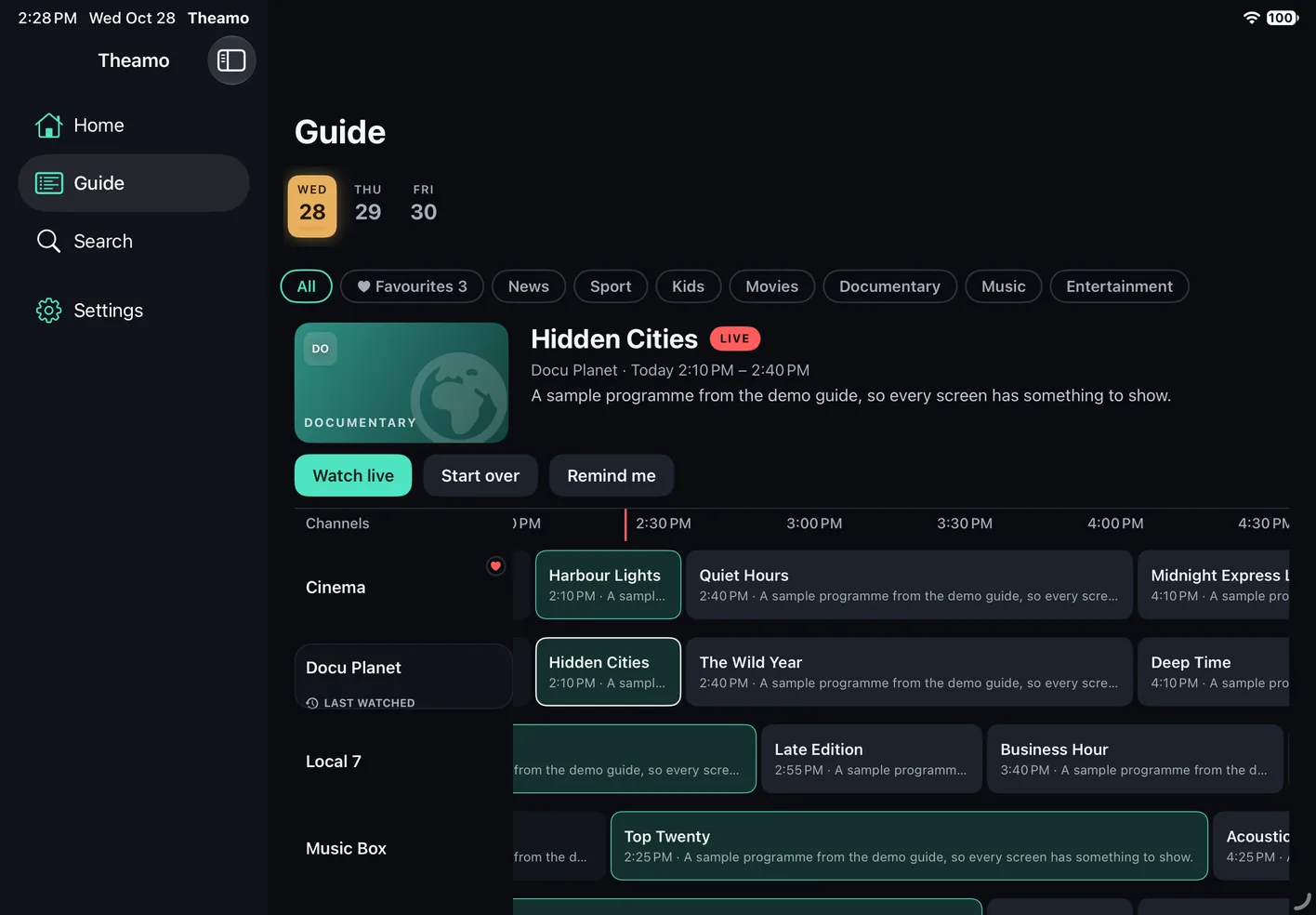
Tap Guide. Each row is a channel. Tap the block that is outlined in green: that is what is on now. It starts at once.
See the buttons
Tap the picture once to show the buttons. They hide by themselves after a few seconds.
Stop watching
Tap the amber square button under the picture to stop. Or swipe the picture down, or tap the arrow at the top left (Minimize): a small window stays in the corner, and its X stops it.
Apple TV
From Home
On Home, move to a picture with a red LIVE label. It gets a colored frame. Press the middle of the touch surface. The channel starts.
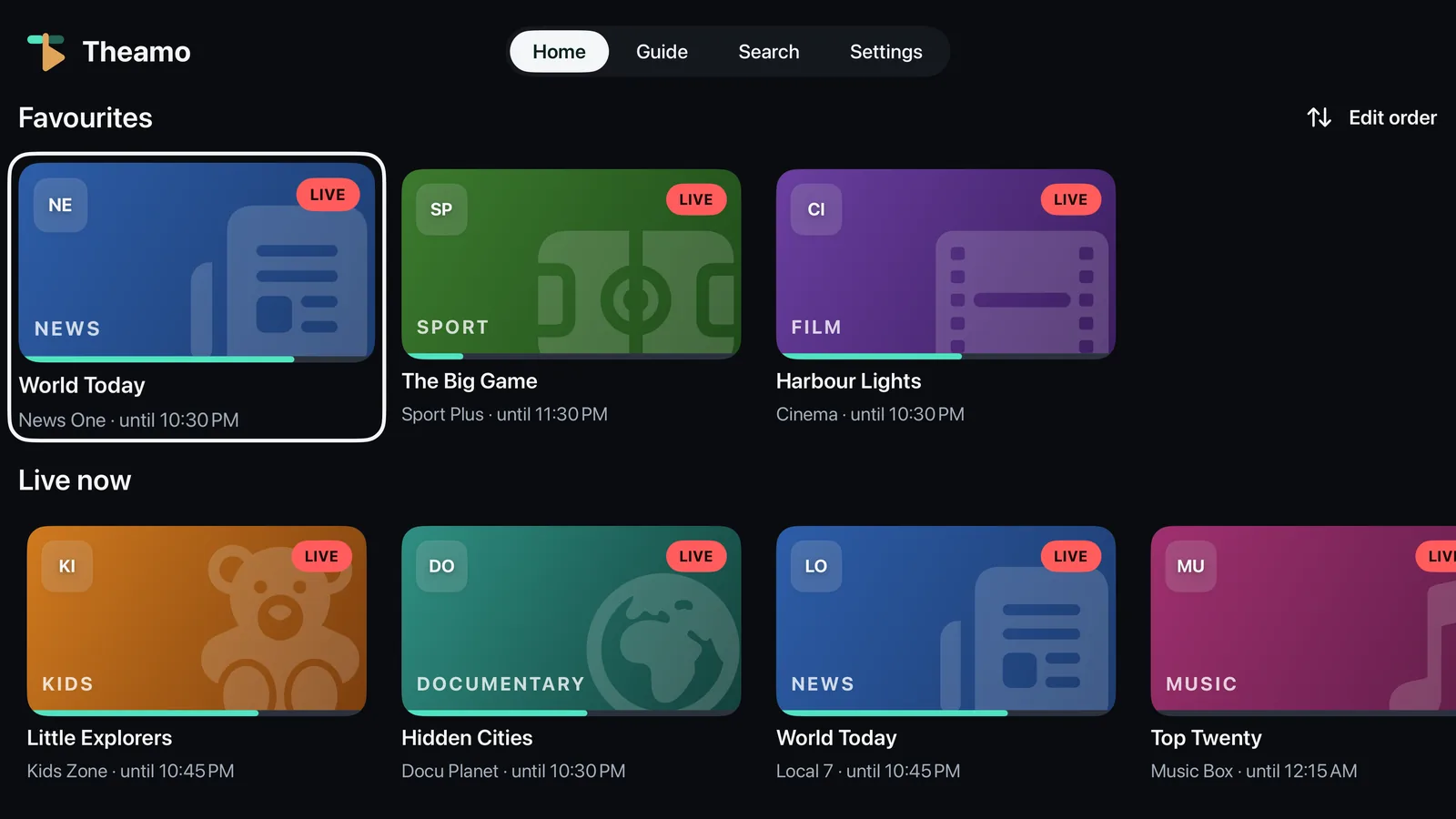
From the Guide
Choose Guide in the bar at the top. Each row is a channel. Move to the block of what is on now, and press the middle.
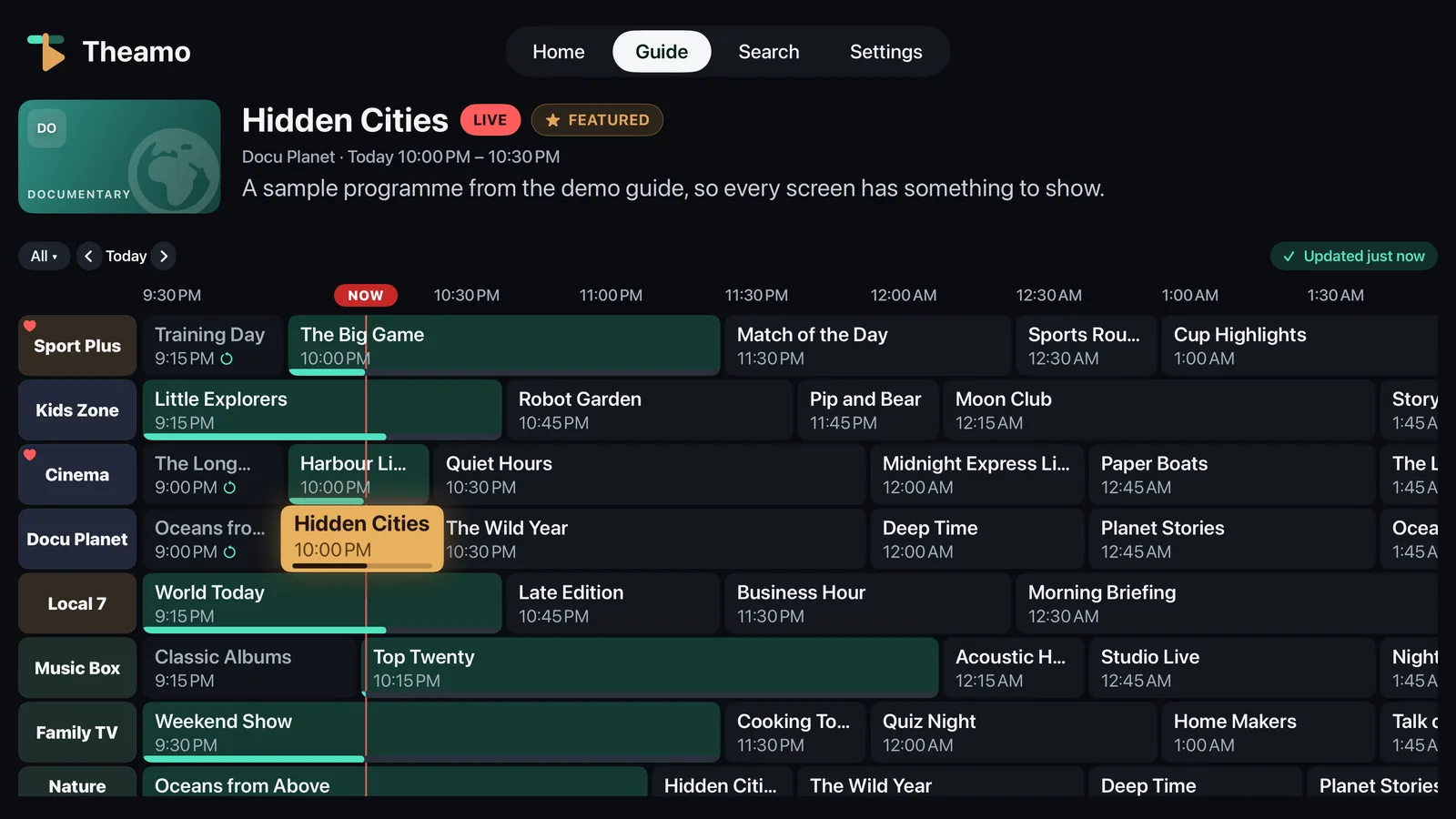
See the buttons
While you watch, press the middle of the touch surface to show the buttons. They hide by themselves after five seconds.
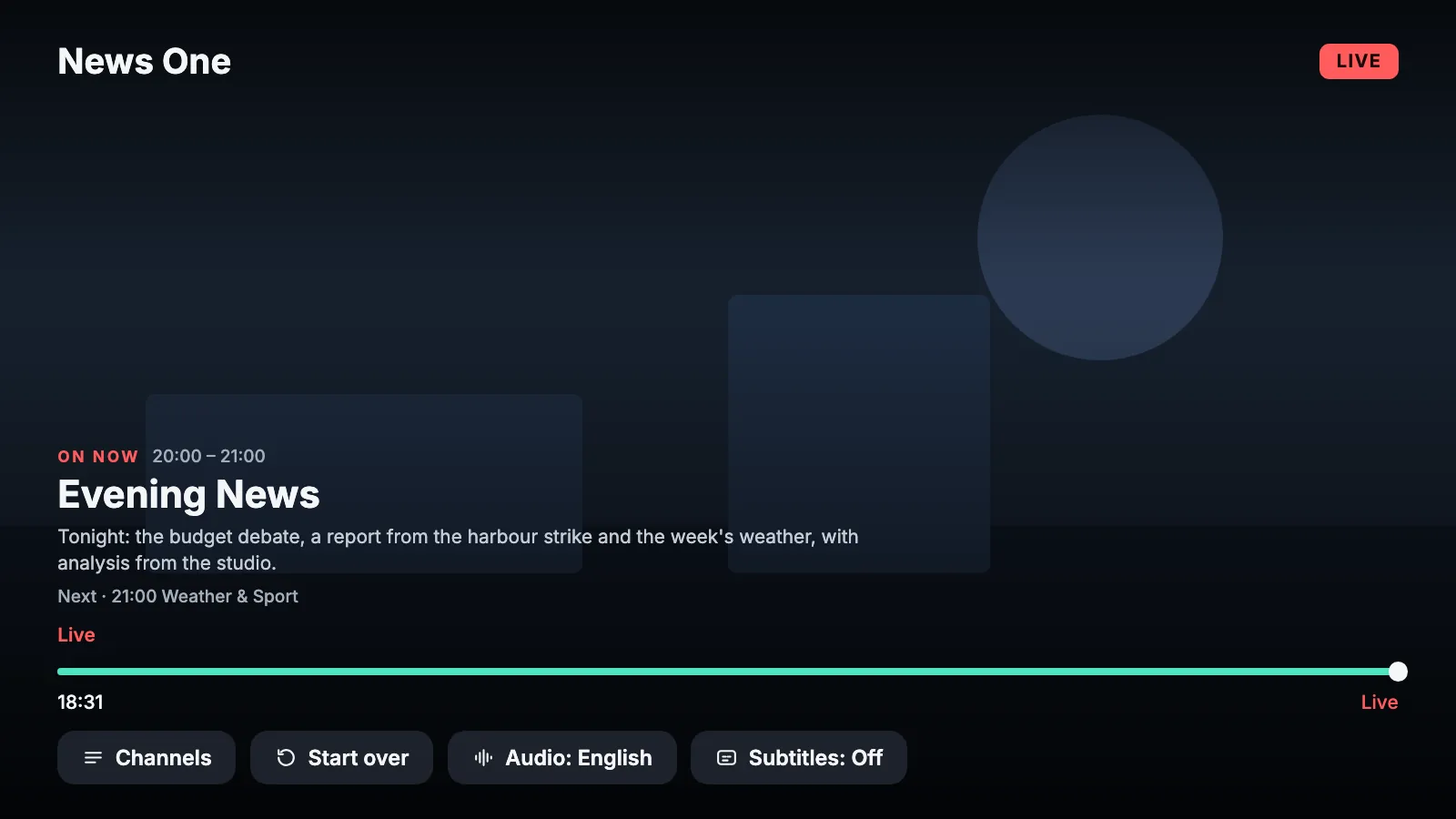
Stop watching
Press Menu (the button with the arrow) once to hide the buttons, and again to leave the channel. A small window with the channel stays in the corner: press Menu to go back to it, Play and Pause to pause it, or hold Play and Pause to stop it, on any page.
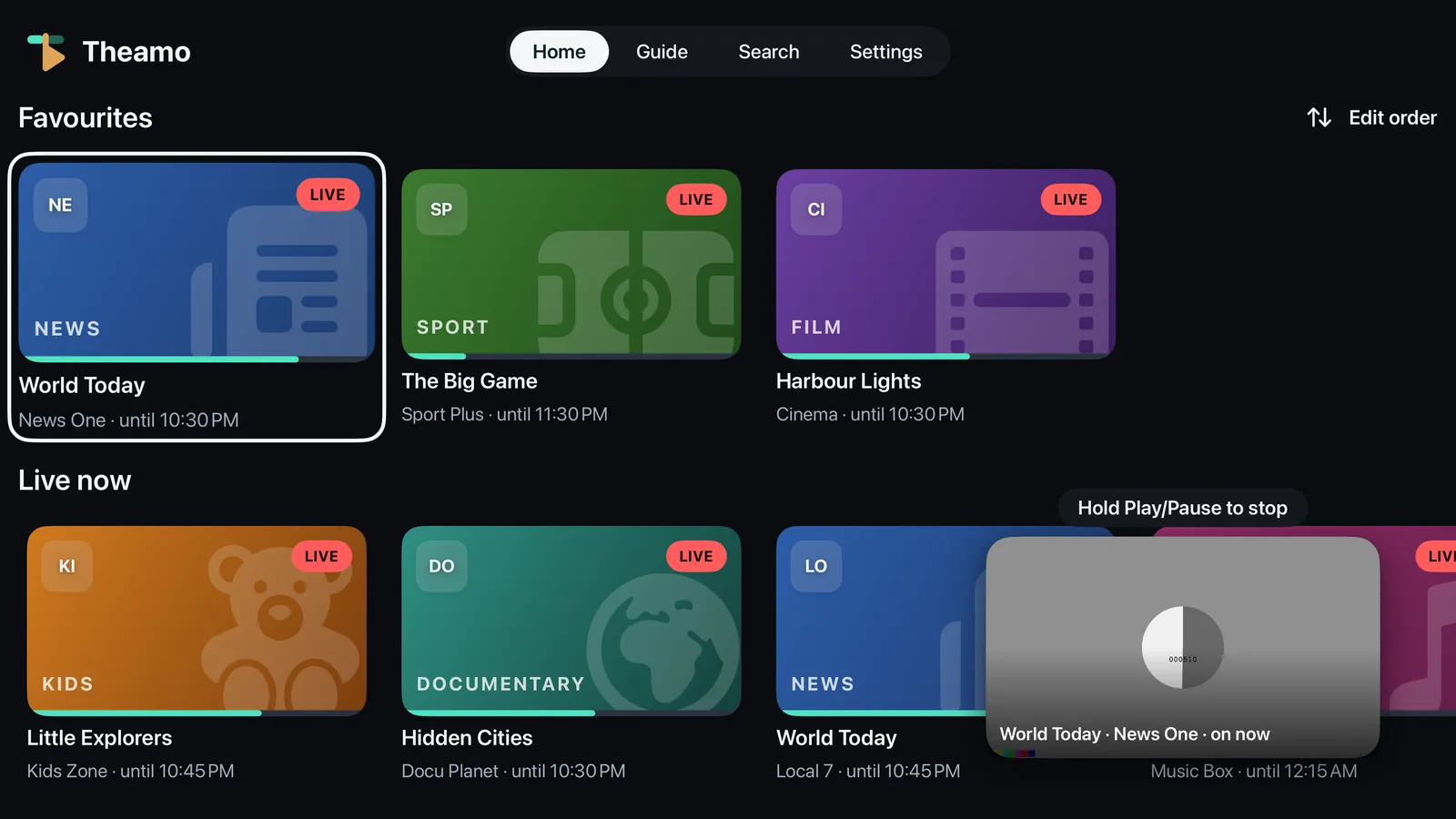
3
Use the guide#
The Guide shows what is on now and what comes next, on every channel.
iPhone
Open the Guide
Tap Guide at the bottom. You see a list. Each channel shows what is on now, a green bar for how far it is, and what comes next.
Choose a group
Above the list are round buttons such as All, Favorites, News and Sport. Tap one to see only those channels. Swipe the row sideways to see more.
Open a channel's page
Tap the words next to a channel, not the picture. A page opens with the programs of that channel, day after day.

Look for a channel
Tap the magnifying glass at the top right and type a few letters of the channel's name.
iPad
Open the Guide
Tap Guide. You see a table: channels down the left side, time across the top. Green shows what is on now.
Move through time
Slide the table sideways to see later or earlier. Slide it up and down to see more channels.
Choose a day
At the top, tap a day to see its programs. Only days that have programs are offered.
Open a program
Tap a block. A program that is on now starts at once, and so does one that is over when the channel has it in its archive. A program that is on later is chosen: its title, its time and Remind me show above the table, and a second tap sets the reminder. To read about a program without watching it, press and hold the block.
Apple TV
Open the Guide
Choose Guide in the bar at the top. You see a table: channels down the left side, time across the top.
Move around
Slide your thumb on the touch surface, or press its edges: left and right go through time, up and down go through channels. The block you are on has an amber frame.
Choose a day or a group
Move up to the round buttons above the table. Choose a group such as Favorites, or the day. A shortcut from anywhere in the table: click Play and Pause to open the list of categories, and hold Play and Pause to jump to the first channel.
Watch something
Press the middle of the touch surface on a block. What is on now starts. A past program starts from the archive when the channel has one.
4
Make a favorite#
A favorite is a channel you watch often. Favorites are kept together in one short list, so you do not have to look through hundreds of channels.
iPhone
Open the Guide
Tap Guide at the bottom of the screen. You see a list of channels, with what is on now.
The quick way: tap the heart
Tap the small heart on the corner of a channel's round picture. It turns red, a message at the bottom says the channel was added to your favorites, and it has an Undo button for five seconds. Tap the red heart to take the channel away again. A single tap on the picture starts the channel at once.
Tap the channel's row
Tap the words next to the channel, not the round picture, because the picture starts the channel. A page with the channel's programs opens.
Tap the heart
The heart is at the top right. Tap it once and it turns solid: the channel is a favorite. Tap it again to take it away.
Check
Go back to the Guide and tap the button called Favorites above the list. Your channel is there.
iPad
Open the Guide
Tap Guide. You see the table of channels and times.
The quick way: tap twice
In the Guide, tap the picture of a channel on the left two times quickly. A heart pops up, and a message at the bottom says the channel was added to your favorites, with an Undo button for five seconds. Tap twice on a favorite and it is taken away. A favorite has a small heart on its picture.
Start the channel
Tap a block of the channel to watch it. While you watch, swipe from the very left edge of the screen to the right, or tap the picture and then the Channels button. To close the list, tap the X at the top.
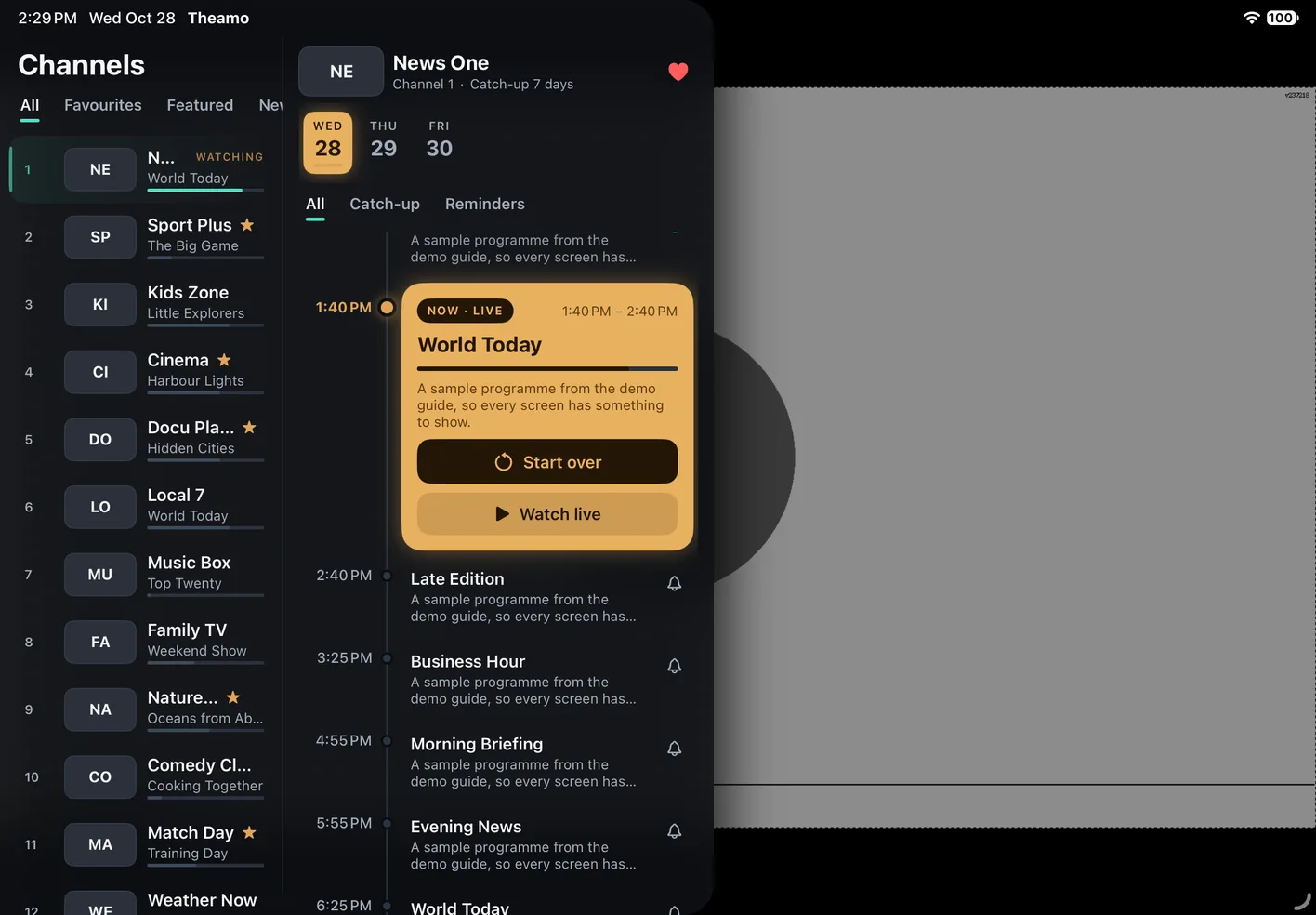
Open the channel's page
The list of channels opens on the left. Tap the channel. Its programs open on the right, with its name at the top.
Tap the heart
The heart is at the top right of the channel's page. Tap it once: the channel is a favorite. Tap it again to take it away.
Apple TV
Start the channel
Choose a channel from Home or the Guide, as in Watch a channel.
Open the list of channels
While you watch, swipe up on the touch surface. The list of channels opens on the left.
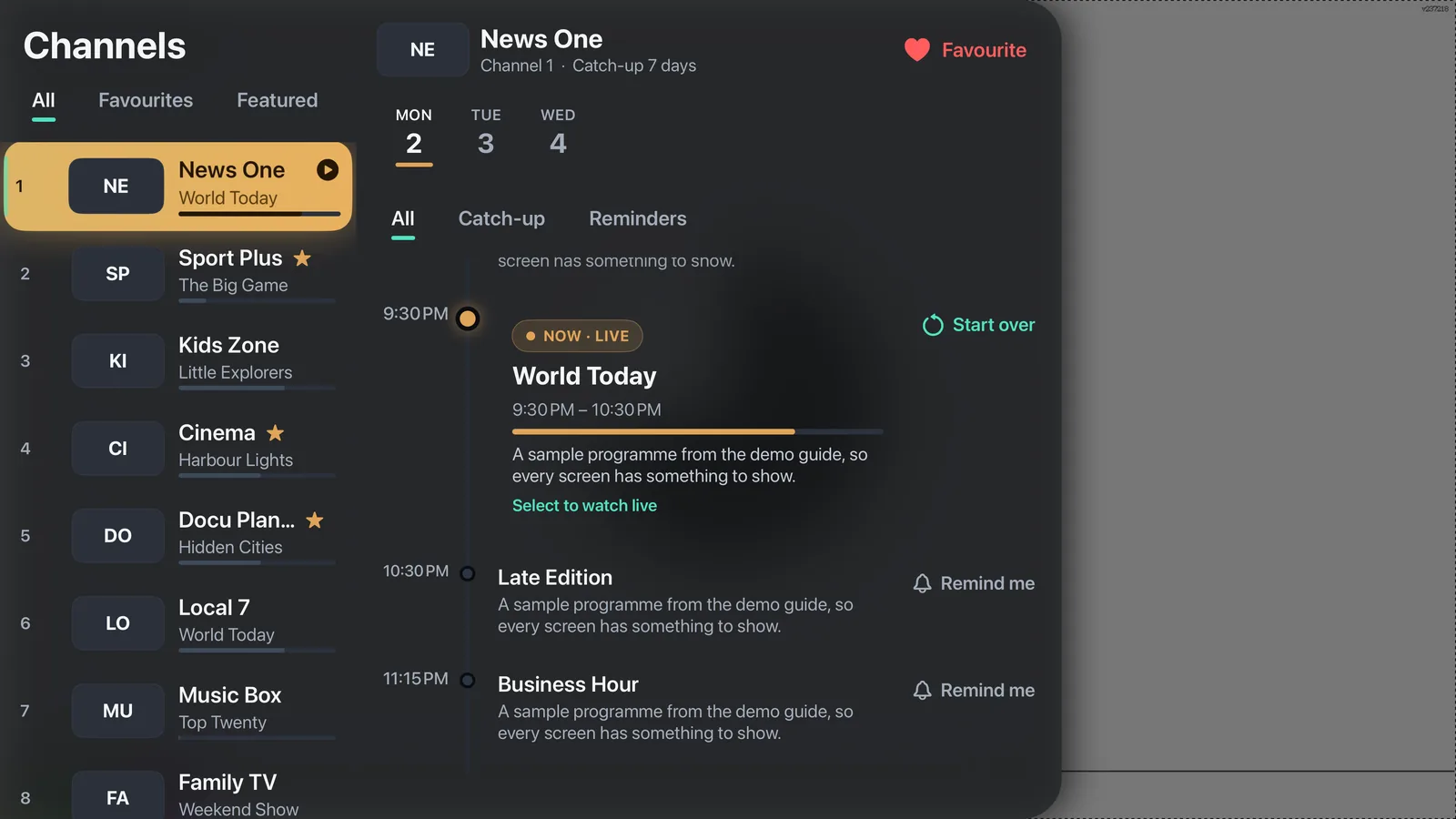
Open the channel's page
Move to the channel and press the middle. Its programs open on the right, with its name at the top.
Choose the heart
Move up and right to the heart next to the name, and press the middle. The channel is a favorite. Press again to take it away.
5
Put your favorites in order#
The channel you watch most can be first. This is also the order you step through when you change channel with Favorites only turned on.
iPhone
Go to your favorites
Tap Home. If you have favorites, the first row is called Favorites. No row? You have not made a favorite yet: see Make a favorite.
Tap Edit order
It is at the right of the row's title. You can also tap it in the Guide, next to the Favorites button.
Move a channel
Hold your finger on the three lines at the right of a channel and slide it up or down. To take a channel out, swipe its row.
Tap Done
Your order is saved.
iPad
Go to your favorites
Tap Home. If you have favorites, the first row is called Favorites. No row? You have not made a favorite yet: see Make a favorite.
Tap Edit order
It is at the right of the row's title.
Move a channel
Hold your finger on the three lines at the right of a channel and slide it up or down. To take a channel out, swipe its row.
Tap Done
Your order is saved.
Apple TV
Go to your favorites
On Home, the first row is called Favorites, if you have made a favorite. No row? See Make a favorite.
Choose Edit order
Move to Edit order at the right of the row's title, and press the middle.
Move a channel
Move to a channel. Use the arrows beside it: press the middle on the up arrow to move it up one place, or on the down arrow to move it down.
Choose Done
Your order is saved.
6
Change channel while you watch#
You do not have to leave the picture to see other channels.
iPhone
Open the list of channels
Swipe from the very left edge of the screen to the right. Or show the buttons and tap Channels. To close the list, tap the X at the top, or swipe it to the left.
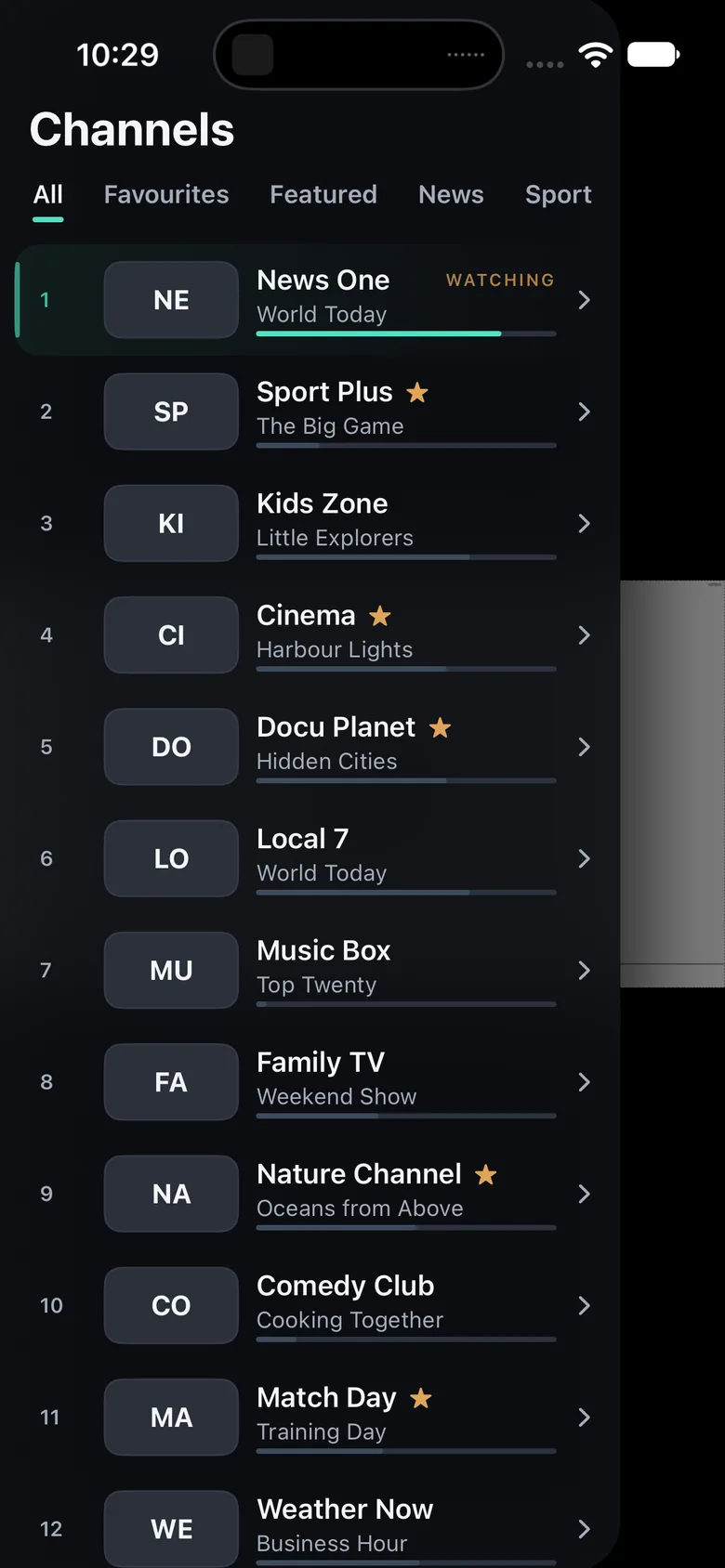
Pick a channel
Tap a channel. You see what it shows now and next. Tap Watch live to switch to it.
Only favorites
At the top of the list, tap Favorites to see only your favorite channels.
iPad
Open the list of channels
Show the buttons and tap Channels. A list opens on the left, with the channel's programs on the right.
Pick a channel
Tap a channel. Its programs show on the right. Tap Watch live to switch to it.
Only favorites
At the top of the list, tap Favorites to see only your favorite channels.
Apple TV
Next and previous channel
On the touch surface, press the top edge for the next channel and the bottom edge for the previous one. Hold it to keep going.
The list of channels
Swipe up on the touch surface. A list opens on the left with what is on now.
Pick a channel
Move to a channel and press the middle. Its programs show on the right. Choose Watch live to switch to it.
7
Pause, go back, go live#
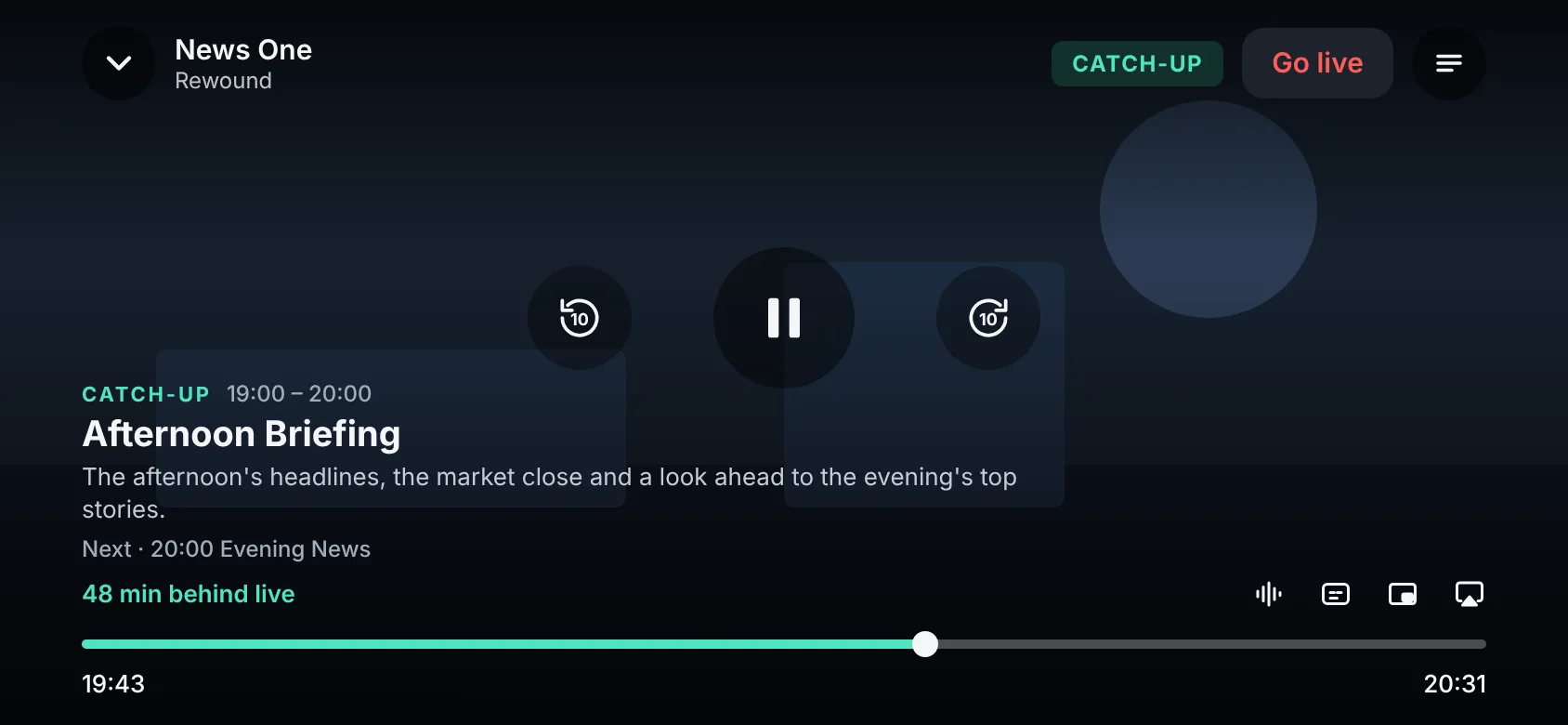
On a channel that keeps a recording you can pause live TV, go back and catch what you missed. The picture then shows how far behind live you are.
iPhone
Pause and play
Tap the picture to show the buttons, then tap the big pause button in the middle. Tap it again to play.
Go back a little
Use the progress bar: slide the round knob to the left to go back, or tap the little arrow that goes back ten seconds.
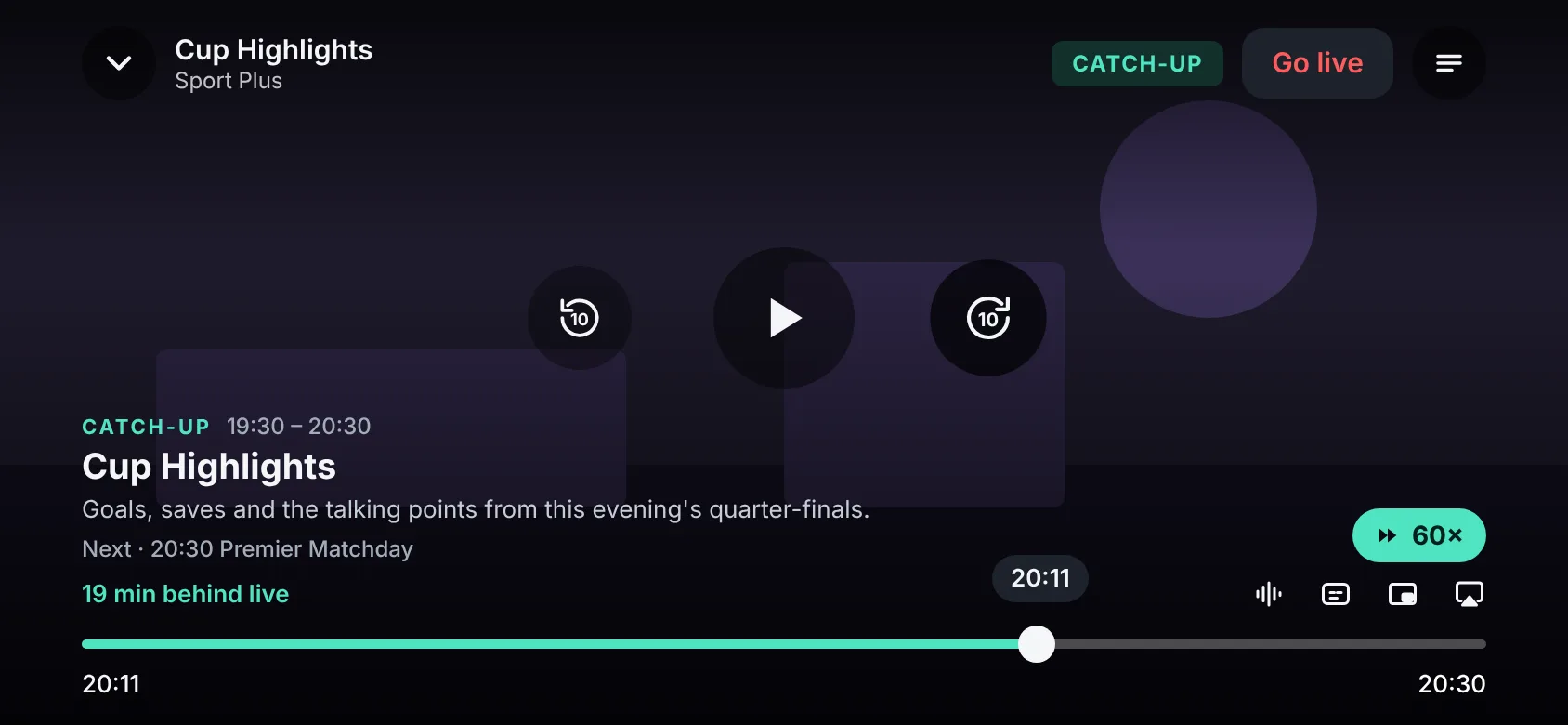
Go back to live
Tap the Live button. The picture jumps to what is happening now.
iPad
Pause and play
Tap the picture to show the buttons, then tap the big pause button in the middle. Tap it again to play.
Go back a little
Use the progress bar: slide the round knob to the left to go back, or tap the little arrow that goes back ten seconds.
Go back to live
Tap the Live button. The picture jumps to what is happening now.
Apple TV
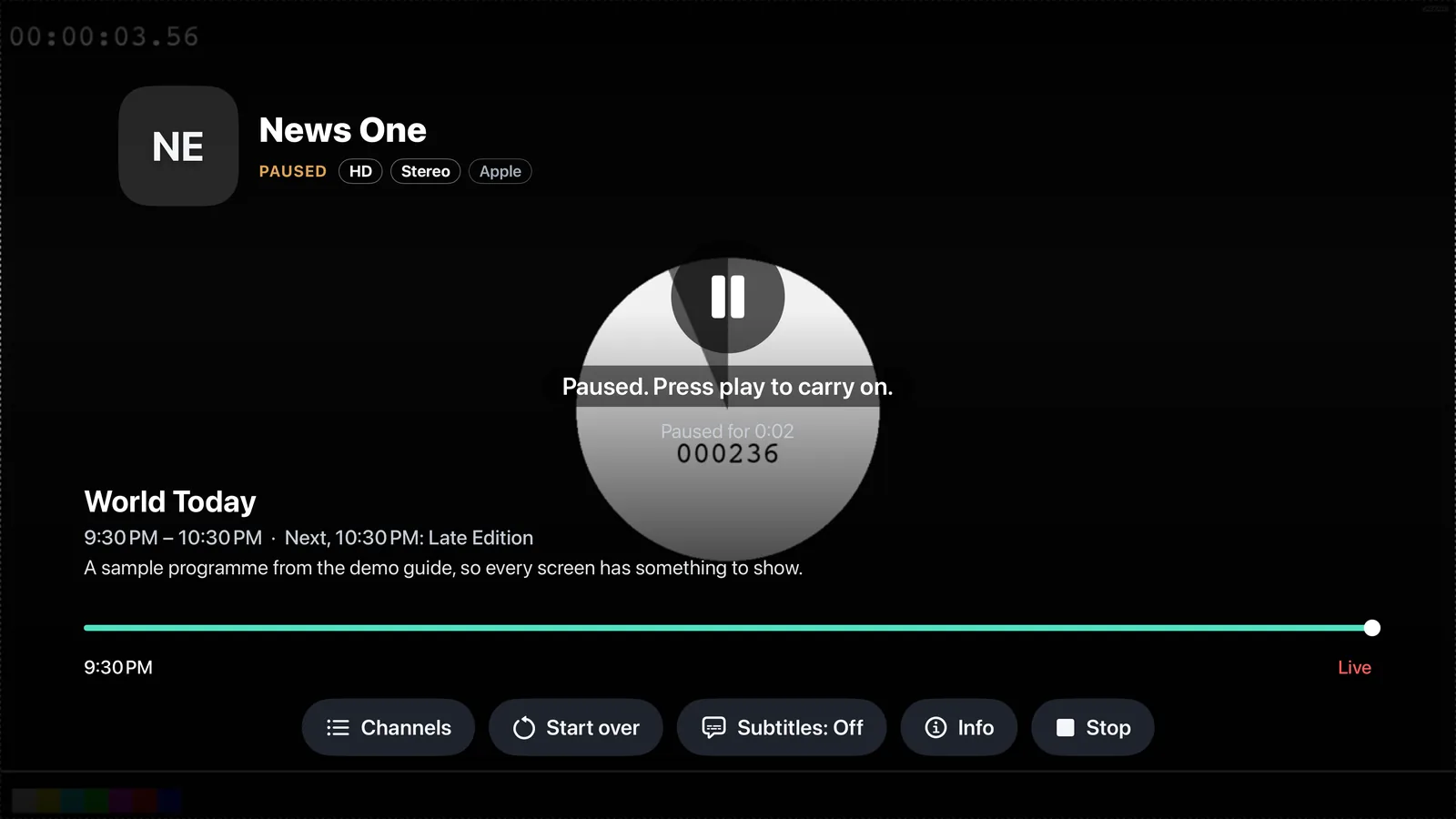
Pause and play
Press the Play and Pause button on the remote, the one with the two symbols. Press it again to play.
Go back a little
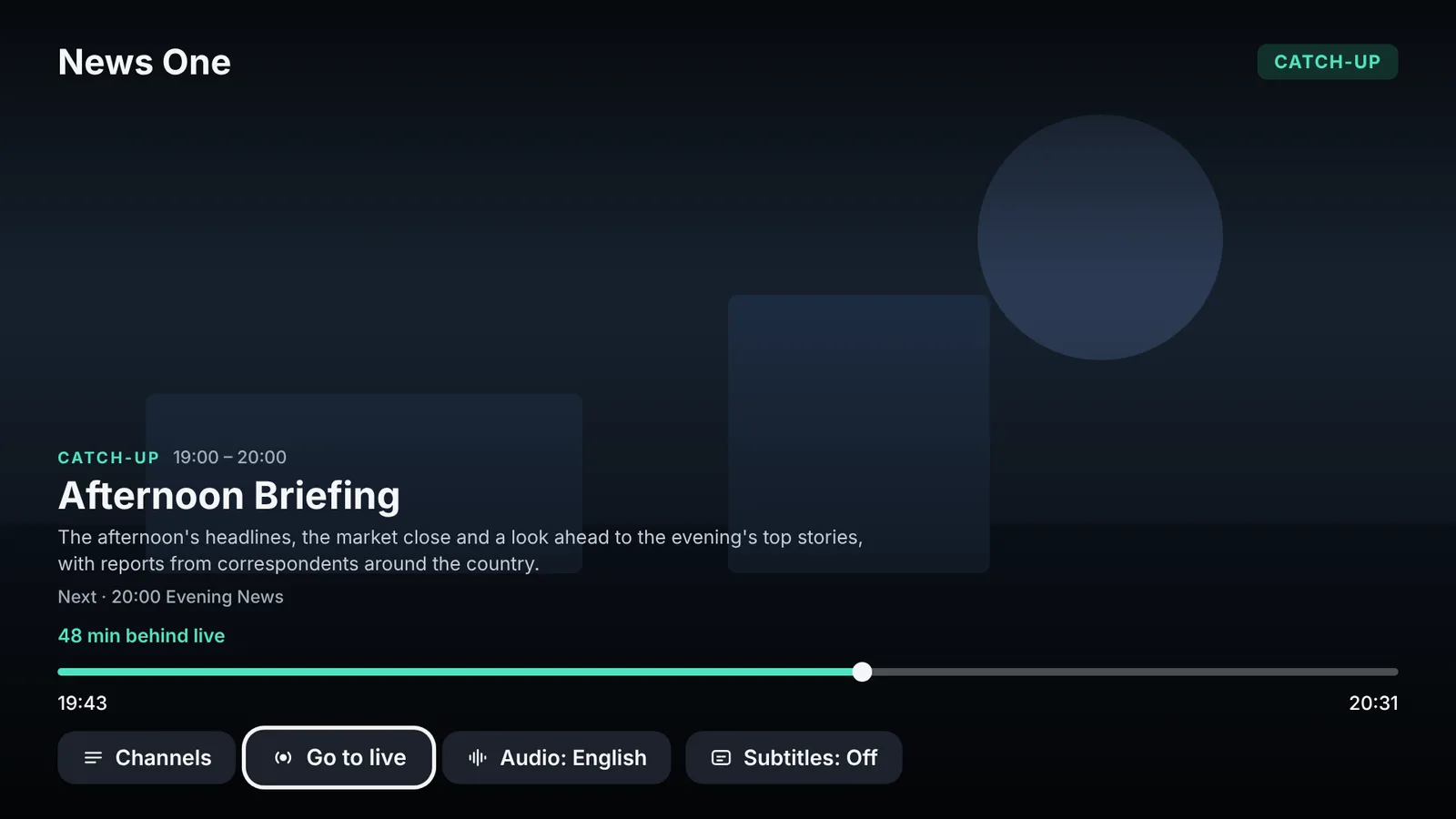
Press the left edge of the touch surface to go back ten seconds. Hold it to keep going back.
Go back to live
Hold the right edge of the touch surface, or choose the Live button. The picture jumps to what is happening now.
8
Catch-up and start over#
Some channels keep their programs for days. With those you can watch a program that already aired, or start the one that is on from the beginning. A small arrow or the word Catch-up marks them.
iPhone
Open the channel's page
In the Guide, tap the words next to a channel. Choose a day above the list: the days before today are the archive.
Pick a program
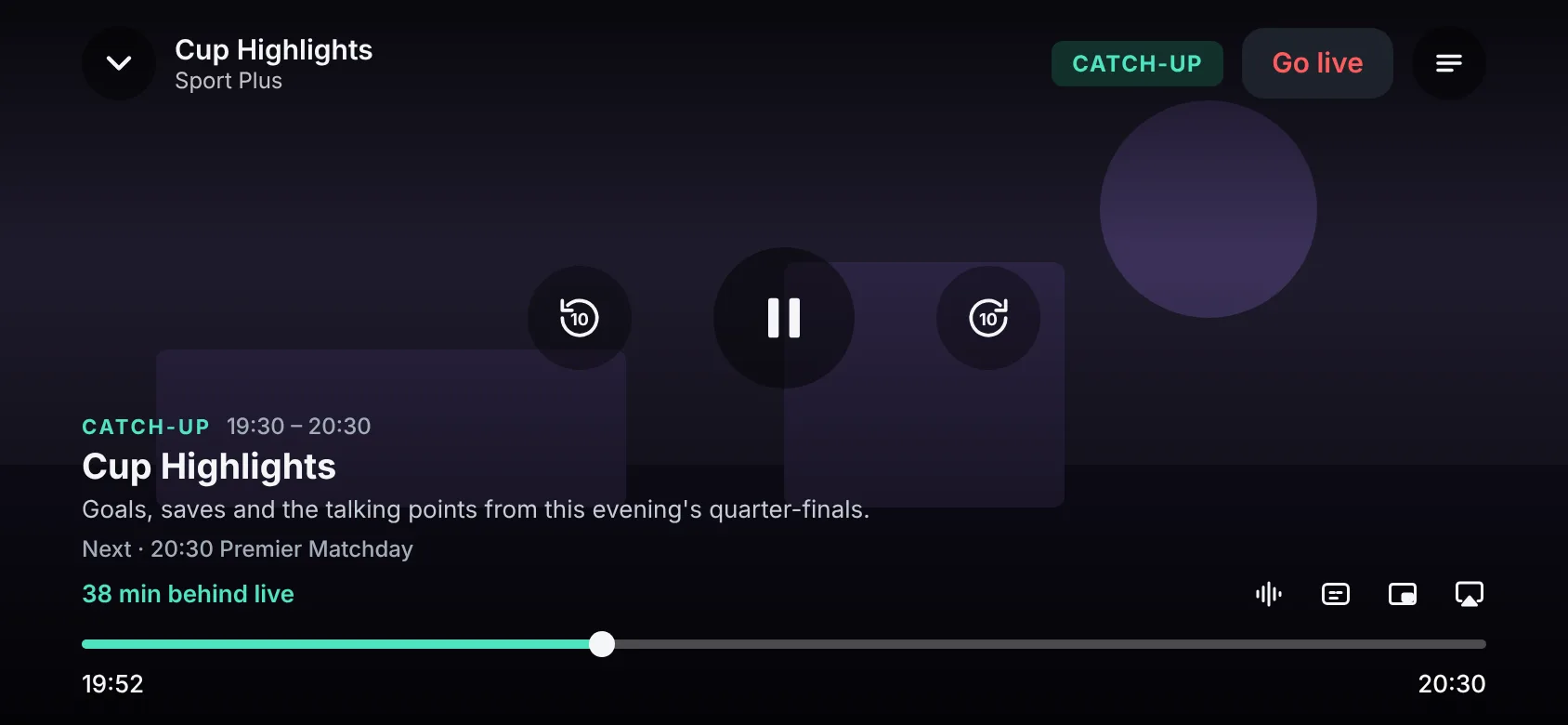
Tap a program that has already aired. Tap Watch from start.
Start over what is on now
On the channel's page, tap what is on now and then Start over. Or, while you watch, tap Start over between the times of the bar.
iPad
Find the program
In the Guide, slide the table to the left to go back in time, or choose an earlier day. Programs you can watch again have a small arrow.
Tap the program
A card opens. Tap Watch from start.
Start over what is on now
Tap the block that is on now, and then Start over. Or, while you watch, tap Start over between the times of the bar.
Apple TV
Find the program
In the Guide, press the left edge of the touch surface to go back in time, or choose an earlier day. Programs you can watch again have a small arrow.
Press the middle
Press the middle of the touch surface on the program. It starts from the beginning.
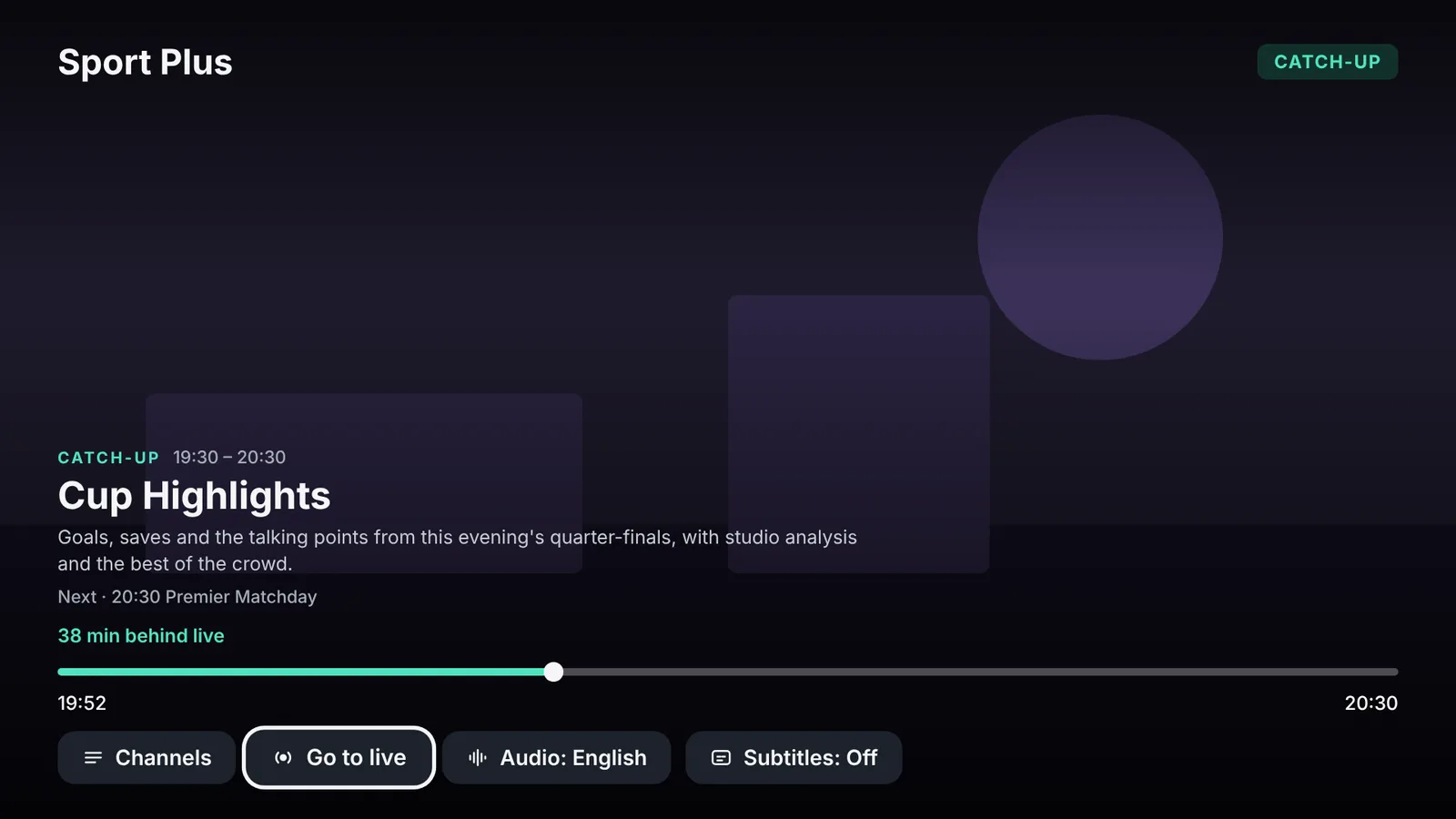
Start over what is on now
While you watch a channel, click the middle to open the buttons, and choose Start over.
9
Audio and subtitles#
Choose the language you hear and the subtitles you read. Theamo remembers your choice for each film or show.
iPhone
Show the buttons
Tap the picture once.
Tap the Audio or Subtitles button
They are among the small buttons under the picture. A list opens with two tabs, Audio and Subtitles.
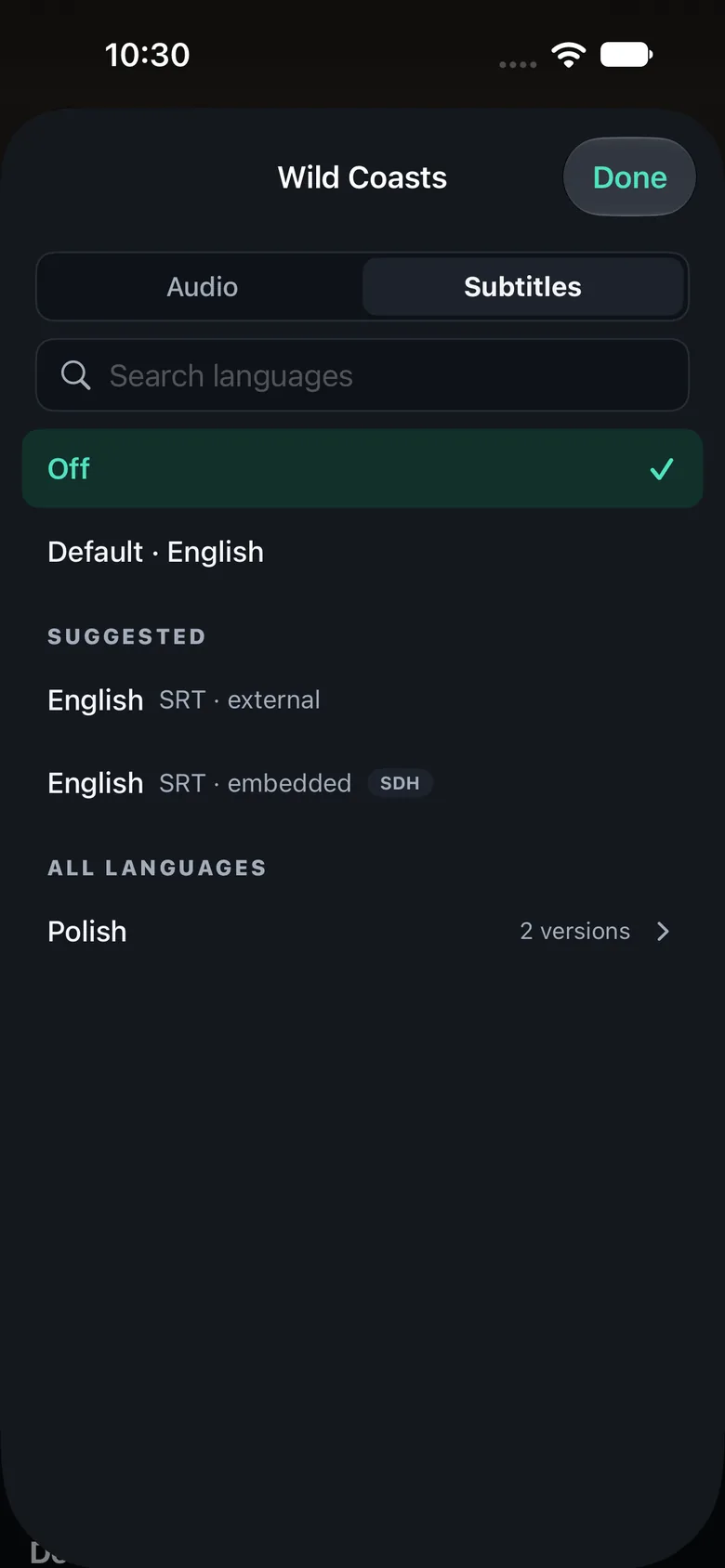
Choose
Tap the language you want. A tick shows your choice. To turn subtitles off, tap Off at the top of the Subtitles tab. Many tracks of one language are shown as one row: tap it to open them.
iPad
Show the buttons
Tap the picture once.
Tap the Audio or Subtitles button
They are among the small buttons under the picture. A list opens with Audio on the left and Subtitles on the right.
Choose
Tap the language you want. A tick shows your choice. To turn subtitles off, tap Off at the top of the Subtitles list. Type a few letters in the search box to find a language quickly.
Apple TV
Show the buttons
On a live channel, click the middle of the touch surface: the buttons open and you can move along them. In a program from the archive or a film, click the middle to pause, and click the bottom to show the buttons.
Choose Audio or Subtitles
Click the middle to open the buttons, and choose Audio or Subtitles. A full screen opens: Audio on the left, Subtitles on the right.
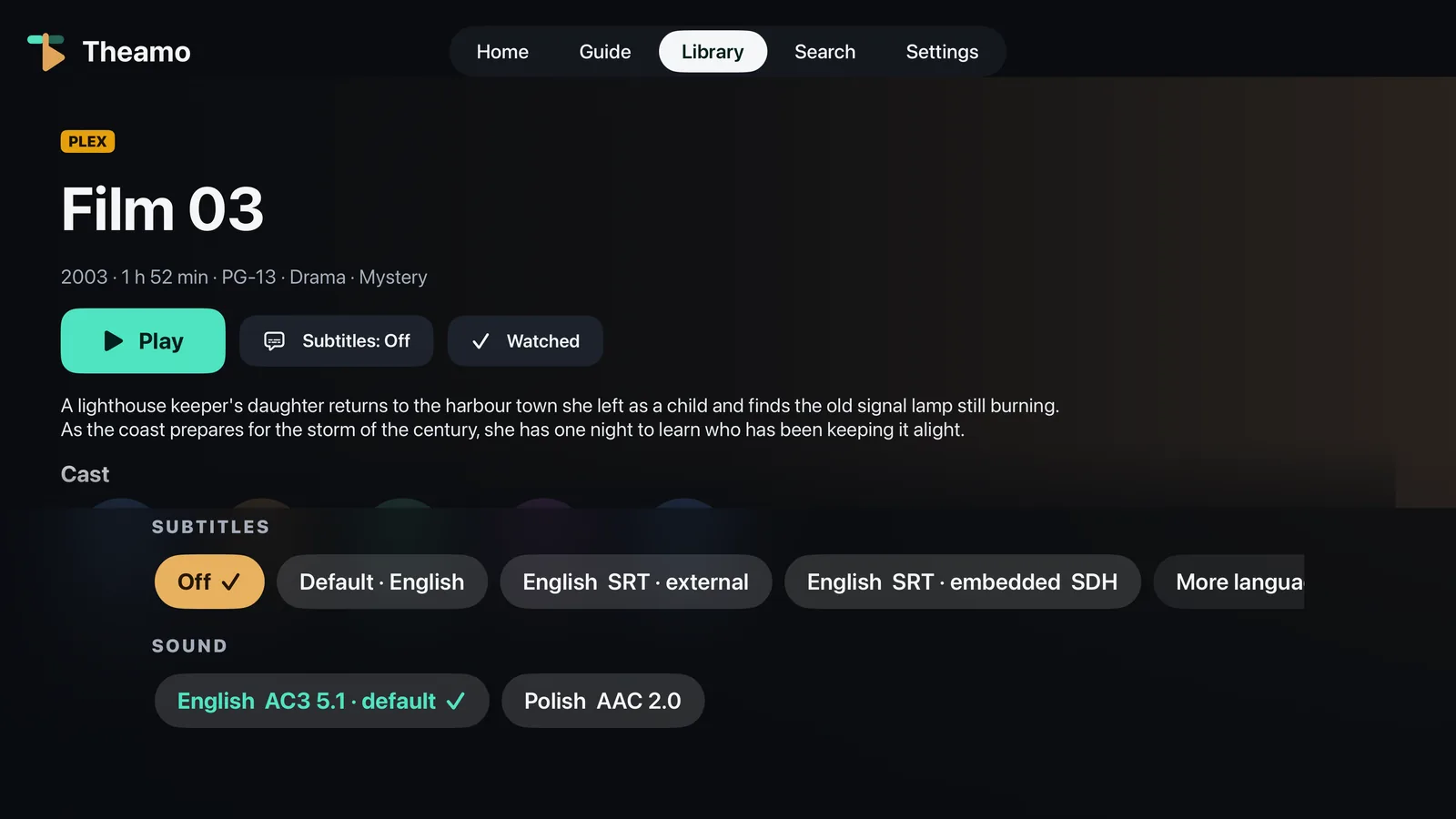
Choose
Move to the language you want and press the middle. A tick shows your choice. Off is the first row of the subtitles. Press Up in the Subtitles list to reach Size, place and look at the top right. Press Menu to close the list.
10
Reminders#
Tell Theamo which program you do not want to miss. It reminds you when it starts.
iPhone
Find a coming program
In the Guide, tap the words next to a channel. On its page, find a program that starts later.
Tap the bell
Tap the little bell at the right of the program. It fills in: you will be reminded.
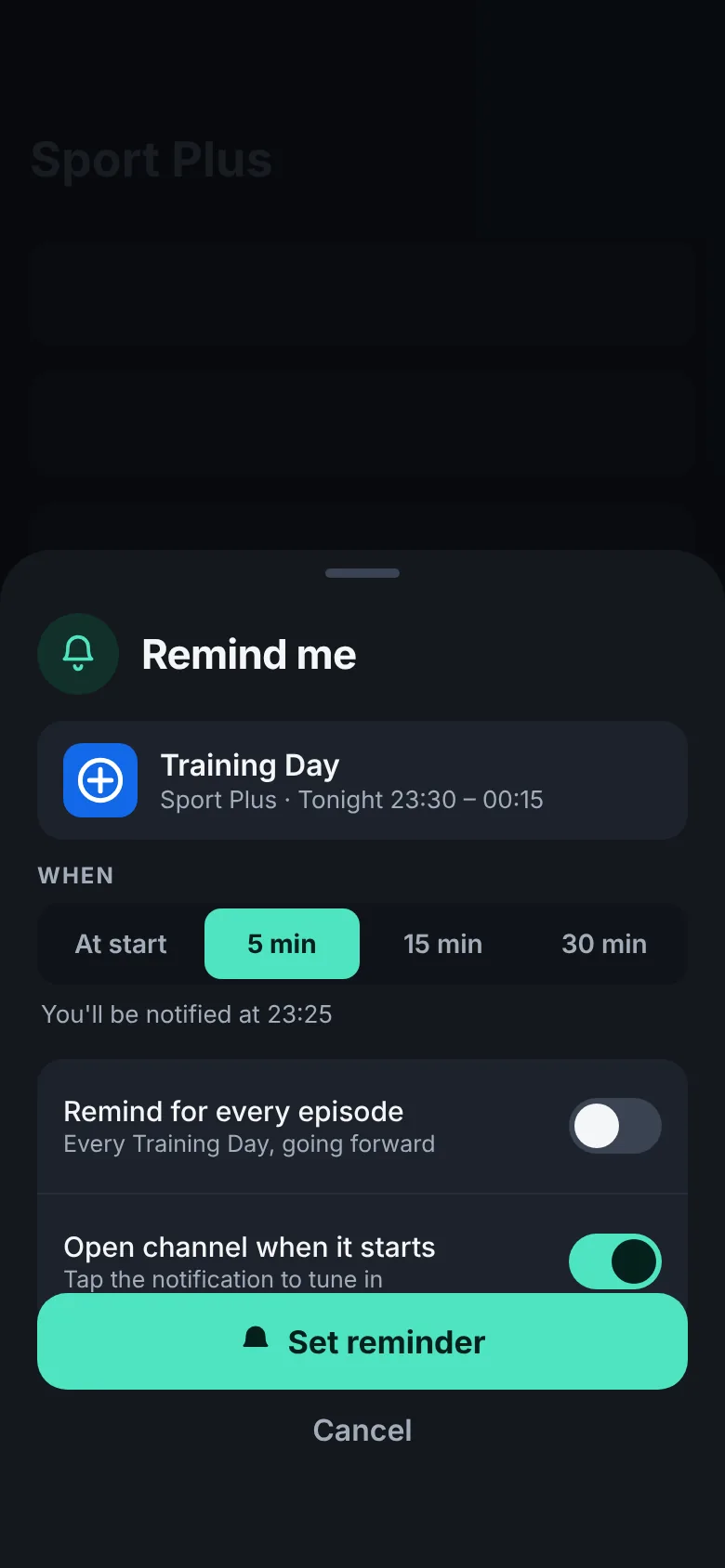
Allow notifications
The first time, your phone asks if Theamo may send you notifications. Tap Allow.
iPad
Find a coming program
In the Guide, tap a block that starts later.
Tap Remind me
On the card, tap Remind me. It changes to Remove reminder.
Allow notifications
The first time, your iPad asks if Theamo may send you notifications. Tap Allow.
Apple TV
Find a coming program
In the Guide, move to a block that starts later and press the middle.
Choose Remind me
Choose Remind me. A small bell appears on the block.
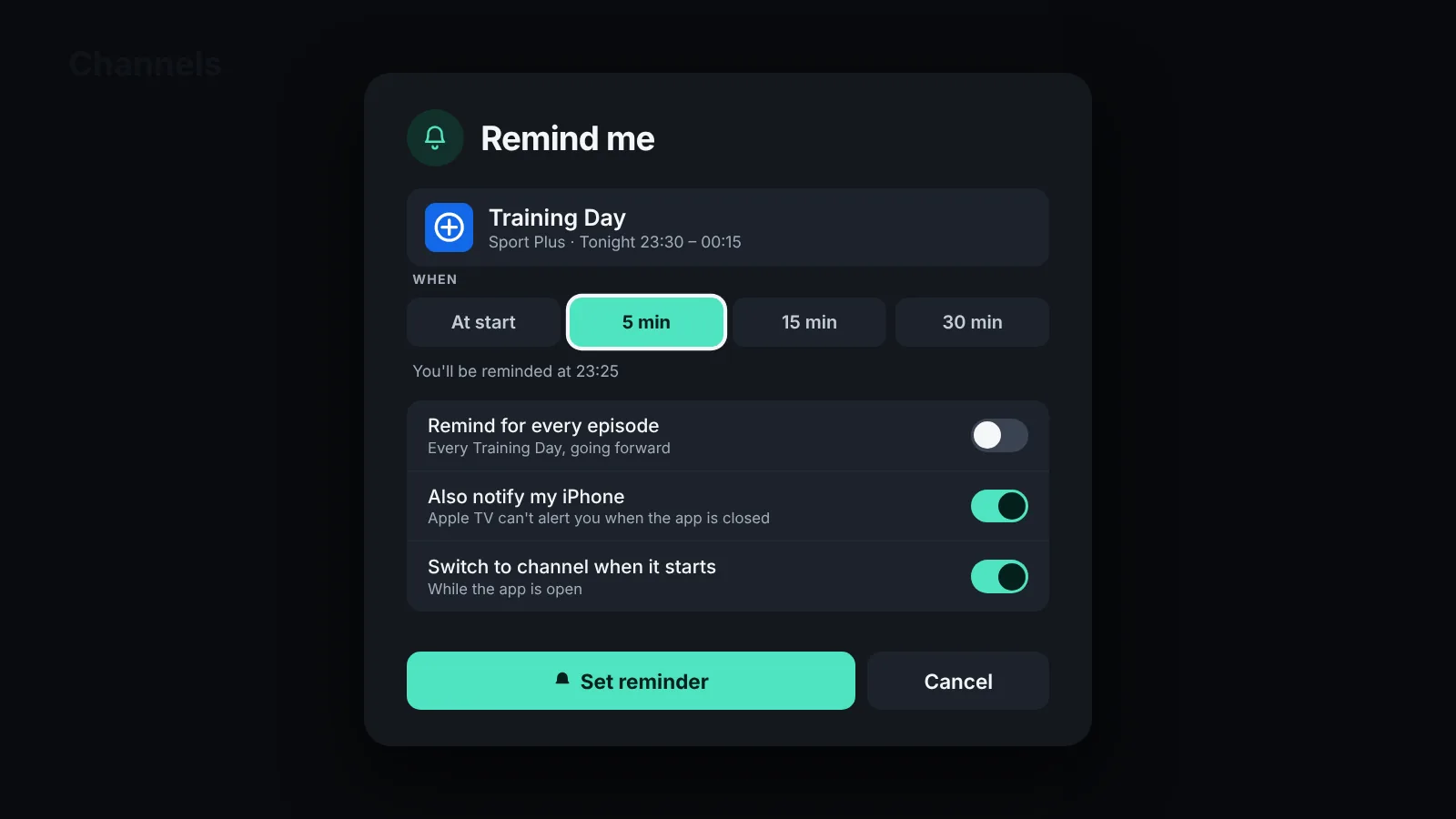
When it is time
A banner appears on the screen with two buttons: Watch now and Dismiss.
11
Your Plex films and shows#
If you have a Plex server, your films and series can sit next to your TV channels.
iPhone
Link Plex
Tap Settings, then Channels & sources, then Plex. Choose Sign in and follow the steps on the screen.
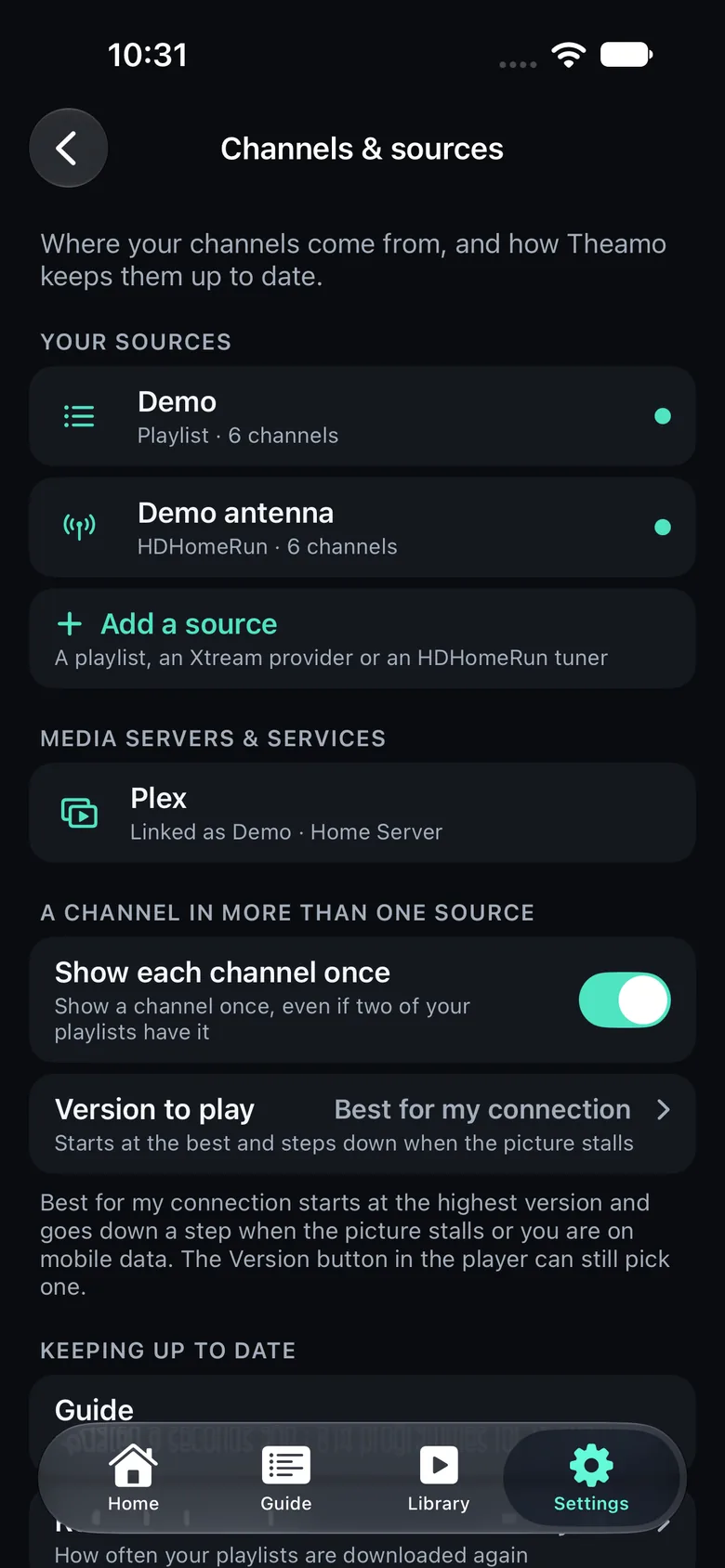
Open the Library
Go to Home and look for the rows From Plex. Choose a film: its page shows the cast, the audio and the subtitles.
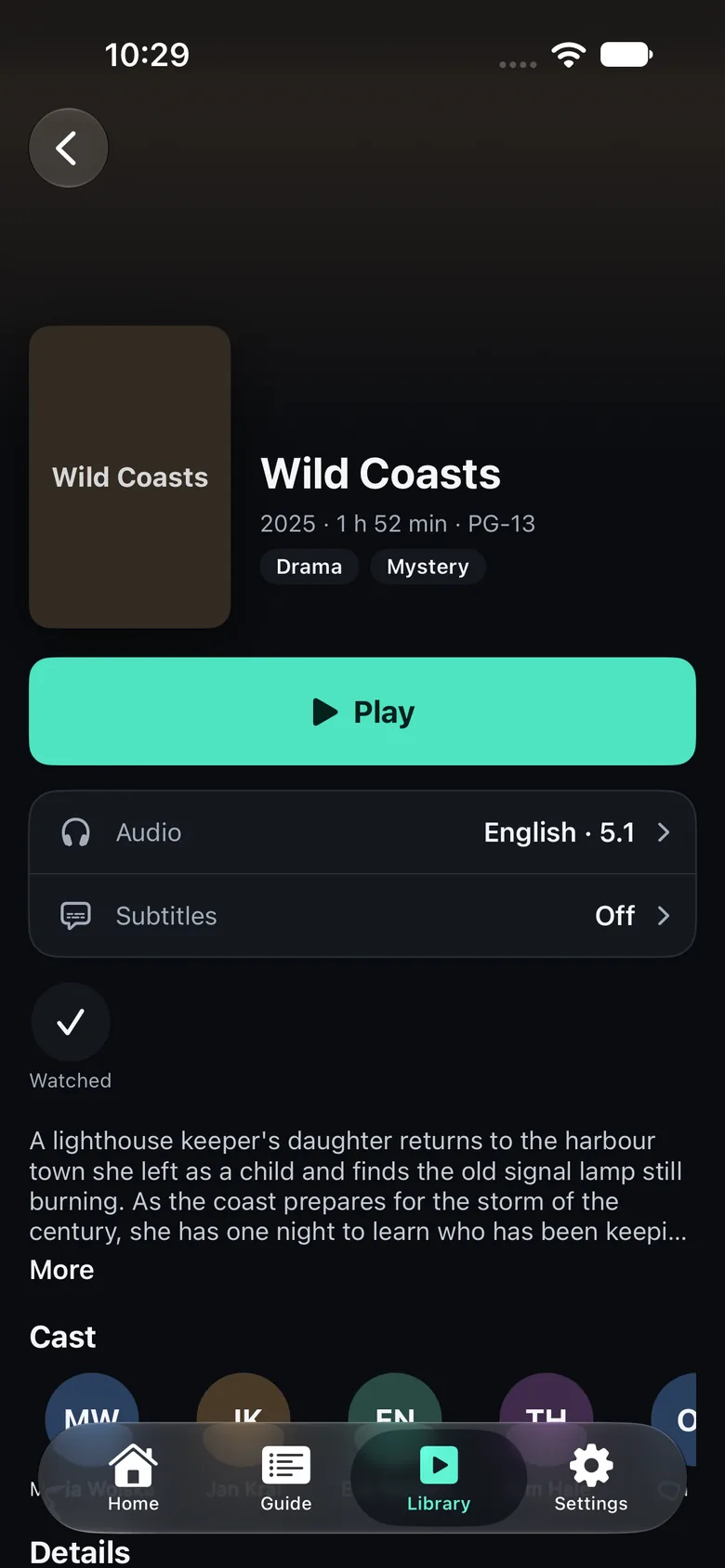
Press Play
Tap Play. To pick another audio language or subtitles first, tap their row on the page.
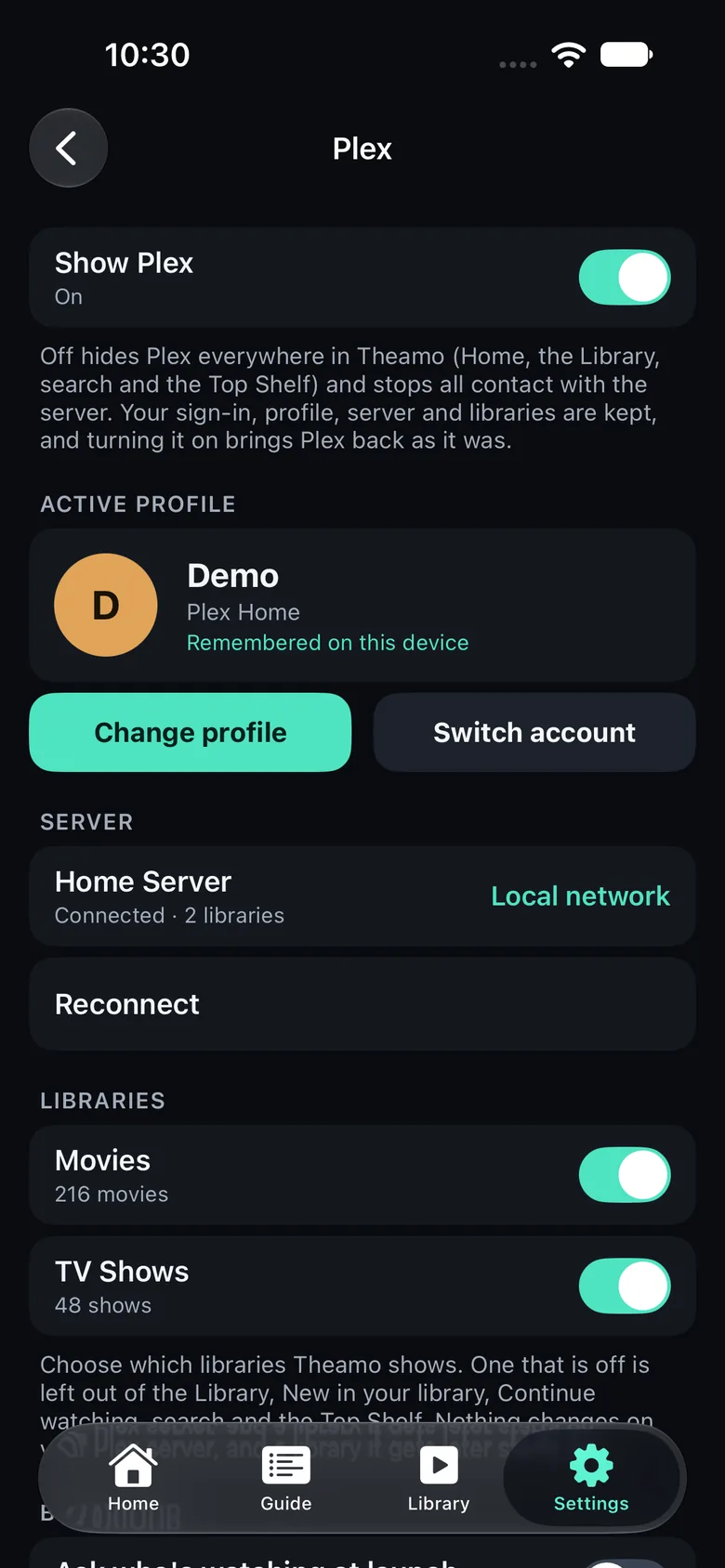
iPad
Link Plex
Tap Settings, then Channels & sources, then Plex. Choose Sign in and follow the steps on the screen.
Open a film or a show
Go to Home and look for the rows From Plex. Tap a film: its page shows the cast, the audio and the subtitles.
Press Play
Tap Play. To pick another audio language or subtitles first, tap their row on the page.
Apple TV
Link Plex
Choose Settings, then Channels & sources, then Plex. Choose Sign in. A code appears: type it on plex.tv/link on your phone or computer.
Open a film or a show
Go to Home and look for the rows From Plex. Move to a film and press the middle: its page shows the cast, the audio and the subtitles.
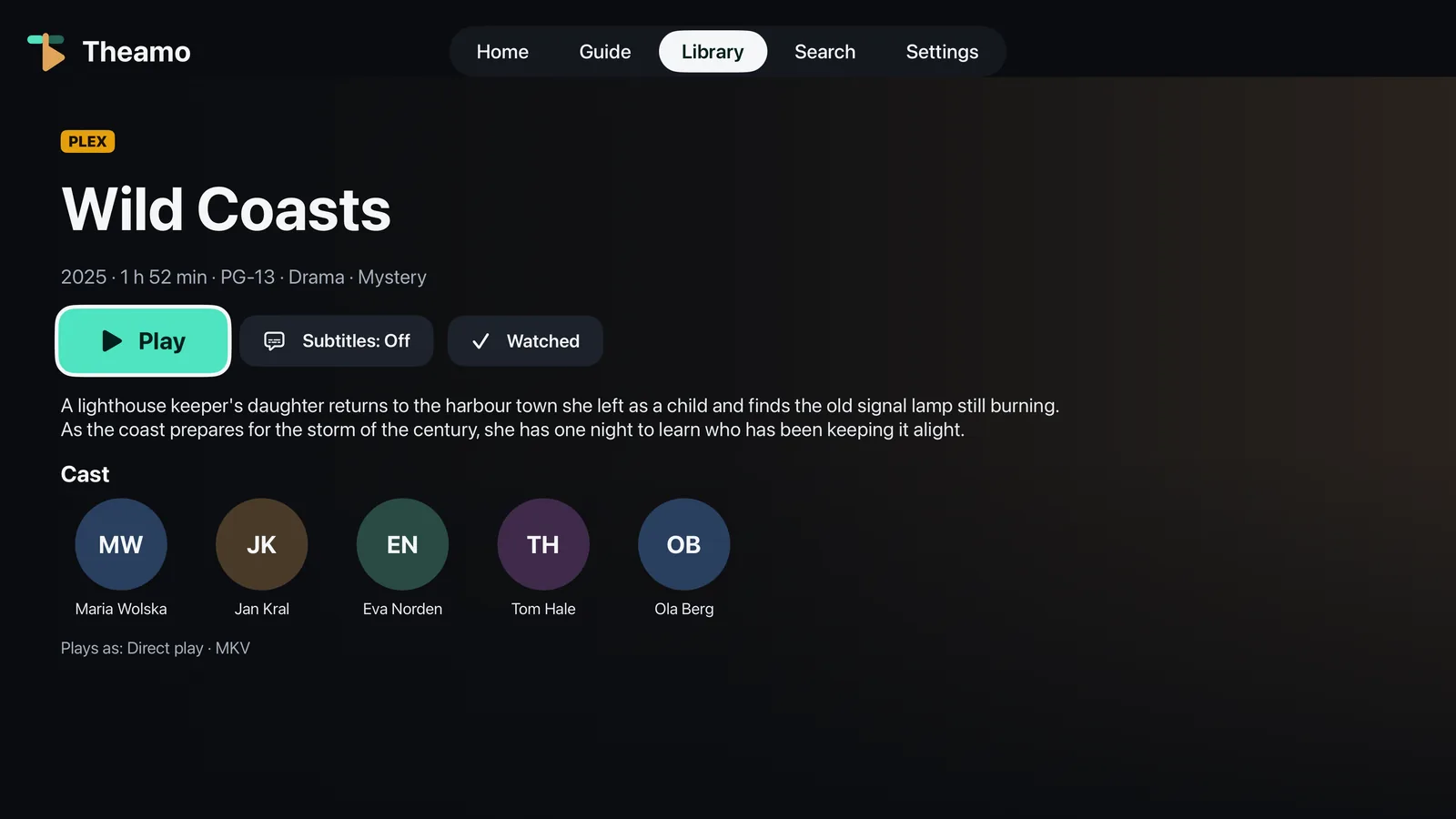
Press Play
Choose Play. To pick another audio language or subtitles first, choose their button on the page.
12
Search#
Looking for one channel or one program? Type a few letters.
iPhone
Tap the magnifying glass
It is at the top right of Home and of the Guide.
Type
Type part of the name of a channel or of a program. The results show while you type.
Tap a result
Tap a channel to watch it, or a program to see when it is on.
iPad
Tap the magnifying glass
It is at the top right.
Type
Type part of the name of a channel or of a program. The results show while you type.
Tap a result
Tap a channel to watch it, or a program to see when it is on.
Apple TV
Choose Search
In the bar at the top, move to Search and press the middle.
Type
Type with the row of keys at the bottom of the screen: move along it and press the middle on each letter. Or press the middle on the field at the top for the keyboard, and dictate: hold the Siri button on the remote and say the name. The results show while you type.
Choose a result
Move to a result and press the middle.
13
If something goes wrong#
Do not worry, almost everything can be fixed in a minute.
iPhone
A channel will not play
Check that your device is online. Then show the buttons and try the other player: it is among the small buttons.
The guide is empty
Pull the list down with your finger to refresh. If a channel has no guide, the row says so: it can still be watched.
Tell us
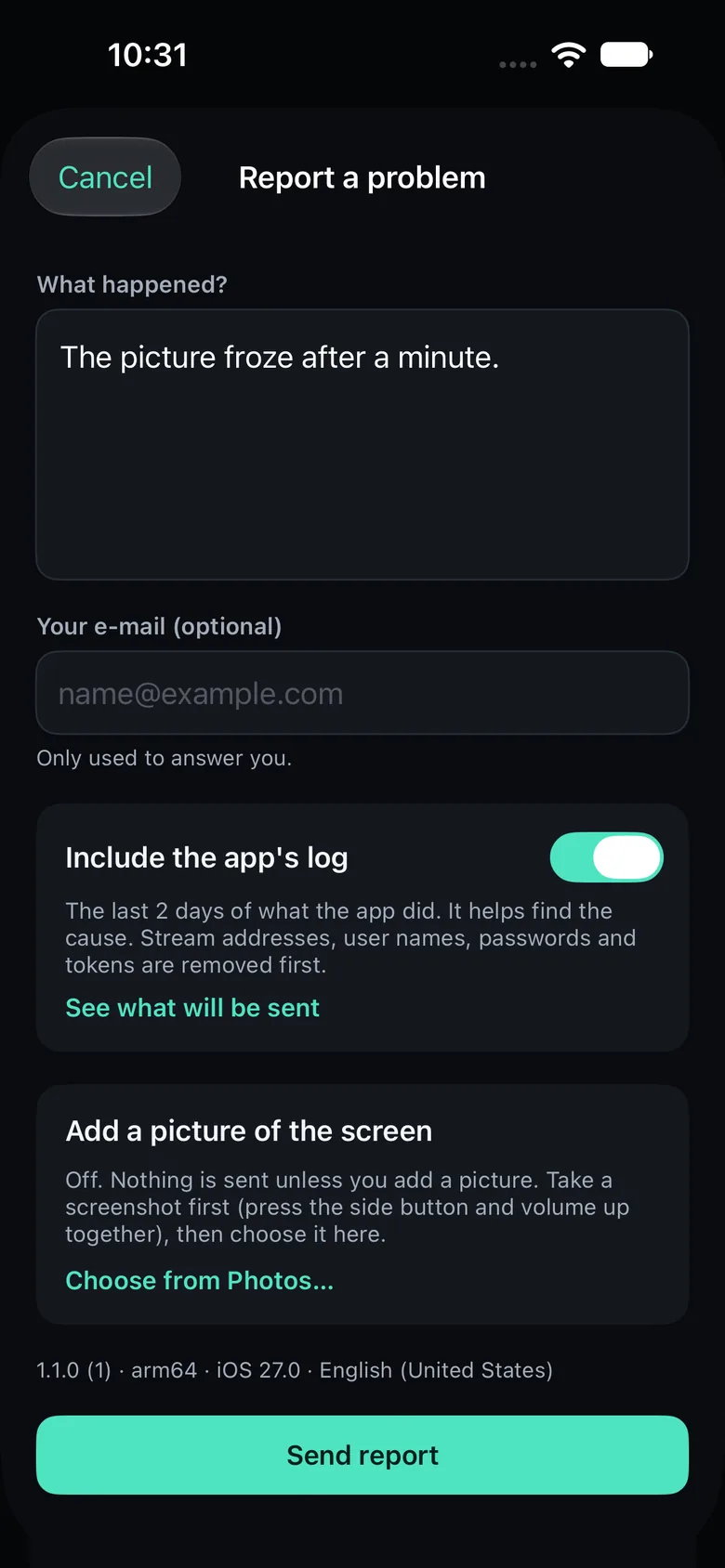
Tap Settings, then Help & feedback, then Report a problem. Write what happened and tap Send. You choose whether the app's log goes with it, and you see it first.
iPad
A channel will not play
Check that your device is online. Then show the buttons and try the other player: it is among the small buttons.
The guide is empty
Wait a moment: the guide loads by itself. If a channel has no guide, its row says so: it can still be watched.
Tell us
Tap Settings, then Help & feedback, then Report a problem. Write what happened and tap Send. You choose whether the app's log goes with it, and you see it first.
Apple TV
A channel will not play
Check that the Apple TV is online. Then click the middle to open the buttons and choose the other player.
The guide is empty
Choose Settings, then Channels & sources, to see where the guide comes from. If a channel has no guide, its row says so: press the middle on it to watch it anyway.
Tell us
Choose Settings, then Help & feedback, then Report a problem. Dictate or type what happened, and choose Send.
Your Siri Remote, button by button#
You only need a few buttons. Do not worry about pressing the wrong one: the Menu button always takes you one step back.
- Touch surface
- The top of the remote, a big flat circle. Slide your thumb across it (a swipe), or press it like a button (a click).
- Menu, the button with the arrow
- Goes back. On a channel it hides the buttons first, then leaves, and the channel keeps playing in a small window.
- Play and Pause
- Pauses and plays. Hold it to turn subtitles on or off.
- TV button
- Takes you to the Apple TV home screen.
- Siri button
- Hold it and say what you are looking for. Let go when you have finished.
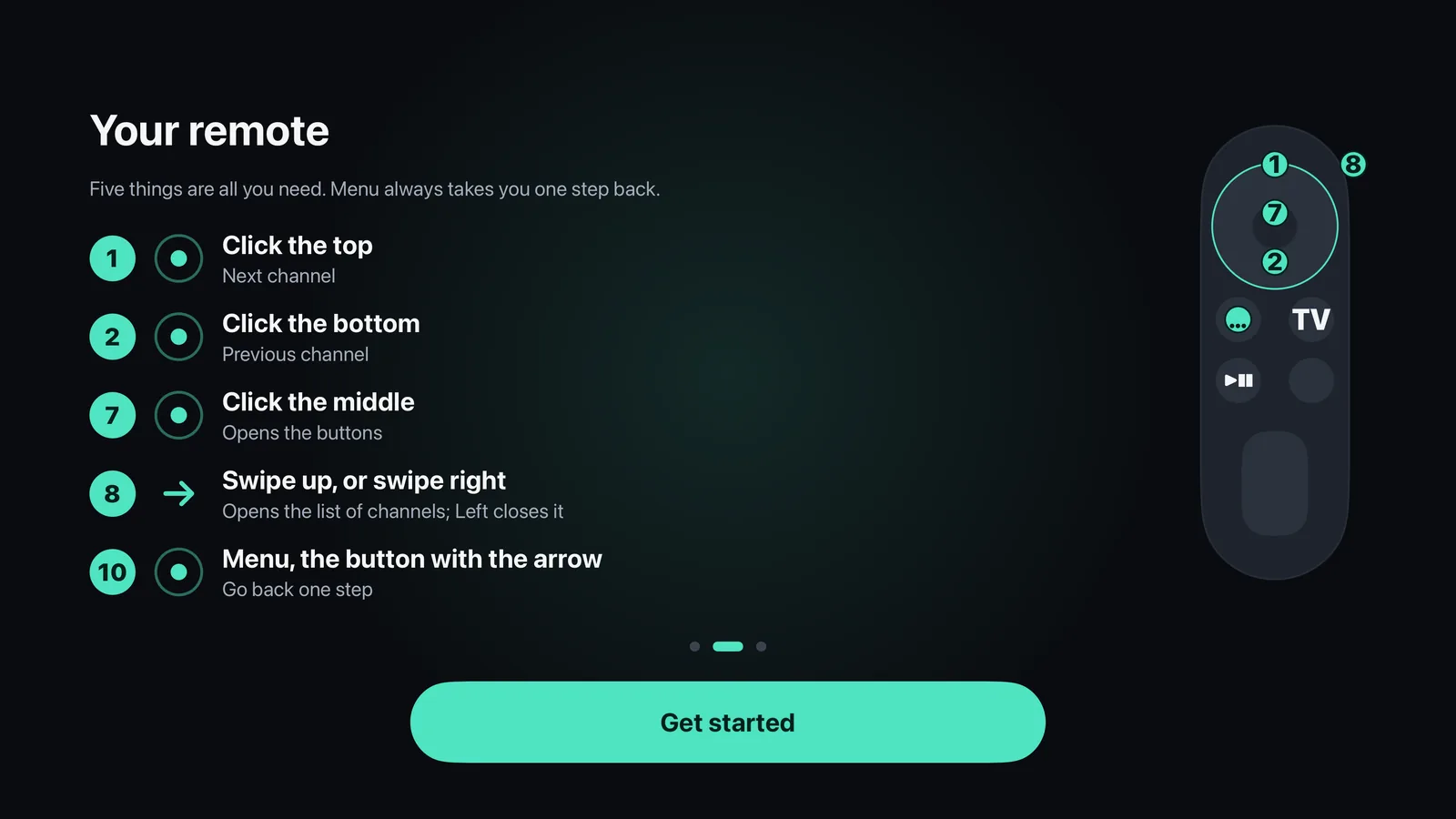
Look at the picture: each number sits where you press the remote, or shows the way you slide your thumb. Three signs tell you how.
While you watch a live channel, also one you moved back
- Click the topNext channel
- Click the bottomPrevious channel
- Click the leftBack 10 seconds, if the channel keeps a recording
- Hold the leftRewinds while you hold it
- Click the rightForward 30 seconds when you are behind live
- Hold the middleA small menu with the most used things
- Menu, the button with the arrowGoes back. On a channel it hides the buttons first, then leaves, and the channel keeps playing in a small window.
- Hold Play and PauseStops the channel and shows the guide
While you watch a program from the archive, or a Plex film
- Click the topShows what you are watching
- Click the bottomShows the progress bar
- Click the leftBack 10 seconds
- Hold the leftRewinds while you hold it
- Click the rightForward 30 seconds
- Hold the rightFast-forwards while you hold it
- Hold the middleA small menu with the most used things
- Swipe downShows what you are watching
- Menu, the button with the arrowGoes back. On a channel it hides the buttons first, then leaves, and the channel keeps playing in a small window.
- Hold Play and PauseStops it and shows its page (a program from the archive: the guide)
- Hold Play and PauseStops the channel and shows the guide
In the guide
- Click the middle
- Watches the program on now; on a past program, plays it from the archive
- Hold the middle
- A small menu: back to now, when the table shows another day; go to the first channel, however far down the list you are; refresh the channels and the guide (the pill at the end of the header does the same); and, with a channel playing in the window, stop it
- Click Play and Pause
- Opens the categories, from any channel
- Hold Play and Pause
- Stops the channel playing in the small window, on any page
- Menu, the button with the arrow
- Goes up to the tabs, from any channel; Left and Right along the tabs open them
- Hold Menu
- The Apple TV's own gesture: the Home Screen. Theamo cannot change it, so click Menu instead.
On Home and in the Library
- Hold the middle
- On a card in Continue watching: Resume, Start over or Remove from Continue watching
- Hold the middle on a film's page
- The page has Play (or Resume) and Subtitles. Hold the middle for Mark as watched, Add to watchlist and, for a film you started, Start over.
- Click Play and Pause on a film or a series
- In the Library, in Search and on Home's New cards: plays the film in focus, or resumes where you stopped; a series plays its next episode.
Settings, one by one#
Everything you can change is in Settings. On iPhone it is the gear at the bottom right. On iPad and Apple TV the groups are listed on the left. Each topic below says where to go and what to choose.
Choose the screen Theamo opens on#
By default Theamo opens on Home. You can make it open on the Guide instead, or start a channel by itself.
Open Home & Top Shelf
Open Settings, then Home & Top Shelf (Home screen on iPhone and iPad), and choose When Theamo opens.
Choose Start on
Next to Start on, choose Home, Guide or Library (Library only if you use Plex).
Play a channel at once, if you like
On the same page, next to When Theamo opens, choose Off, If I was watching, or Always, with the last channel.
Choose what the Guide opens on#
The Guide can start with every channel, with your favorites, or with one group such as News or Sport.
Open Guide
Open Settings, then Guide.
Choose Open on
Next to Open on, choose All channels, Favorites, Last chosen category, or A category.
Pick the category
If you chose A category, two more lines appear: the playlist (when you have several) and the category. Choose them.
Choose what Home shows#
Home is made of rows. You decide which rows you want to see.
Open Home screen
Open Settings, then Home screen (Home & Top Shelf on Apple TV).
Use the switches
Each row has a switch: Continue watching, Favorites, Live now, Featured on IPTV, Featured on antenna, Featured on Plex and New in your library. Switch off what you do not want.
Empty rows hide themselves
A row with nothing to show, for example Favorites before you make one, does not appear even when its switch is on.
Hide the categories you never watch#
A playlist can have hundreds of channels in dozens of categories. Hiding a category takes it out of the guide and the channel list. Nothing is deleted.
Open your source
Open Settings, then Channels & sources, and choose the playlist.
Open Categories
Choose Categories. Every category has a switch.
Switch off what you do not want
Switch off a category to hide it. Show all and Hide all do the whole list at once. Channels you made favorites stay.
Change channel through your favorites only#
With this on, the next and previous channel buttons skip everything that is not a favorite.
Open Watching
Open Settings, then Watching.
Turn it on
Under Live TV (a chip at the top on Apple TV), turn on Only my favorites.
Set the order
Channels come in the order you gave your favorites. See Put your favorites in order.
Language, clock and channel numbers#
These are the small things that make the app feel like yours.
Open Language & accessibility
Open Settings, then Language & accessibility.
Language
Choose Same as device, English or Polski.
Clock and numbers
Choose the clock: System, 24-hour or 12-hour. Channel numbers are in Settings, then Guide: switch Channel numbers on or off.
Make the picture and the sound the way you like#
Theamo remembers these for every channel.
Open Watching
Open Settings, then Watching.
The picture
Next to Fill the screen choose how a channel fills the screen: fit shows all of it, fill crops it, stretch squeezes it. Channel quality sets how sharp it is when you have a choice.
The language
Choose the Audio language and the language of the Subtitles. The size, place, background and color of the subtitles are there too, or under Subtitles in the player: Size, place and look.
If the picture stutters#
Stutter usually means the Wi-Fi is slow for a moment. Two changes help.
A bigger buffer
Open Settings, then Advanced. Under Connection, set the Live TV buffer to a larger size. The picture starts a little later and is steadier.
The other player
On the same page, under Players, turn on Try another way when a stream fails. If one player cannot play a channel, Theamo tries the other, and remembers which one worked. If a channel is also in another playlist or in another quality, it tries that copy next and says so.
What the Back button does while you watch#
On Apple TV the Menu button goes back. You can choose what that means while a channel plays.
Open Watching
Open Settings, then Watching, then Back & skip.
Choose Back button while watching
Leave goes back and keeps the picture in a small window. Leave, no small window goes back and stops the picture. Press twice asks first: the second press leaves.
Reminders: when and how#
Choose how early Theamo tells you that a program is about to start.
Open Reminders & alerts
Open Settings, then Reminders & alerts.
Choose when
Next to Remind me choose how long before the program starts. Turn Notifications on or off.
Open the channel by itself
Turn on Switch to the channel if you want the channel to start for you. On Apple TV a reminder only reaches you while the app is open, so set reminders on your iPhone to be told at any time.
Sources, Plex and more, in detail#
The longer jobs, one at a time: what to type in each box, what each switch does, and what to do when something is not found.
Add an IPTV provider (Xtream)#
Use this when your provider gave you a server address, a user name and a password.
Start adding
Open Settings, then Channels & sources, then Add a source. At Type, choose Xtream.
Fill in the three boxes
Server address, for example http://host:8080. Username. Password. Copy them exactly as your provider wrote them.
Save
Choose Save. Theamo downloads the channels and the guide. This can take a minute with a big provider.
Editing later
To change the password, open the source again. Leave the password empty to keep the old one.
Add a playlist (M3U)#
Use this when you have the address of a playlist, usually ending in .m3u.
Start adding
Open Settings, then Channels & sources, then Add a source. At Type, choose the playlist (M3U).
The playlist address
Type or paste the Playlist address (M3U).
The guide, if you have one
The Guide address (XMLTV, optional) is only needed when the playlist does not name its own guide. Leave it empty to use the one named in the playlist, or the extra guide from Settings, Guide.
Save
Choose Save. Channels without a matching guide are matched by their name.
Add a playlist with a link or a QR code#
Use this on an iPhone or iPad when typing the address is a bother. A code on another screen, or a link in a message, fills the form for you.
Make the code
On a computer or another phone, go to link.theamo.app. Type a name and the playlist address, and the guide address if you have one. The page makes the code in your browser. Nothing you type is sent or kept.
Scan it
Open the camera on your iPhone or iPad and point it at the code. Tap the banner that appears.
Check and save
Theamo opens the form with everything filled in. Look at the address, then choose Save. Nothing is added until you do.
If Theamo does not open
The page opens in Safari instead. Choose Open in Theamo on it.
A code someone gave you
If the person who gave you the playlist shows you a code, scan it the same way. Anyone with a code can add that playlist, so keep it to people you trust.
Add an HDHomeRun tuner#
A tuner is a small box at home with an aerial. Your iPhone, iPad or Apple TV must be on the same Wi-Fi as the tuner.
Start adding
Open Settings, then Channels & sources, then Add a source. At Type, choose HDHomeRun.
Choose your tuner
Theamo looks for tuners on your Wi-Fi or Ethernet. Nothing leaves your network. Choose yours from the list.
If none shows up
Choose Search SiliconDust's directory instead. It asks SiliconDust for devices behind your public IP address, which tells them that address. Or type the tuner's address yourself.
Save
Choose Save. The channels and a guide come in. A tuner's channels are live only: there is no catch-up.
Away from home
Off your home Wi-Fi the tuner does not answer, so Theamo leaves its channels out everywhere until you are back.
Link Plex and choose a profile#
Plex shows your own films and series. Linking takes a minute.
Start
Open Settings, then Channels & sources, then Plex.
Enter the code
Theamo shows a short code. On a phone or computer go to plex.tv/link and type the code. The screen says Waiting for you until it works.
Pick the profile
If you use Plex Home, pick the profile to use. Theamo remembers it. Change profile switches to another one later.
The options
Ask who's watching at launch asks for the profile each time. Require PIN to change profile uses the PIN set in Plex Home. Sync watched status and progress keeps Continue watching the same on all your devices. Show Plex watchlist adds your watchlist.
Quality at home and away
The first time a film or episode plays at home, and the first time away from home, Theamo asks which quality: Original, High, Medium or Low, with one suggested. It remembers the answer for that place. Change it in Settings, Channels & sources, Plex, under Quality, or with the Quality button while you watch.
Another account
Switch account signs you out of this Plex account so you can sign in to another one.
Keep everything the same on all your devices (iCloud)#
With Pro, your sources, favorites, reminders, settings and Plex profile follow you to your other iPhones, iPads and Apple TVs.
Check iCloud
On each device, sign in to the same Apple ID, and turn on iCloud Keychain, because passwords and Plex sign-ins travel through it.
Turn it on
Open Settings, then Devices & sync, and switch on Sync with iCloud. Do it on each device.
If it says you are not signed in
The line This device is not signed in to iCloud means you must sign in in the device's own Settings first.
Keep watching while you look around#
A small player keeps the channel going while you browse.
On iPhone and iPad
Swipe the picture down, or tap the arrow at the top left. The picture shrinks into a small player. Tap it to open the full player again, or tap its X to stop.
On Apple TV
Press Menu once to hide the buttons and again to leave. With the Back button set to Leave, a small window stays in the corner.
Send the picture to a TV or speaker, or a floating window#
On iPhone and iPad the controls have two buttons for this. When the row is short of room, as on an iPhone held upright, they are under the More button.
Show the buttons
Tap the picture once.
AirPlay
Tap the AirPlay button (a screen with an arrow), or More and then AirPlay, and choose the TV or speaker.
Picture in picture
Tap the picture in picture button, or More and then Picture in picture, to keep the channel in a floating window over other apps.
The Top Shelf on Apple TV#
When Theamo is in the top row of the Apple TV home screen, the area above shows what you were watching and what is on now. This is part of Pro.
Put Theamo in the top row
On the Apple TV home screen, move to Theamo, hold the middle of the touch surface, and choose Move to top row (or drag it up).
Turn it on
In Theamo open Settings, then Home & Top Shelf, and switch on Show Theamo on the Top Shelf.
Choose what it shows
Choose the Style, and switch on the rows you want: Continue watching (the last thing you watched comes first), On now in your favorites, New in Plex.
Every setting, group by group#
A list of everything in Settings, in the order of the list, with what each line does. Names are the ones on your screen.
Theamo Pro#
- Plans and trial
- Shows the plans and the free trial, where one is offered, and whether Pro is active on this device.
- Restore purchases
- Brings back a purchase made earlier or on another device with the same Apple ID.
Channels & sources#
- Add a source
- Adds a playlist, an Xtream provider or an HDHomeRun tuner. The first source is free.
- Type
- Choose the kind of source: Xtream (server, user name, password), a playlist address (M3U), or an HDHomeRun tuner found on your network.
- Subscription (Xtream, or a playlist that says when it ends)
- Whether your provider's subscription is active, when it ends, and how many devices are watching of the number it allows. A card on Home warns you a week before it ends and the day before; Warn me before it ends turns that off. If a channel will not start because every connection is in use, the player says so.
- Enabled
- Switches a source off without deleting it. Its channels leave the app until you switch it on again.
- Catch-up
- Tells Theamo how this provider builds its archive links: automatic, Xtream style, Flussonic style, or off. Leave it on automatic unless your provider says otherwise.
- Categories
- Opens the list of categories of the playlist, each with a switch, to hide the ones you never watch.
- Remove this source
- Deletes the source and its channels from the app. Your provider is not told.
- Plex
- Link your Plex account to see your library next to live TV. See Your Plex films and shows.
- Get films ready
- With Plex linked: loads the start of a film while its page is open, so Play starts sooner. It takes a short connection and a little data from your server, and is only done at home.
- Clean up names (in a playlist's own page)
- Takes “PL|” or “[UK]” off the front of every channel name in that playlist; Also take off HD, FHD and 4K takes the quality off the end, and you can add words of your own. Only what is shown changes: Theamo still uses the real name to find a channel's guide and its best version.
- Show each channel once
- When a channel is in two playlists or in several qualities, shows it once. A favorite copy always stays.
- Version to play
- Which copy plays: Best for my connection starts at the best and steps down when the picture stalls; or the highest quality; or the first playlist.
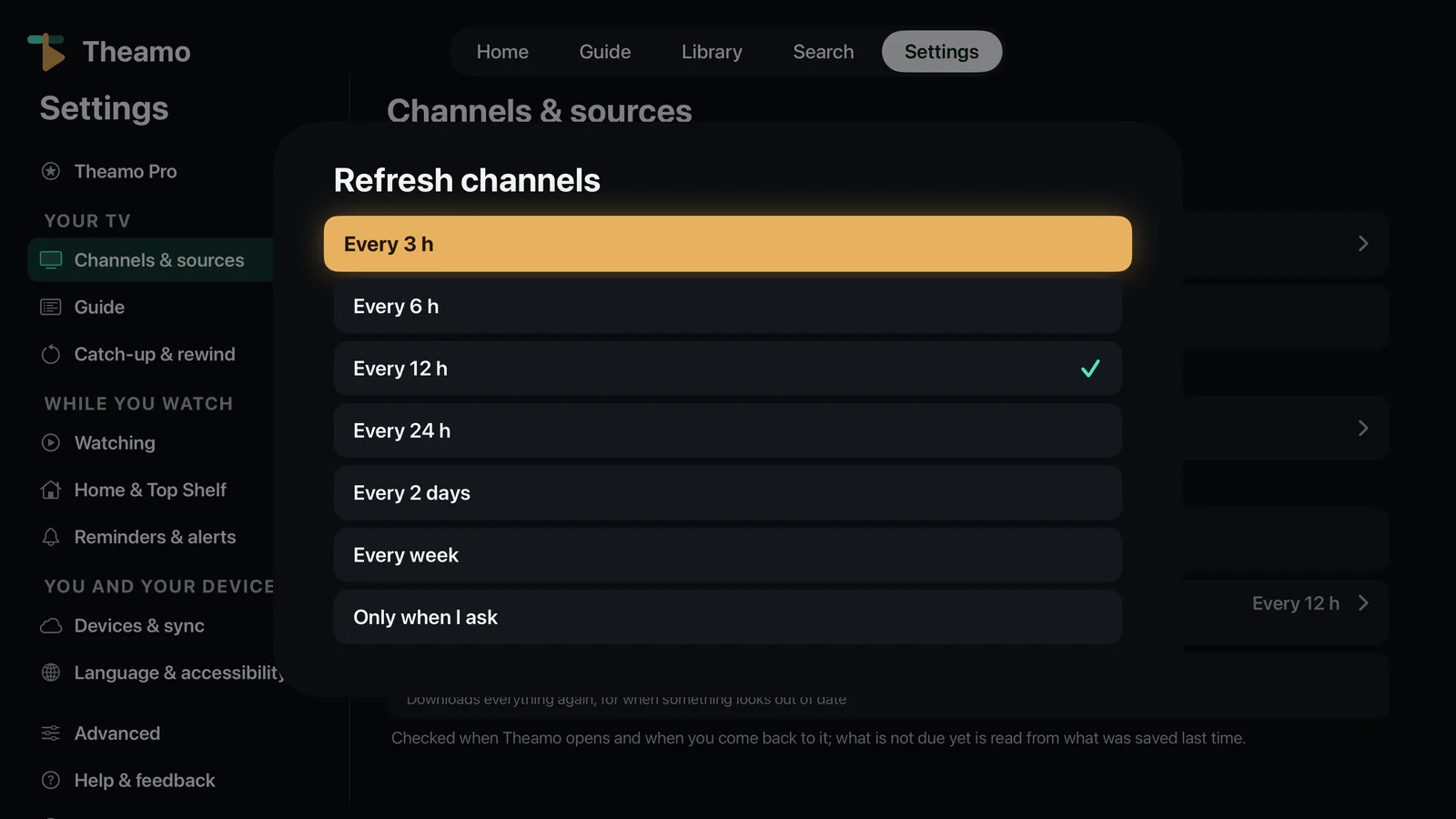
- Refresh channels
- How often Theamo downloads your playlists again. What is not due yet is read from what was saved.
- Reload channels and guide now
- Downloads everything again, for when something looks out of date.
Guide#
- Open on
- What the guide shows when Theamo opens: All channels, Favorites, Last chosen category, or A category.
- Back to a catch-up's time
- On Apple TV and iPad: after a catch-up the guide goes to the time you were watching, on its channel, not to now. Off to start from now as before.
- Playlist name
- Where the name of the playlist is shown on a channel when you use more than one: only where it helps (on a channel that is in more than one playlist, so you can tell the copies apart), under every logo, as a color bar, or not at all.
- Program descriptions
- Shows a few lines about each program in the guide.
- Channel numbers
- Shows each channel's number beside its name.
- Channel logos
- Where logos come from: the playlist, the guide, or one first and the other as a fallback.
- Hide channels with no listings
- Leaves out channels that have nothing on now.
- Refresh the guide
- How often Theamo downloads the program listings again. What is not due yet is read from what was saved, so large guides are not downloaded on every launch.
- Extra guide
- One guide for all your sources, for example a guide that covers many countries. Channels are matched by their guide id first, then by name.
Catch-up & rewind#
- Extra minutes at the end
- A few extra minutes added at the end of a program from the archive, in case the broadcast ran late.
- Come back where you were
- A channel you left in catch-up, start over or rewound carries on from there when you come back to it, with a note and Go to live; one watched live comes back live. On to start with.
- Offer the way back
- After you leave a program from the archive (or one you started over, or a rewound channel) for another channel, a card on the new channel offers Go back, to the minute you left; on Apple TV Go back is the first button in the controls. On to start with.
- When a catch-up ends: Then
- What happens at the end of a program from the archive: the next program, back to live, or stop.
- Show what comes next
- Shows a card with what comes next, near the end of a program.
Watching#
- Match frame rate & dynamic range
- On Apple TV, switches the TV to the picture's own frame rate and HDR.
- Channel quality
- How sharp the picture is when a channel offers a choice.
- Fill the screen
- How a channel fills the screen: fit shows all of it, fill crops it, stretch squeezes it.
- Sharpen low-resolution channels
- Makes standard-definition pictures sharper on newer iPhones, iPads and Apple TVs. It uses more power, so it starts off. Standard-definition only: HDR and Dolby Vision are left alone.
- Audio language
- The language Theamo plays for every film, series and program that has it. When there is none in it, you hear the original audio.
- Dolby Vision
- Automatic asks the TV for Dolby Vision. If your TV or its settings refuse it, choose Play as HDR10: the film plays in HDR10 without the two or three seconds spent asking.
- Lossless surround
- Sends the sound of the Aether player as lossless surround, up to 7.1, to a receiver connected with HDMI eARC. Leave it off if you are not sure: it starts off, and other receivers get surround they all take.
- Clearer speech
- Makes voices stand out from music and noise: A little or More. The Aether player decodes the sound to do it, so surround is not passed on untouched to a receiver while it is on.
- Night mode
- Evens out loud and quiet parts, for watching late. Like Clearer speech, it works with the Aether player and plays the sound itself.
- Subtitles language
- The language of the subtitles when you turn them on in the player (the Default card in the Subtitles list). A film with none in it shows none. The player has a Sound button when a title has more than one sound track and a Subtitles button when it has subtitles, so you can change the sound or turn the subtitles off at any time.
- Subtitle size
- How big the subtitles are.
- Subtitle place, background and color
- Where the subtitles sit (higher up they clear the controls, a logo or text in the picture), what is behind the words, and white or yellow. The player's Subtitles list has the same, with a preview: Size, place and look.
- Back button while watching
- What Back (or Menu on Apple TV) does while something plays: Leave, Leave, no small window, or Press twice.
- Only my favorites
- Next and previous channel step through your favorites, in your order.
- Compact rows, Time grid (iPhone)
- Compact rows shows ten channels in the Guide without the line about each program. On the larger iPhones Time grid shows the day's time across, like the iPad; held sideways it shows by itself.
- Skip intros, Skip credits (Plex)
- When your Plex server has marked the intro or the credits of an episode, a button skips them. Choose a button, a count down that skips by itself, skip at once, or off. After the credits the next episode is offered. On Apple TV, press the click when the button shows; Menu takes the button away.
Home screen (Home & Top Shelf on Apple TV)#
- Rows
- A switch for each row of Home: Continue watching, Favorites, Live now, Featured on IPTV, Featured on antenna, Featured on Plex, From Plex. Rows with nothing to show stay hidden.
- Keep titles for
- How long a title stays in Continue watching after you last watched it.
- Clear Continue watching
- Takes everything off the row. Nothing is deleted from your sources.
- When Theamo opens
- Whether Theamo plays a channel again when it opens: Off, If I was watching, or Always, with the last channel.
- Start on
- The screen Theamo opens on: Home, Guide or Library.
- Show Theamo on the Top Shelf (Apple TV)
- The picture area at the top of the Apple TV home screen shows what you were watching and what is on now.
- Style
- Rows, a banner, or the picture only.
- Continue watching, On now in your favorites, New in Plex
- A switch for each row of the Top Shelf. Continue watching always starts with the last thing you watched, whatever it was: a channel, a catch-up, a film or an episode.
- Show program titles
- Whether each tile shows the program's title. Turn it off if you share the TV.
Reminders & alerts#
- Remind me
- How long before a program starts you are reminded.
- Notifications
- Turns the reminder notifications on or off.
- Switch to the channel
- Starts the channel by itself when the program begins.
Devices & sync#
- Sync with iCloud
- Shares your sources, favorites, reminders, settings and Plex profile with your other iPhones, iPads and Apple TVs. Passwords and Plex sign-ins go through iCloud Keychain, which must be on. A Pro feature.
Language & accessibility#
- Language
- Same as device, English or Polski.
- Clock
- System, 24-hour or 12-hour.
Advanced#
- Player engine
- Automatic uses Apple's player for HLS and common files, and the Aether player for raw MPEG-TS, Matroska and Plex originals (it also plays HDR and Dolby Vision, and switches the TV to match). You can also pick one yourself. A Pro feature.
- Try another way when a stream fails
- If one player cannot play a channel, Theamo tries the other, or the next copy of the channel.
- Remember the player for each channel
- Once the second engine plays a channel, that channel starts on it next time.
- Hardware decoding
- Lets the device's chip decode the picture. Leave it on unless a channel shows green blocks.
- Sound delay
- For streams played by the Aether player. It fixes sound that is a little early or late.
- Subtitle timing
- Moves subtitles that come too early or too late, up to five seconds either way. The Aether player draws the subtitles, so it is the one that can; the player's Subtitles list has Earlier and Later too.
- Catch-up stream format
- Use HLS unless the provider only offers MPEG-TS.
- Custom catch-up link
- Replaces how archive links are built for every channel. Leave it empty to use what each channel's provider gives.
- Shift the guide's times
- Shifts the guide by whole hours if your provider's schedule is off. Reload the guide after changing it.
- User agent
- The name Theamo gives itself to your provider. Leave it empty unless your provider asks for one.
- Reconnect by itself, Keep trying for
- When Wi-Fi drops or you move to mobile data, the stream opens again where it was; after the time you choose, Theamo says what went wrong, with Try again.
- Live TV buffer
- How much picture is kept ready on a live channel: small, normal or large (large also keeps the Aether player further behind live). Increase it if streams stutter on Wi-Fi.
- Catch-up and film buffer
- The same, for archive programs and Plex titles.
- Wait for a server
- How long Theamo waits for a provider before giving up.
- Show stream details while playing
- Shows the engine, picture size, formats, bitrate and dropped frames over the picture. For troubleshooting.
- Capture debug log
- Keeps a log of what the app does, for finding a problem. Passwords and account names are removed from it.
- Clear saved data and reload
- Throws away what Theamo saved (channels, guide, pictures) and downloads it again. Your sources and favorites stay.
Help & feedback, and About#
- Report a problem
- Tells the developer what went wrong. You choose whether the app's log goes with it, and you see it first.
- Help
- The short answers inside the app, the Siri Remote and the gestures with pictures, What's new, and Show the welcome again.
- About
- The version of the app, the open-source programs it uses, and what Theamo is and is not.
Free and Pro#
Theamo is free to start. Pro adds more. Nothing you already use is taken away when a trial ends: the free part keeps working.
What is always free
- Live TV from one source.
- The program guide.
- Favorites, and putting them in order.
- Search.
- The Apple player.
- The small player while you look around the app.
- The Top Shelf on Apple TV.
What Pro adds
- More than one source.
- Catch-up, start over and rewinding live TV.
- Program reminders.
- Your settings and favorites on all your devices, through iCloud.
- Your Plex library and profiles.
- A choice of player engine.
How to try it, buy it or get it back
- Open Settings, then Theamo Pro. You see the plans; the yearly one is chosen, with its 7 days free.
- You pay through your Apple account. You can cancel any time in your Apple subscriptions.
- Bought it before, or on another device? Open Theamo Pro and choose Restore purchases.
- Have a code? Redeem it on an iPhone or iPad, or in the App Store app, with the same Apple ID, then choose Restore purchases in Theamo.
Questions people ask#
The picture is black but I hear the sound.
Show the buttons and try the other player. If it is a tuner channel, check that your phone or Apple TV is on the same Wi-Fi as the tuner.
A row in the guide says “No guide for this channel”.
The channel has no program information from your provider. You can still watch it: tap it, or press the middle on Apple TV.
The guide is an hour off.
Open Settings, then Advanced, then Provider fixes, and change Shift the guide's times by one hour.
There is no catch-up on a channel.
Only channels whose provider keeps recordings have it, and it is part of Pro. A tuner's channels are live only.
I cannot add a second source.
One source is free. More than one needs Pro. See Free and Pro.
How do I turn the subtitles off?
Show the buttons, open the subtitles, and choose Off. On Apple TV you can also hold Play and Pause.
How do I change the language of the app?
Open Settings, then Language & accessibility, then Language.
Why does rewinding say that the recording is minutes behind live?
Some providers record a channel a few minutes late. Then a short rewind cannot be played from the recording, so Theamo stays on the live picture and tells you. Go back further, for example by holding Left, and it plays.
Why does the picture go black for a moment when I rewind a live channel?
Theamo asks the provider for a short recording that starts a little before the moment you want, and shows it once it has moved there. That takes a second or two. Pressing Left twice quickly goes back twice as far, in one step.
How do I remove a source?
Open Settings, then Channels & sources, choose the source, and tap Remove this source.
Where are my favorites after I changed my phone?
With Pro, they follow you through iCloud once you are signed in to the same Apple ID. Without Pro, make them again on the new device.
Words used in Theamo#
- Source
- Where your channels come from: a playlist, a tuner, or Plex.
- Playlist
- A list of channels from your TV provider, usually an address ending in .m3u. Also called an IPTV playlist.
- Xtream
- Another way a TV provider gives you channels: a server address, a user name and a password.
- Tuner
- A small box at home with an aerial that sends the antenna channels over your Wi-Fi. Theamo works with HDHomeRun tuners.
- Plex
- A program on your computer or server that keeps your own films and series. Theamo can show them.
- Guide
- The table or list that shows what is on, and what comes next, on every channel.
- Live
- What is being broadcast right now.
- Catch-up
- Watching a program that has already aired, because the provider keeps a recording of it.
- Start over
- Going back to the beginning of the program that is on now.
- Favorite
- A channel you marked with the heart, kept in a short list of its own.
- Player engine
- The part of the app that shows the picture. Automatic picks the best one for each channel.
- Subtitles and audio
- The words on the screen, and the language you hear.
- Reminder
- A message that tells you when a program you chose is about to start.
- Top Shelf
- The picture area at the top of the Apple TV home screen, when Theamo is in the top row.
Still stuck? Write to us from the app (Settings, then Help & feedback, then Report a problem), or at [email protected]. We read every message.