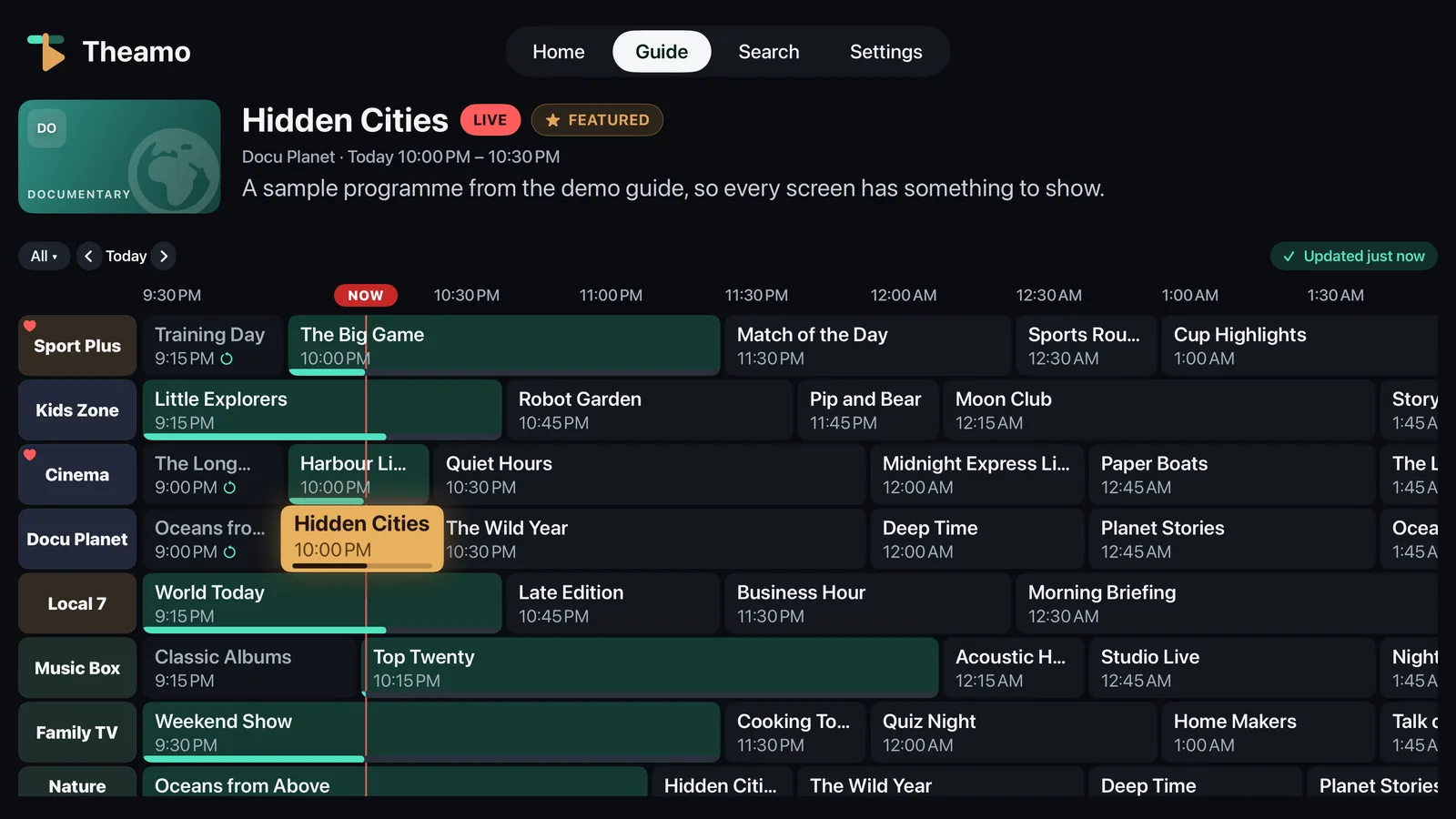
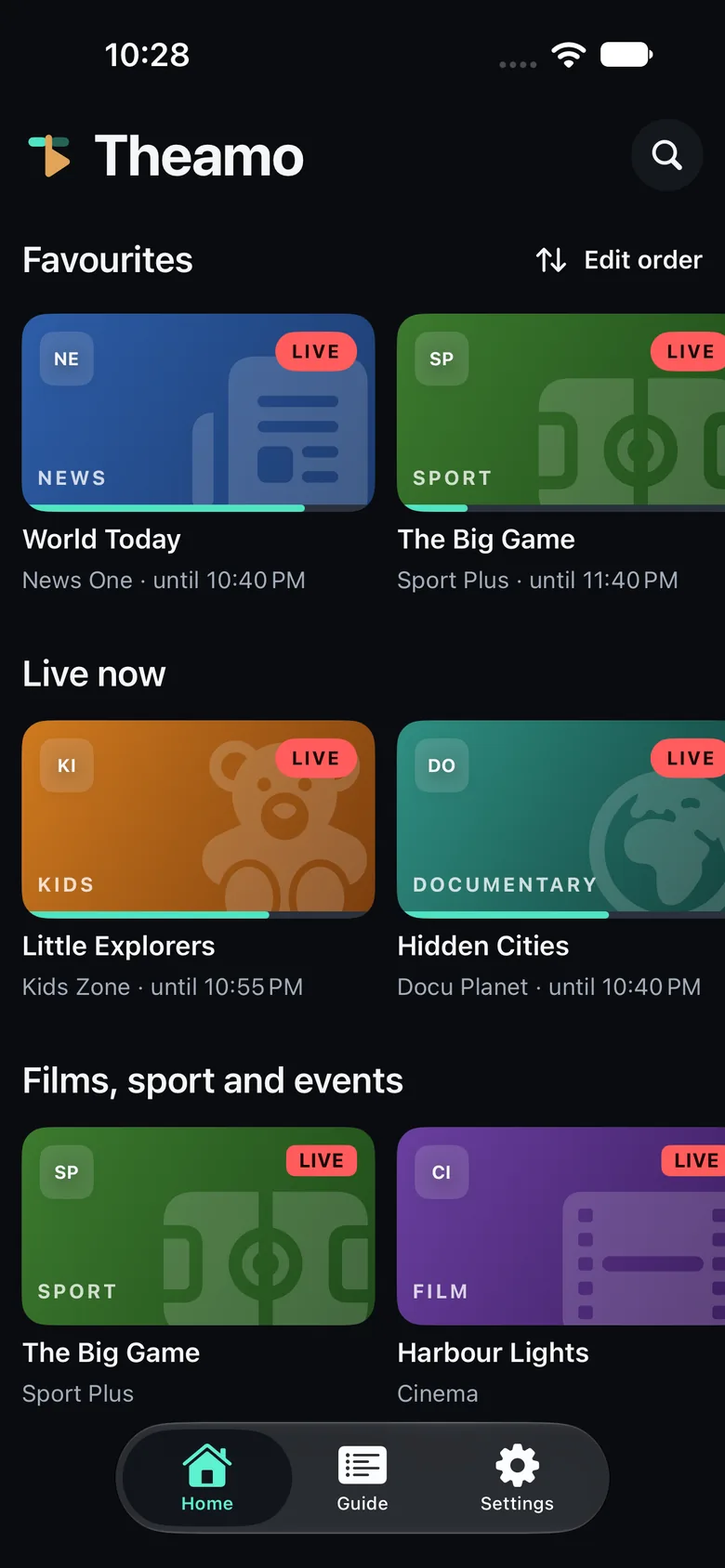
A guide with the full story
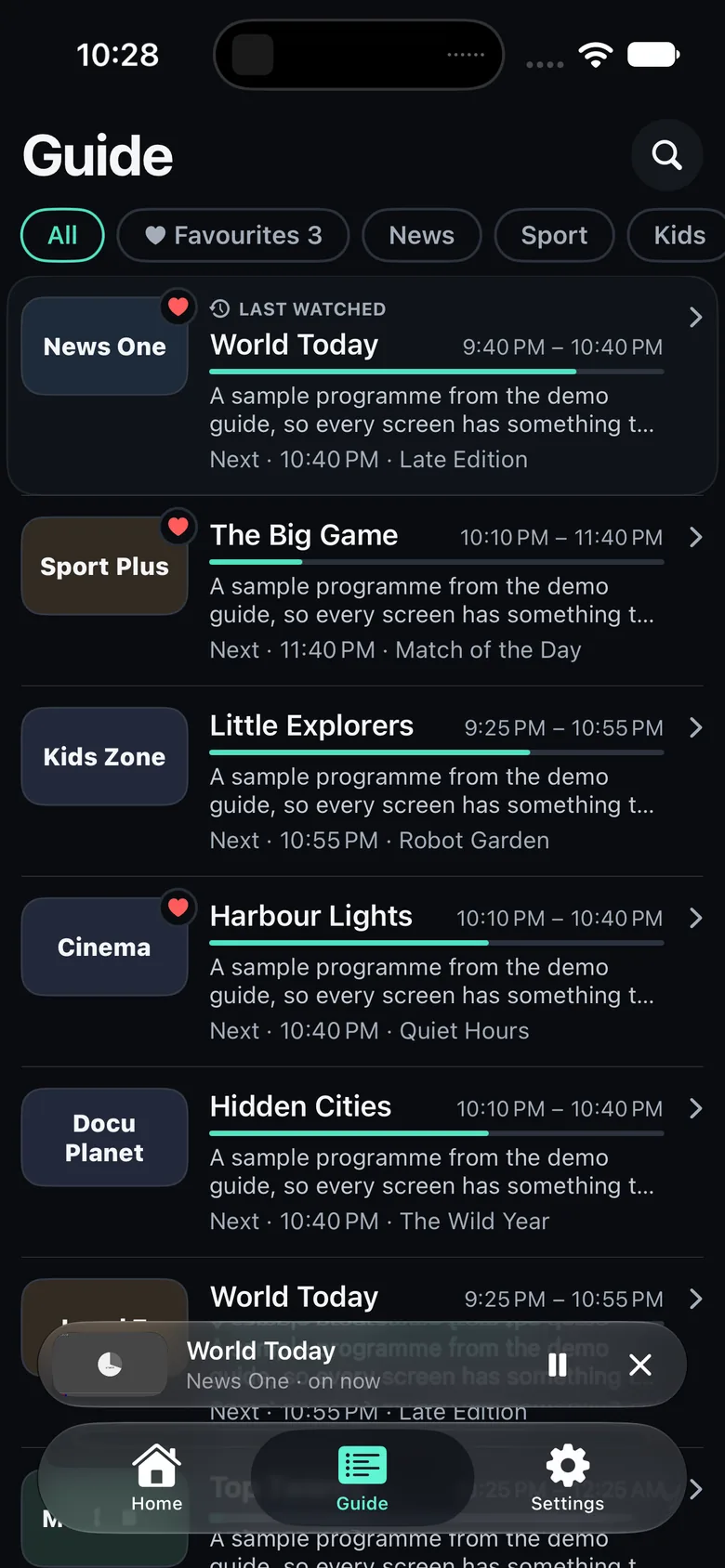
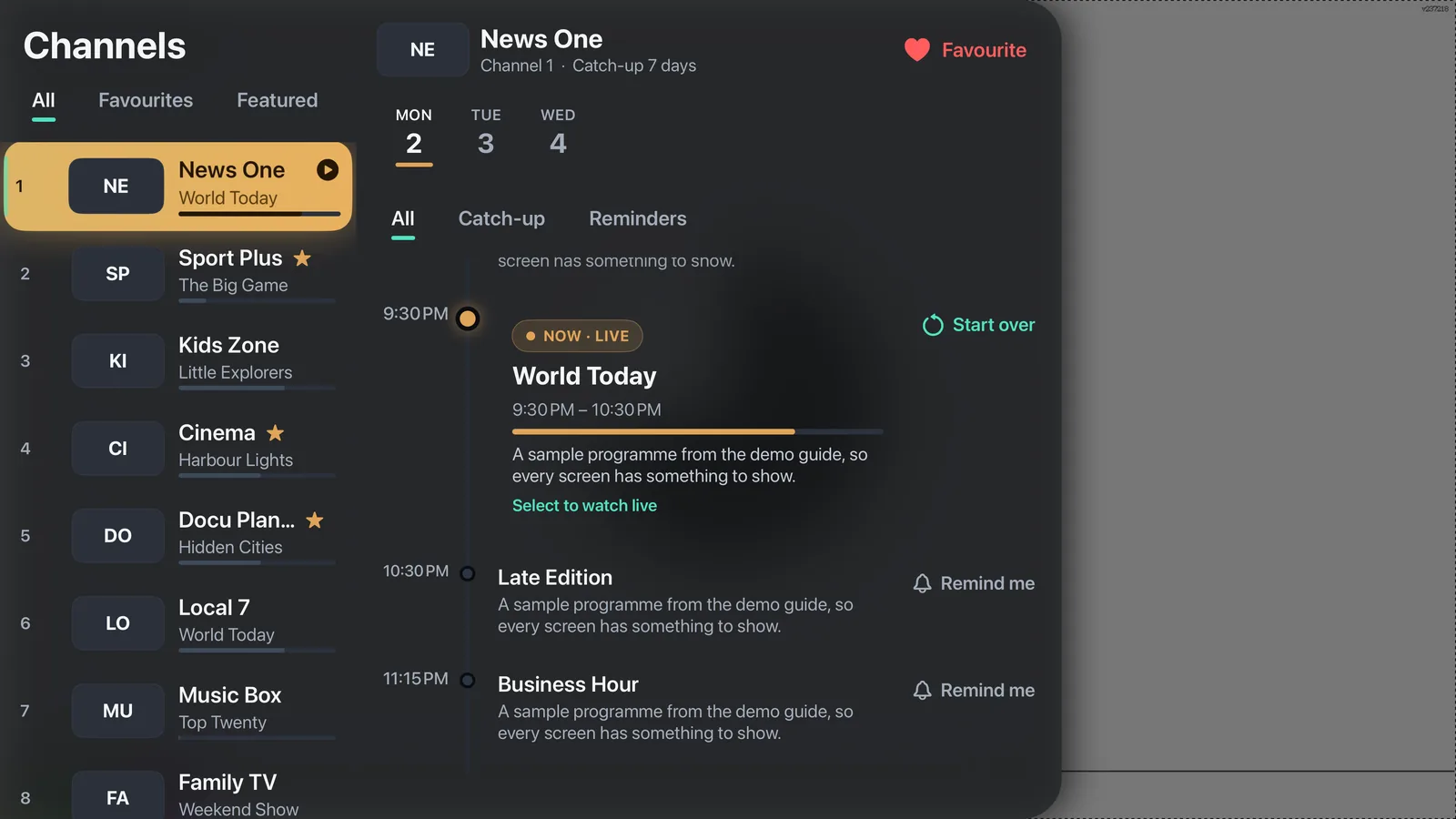
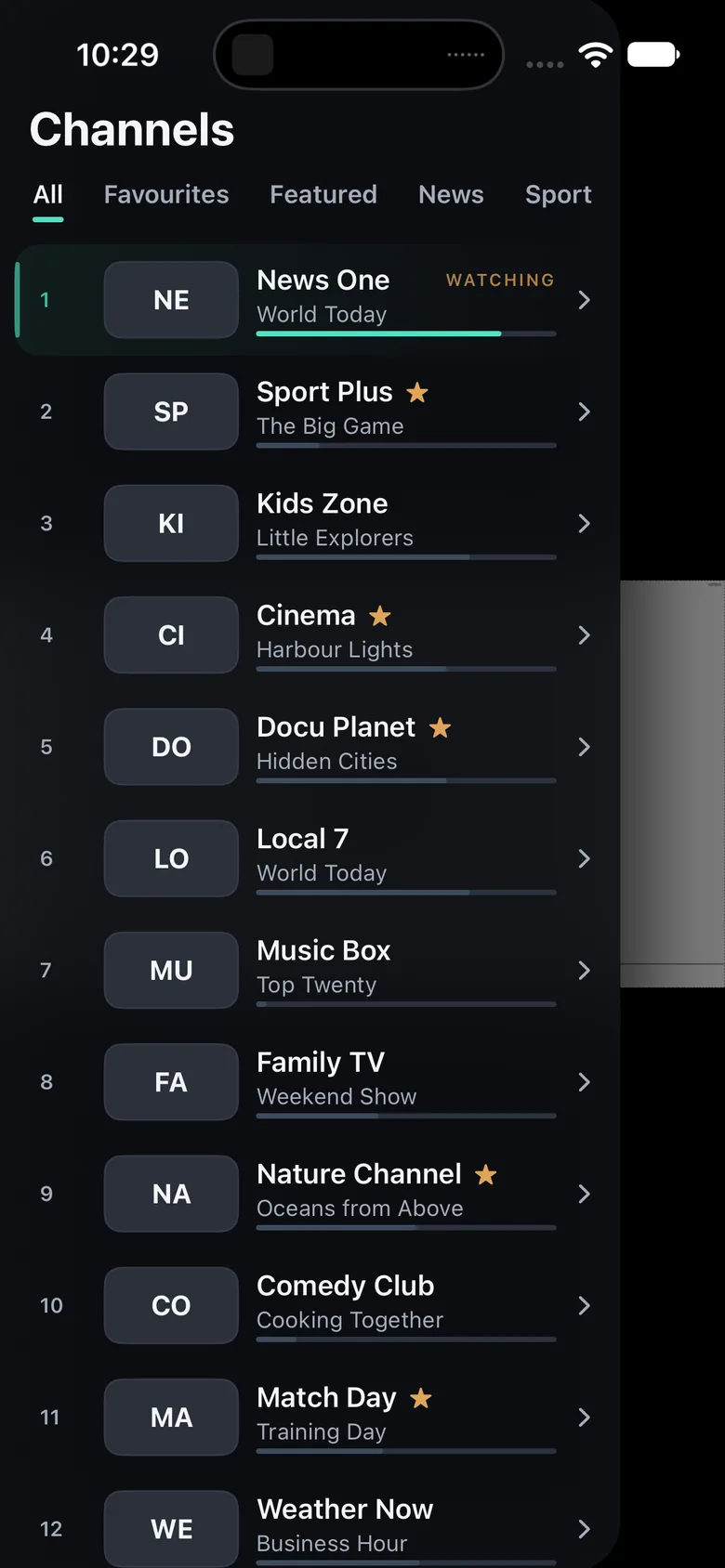
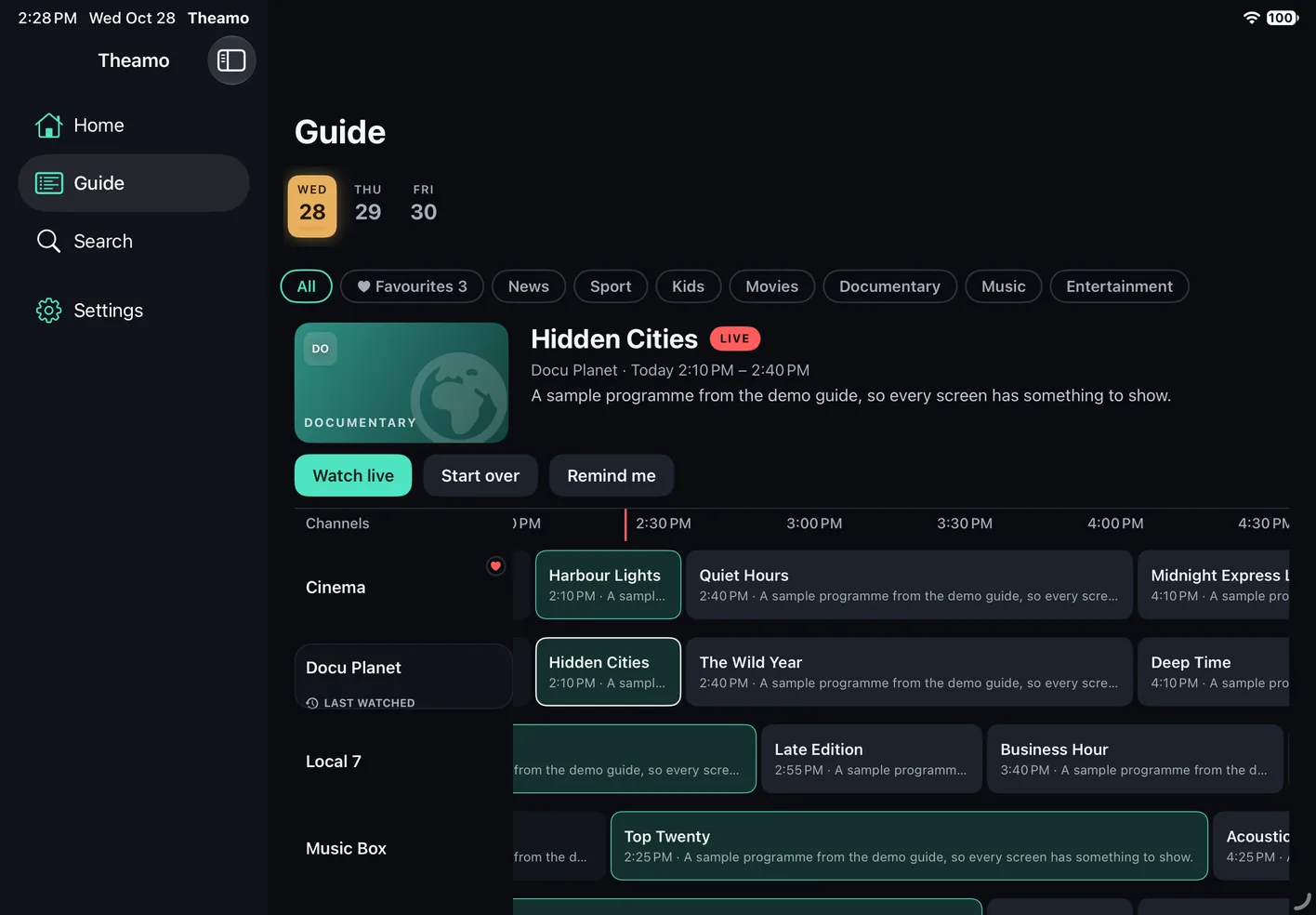
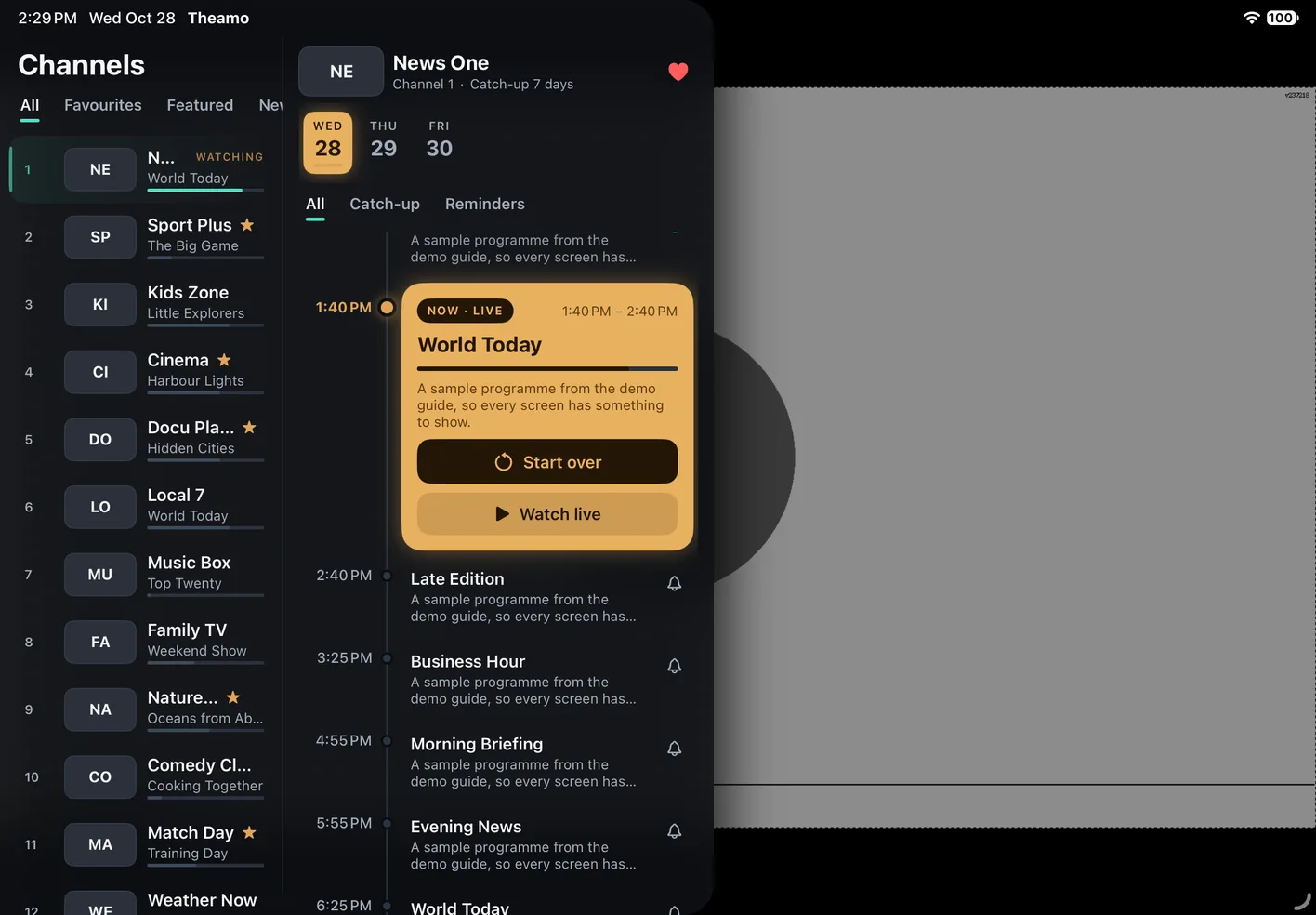
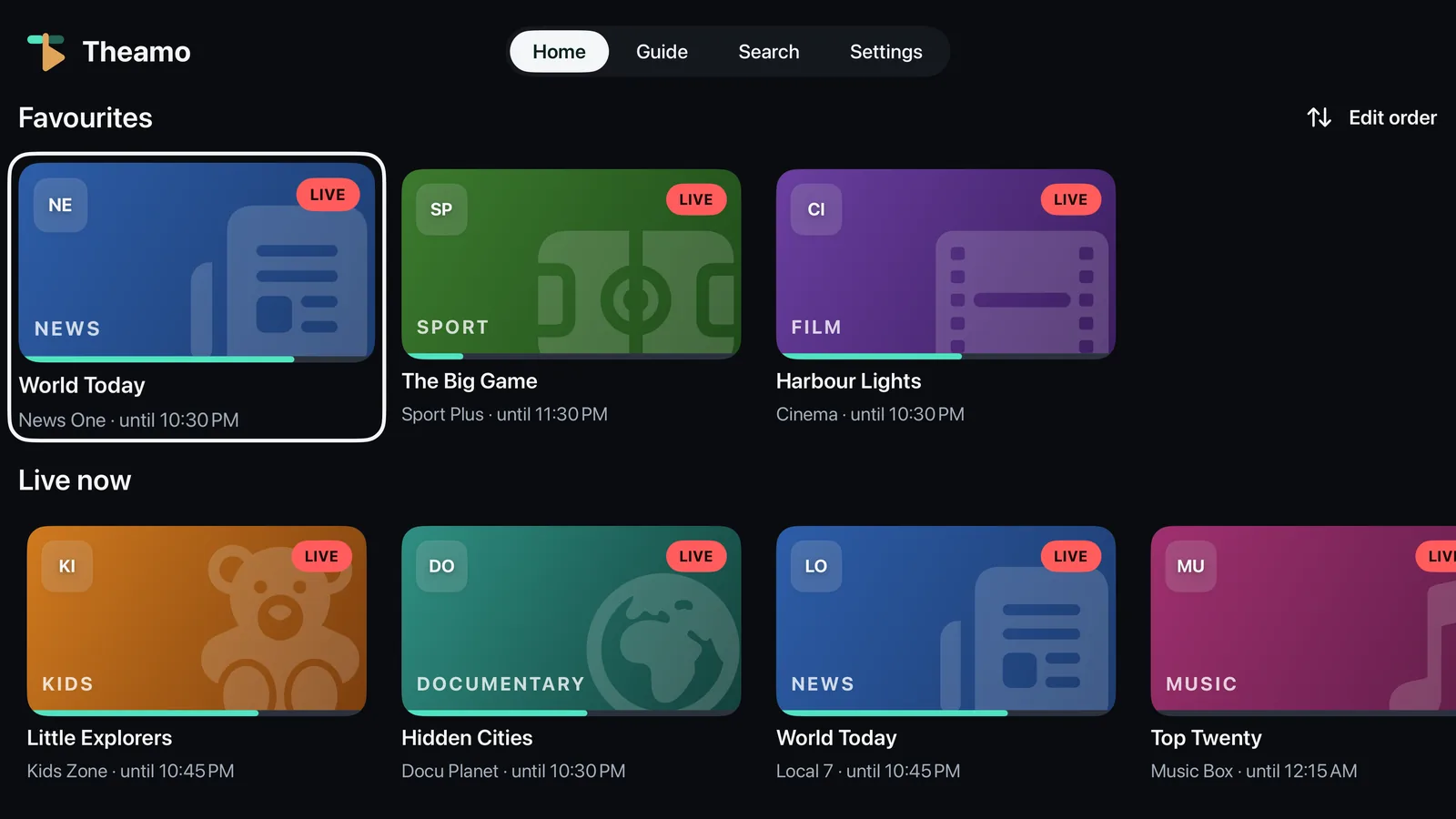
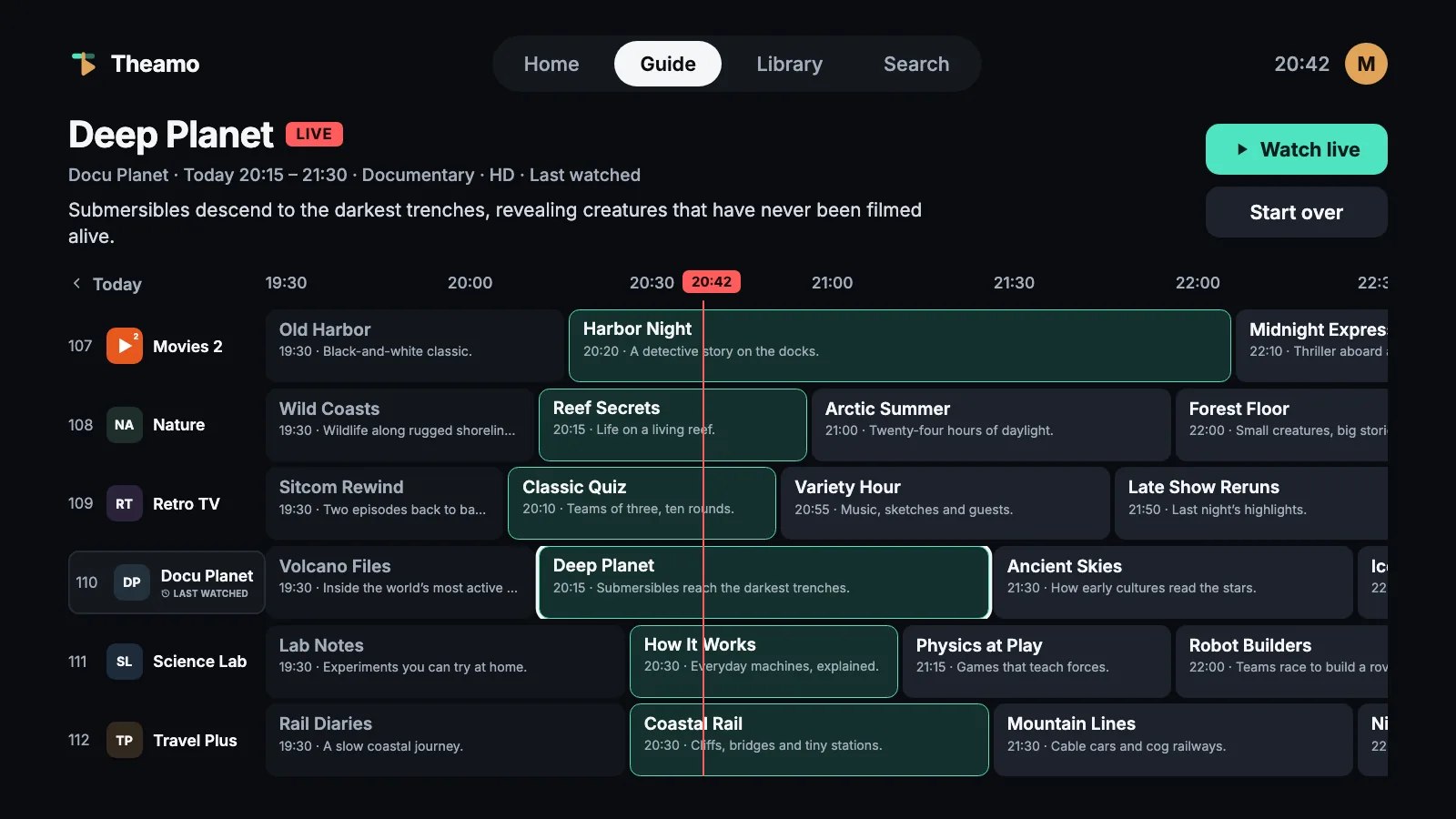
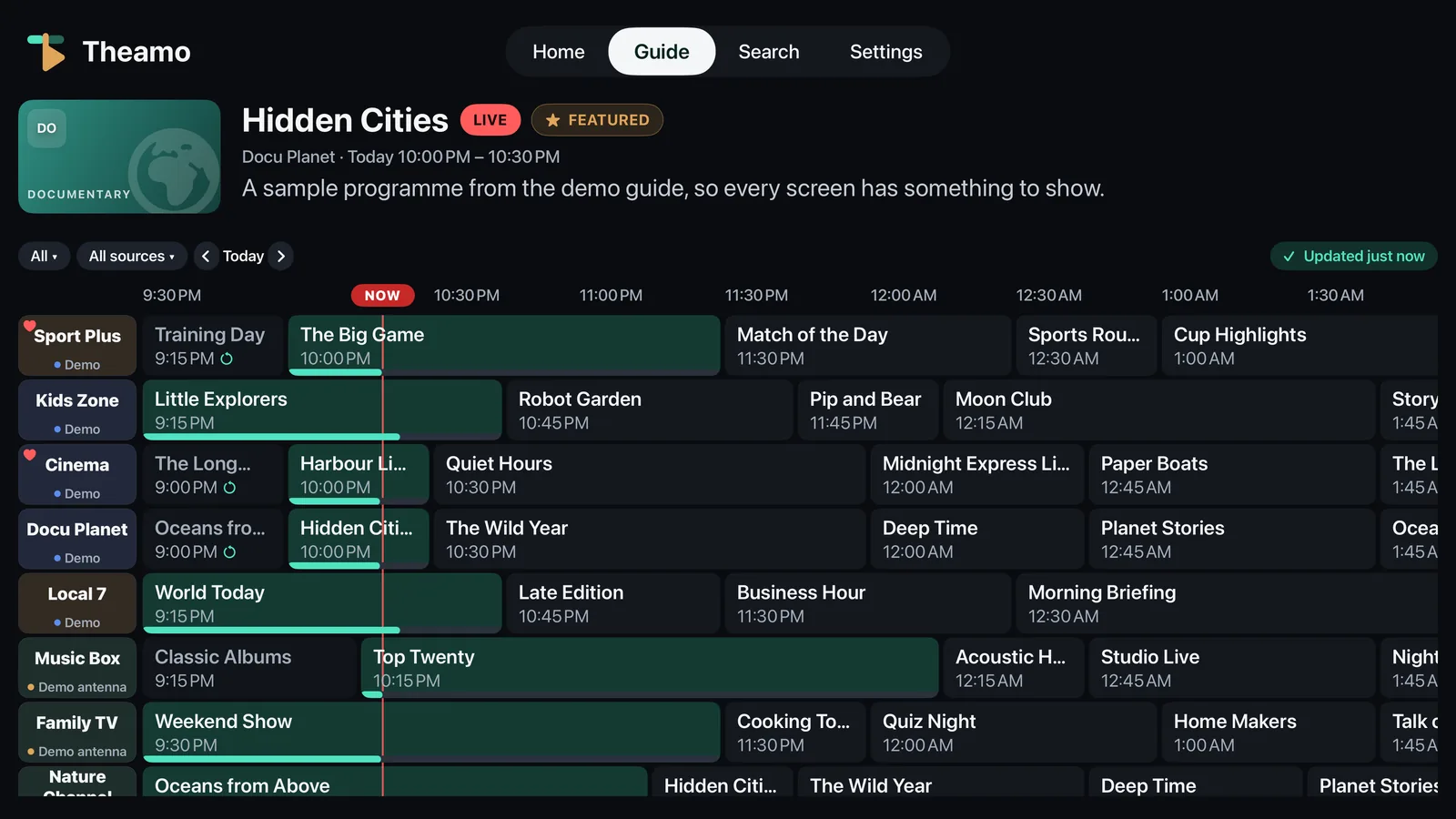
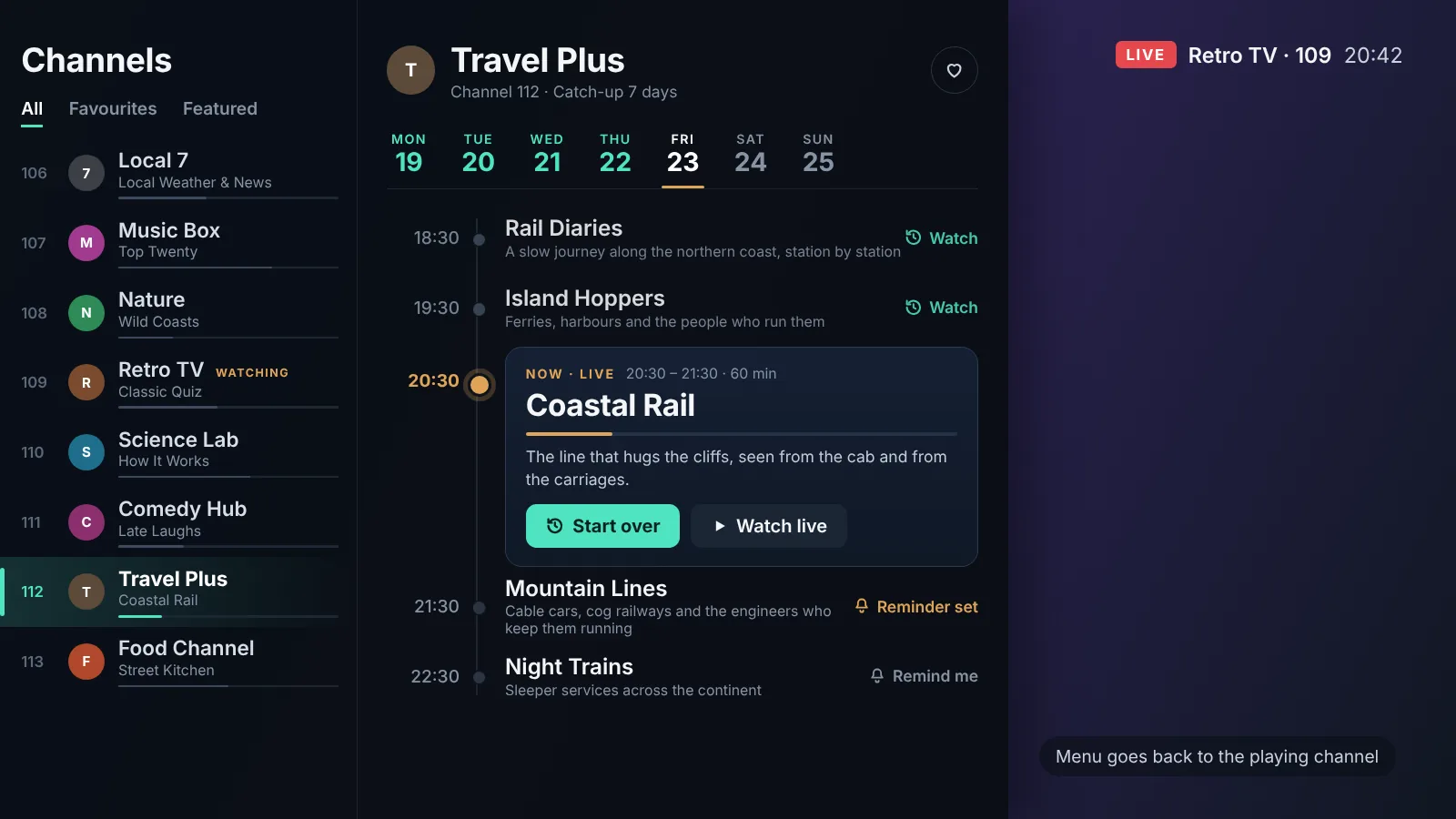
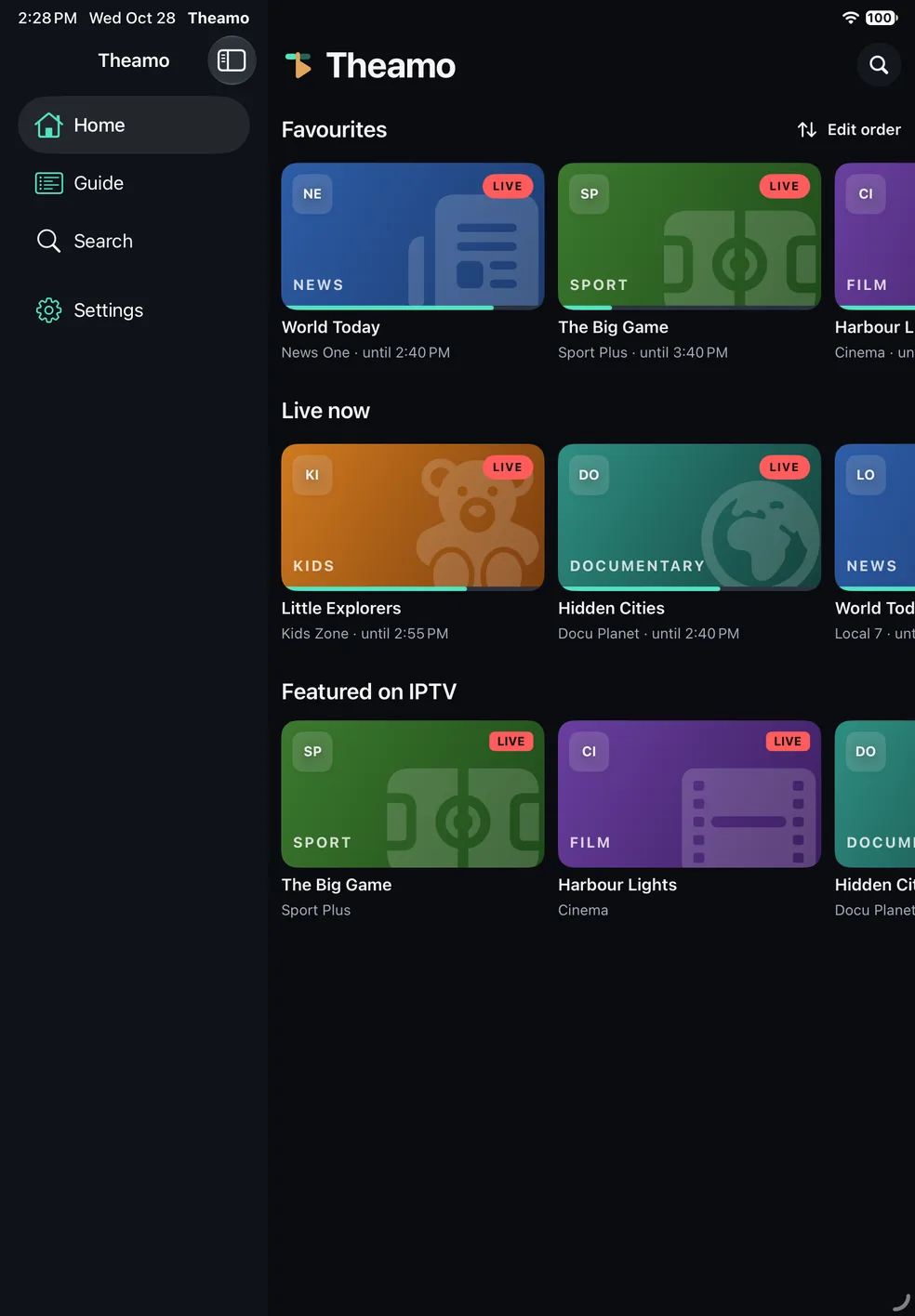
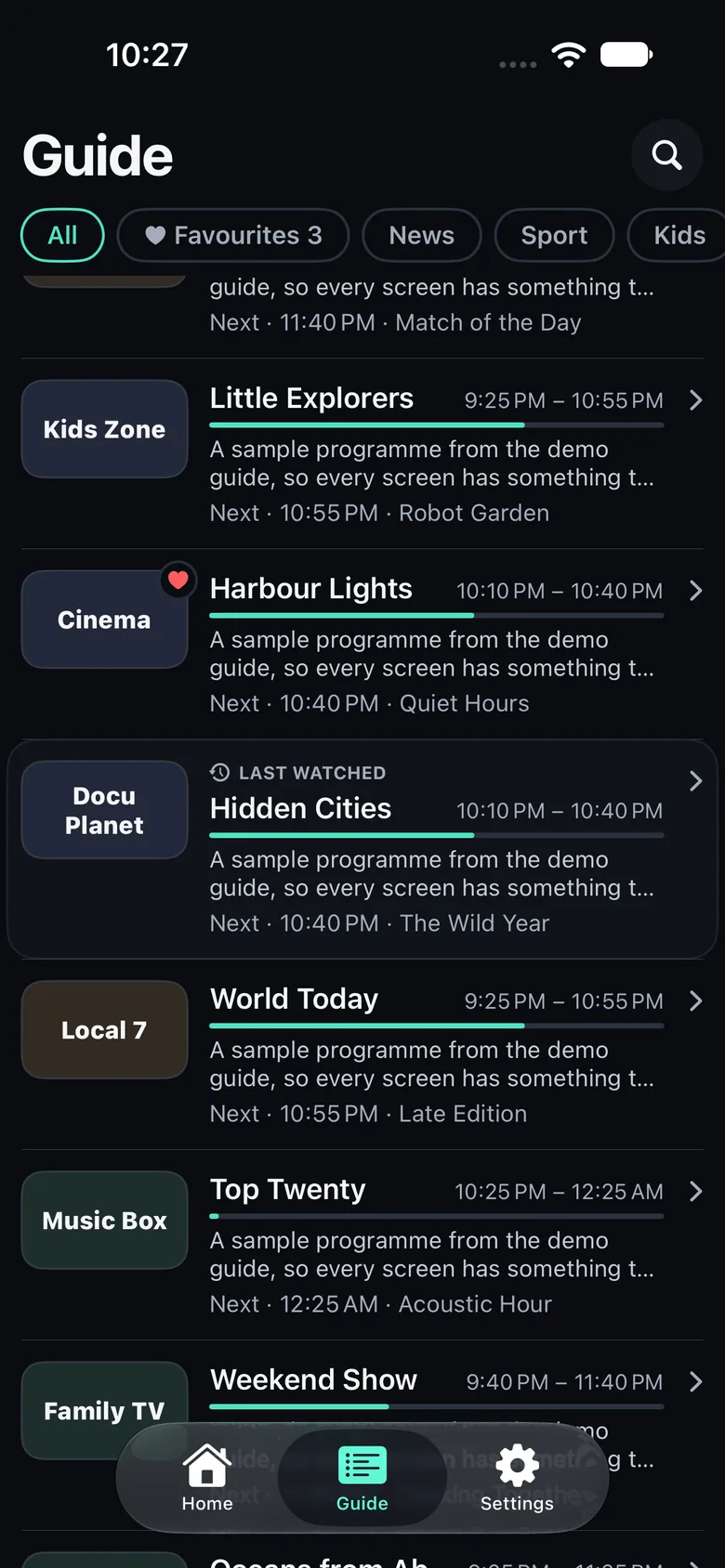
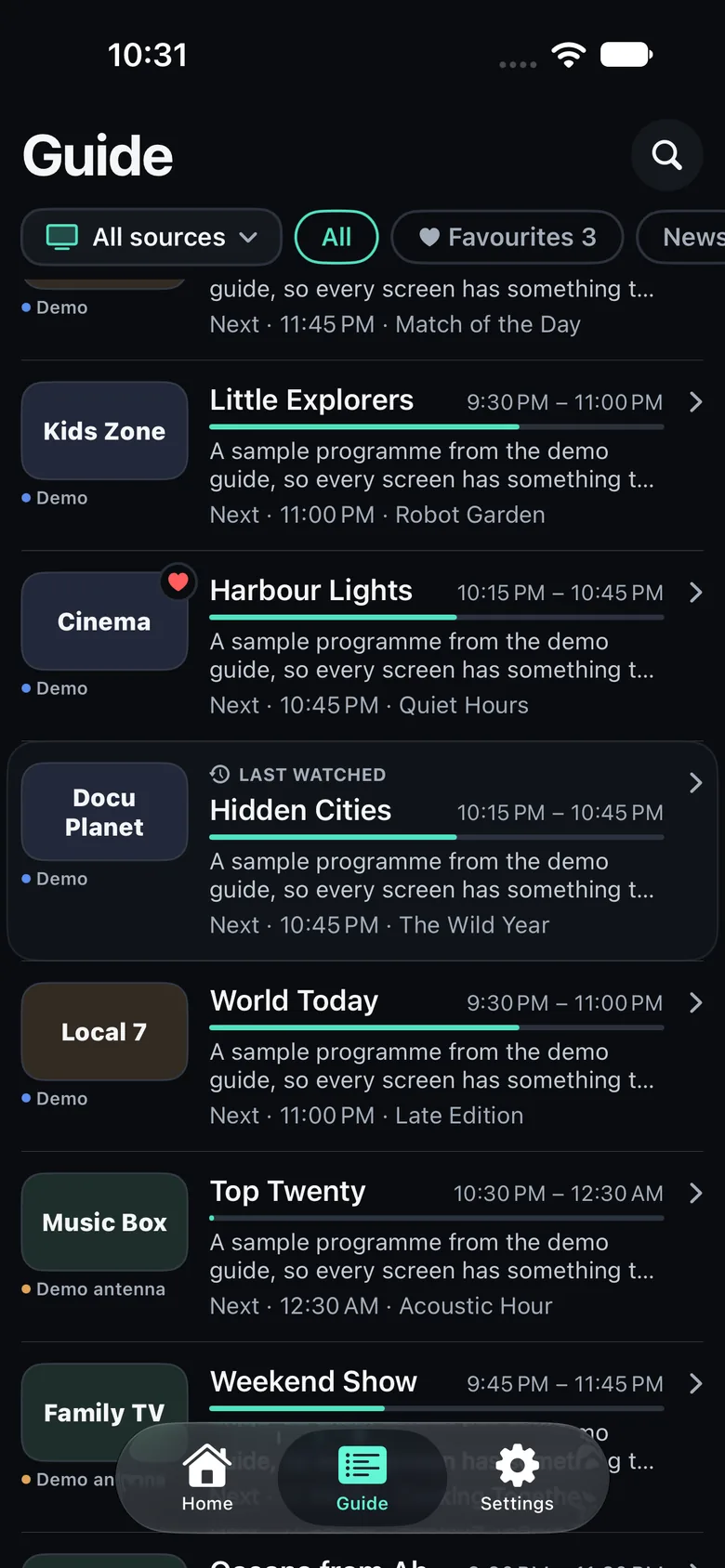
Every program shows its description, not only its name, on iPhone, iPad and Apple TV. Channel logos sit on a dark tile so each one is easy to read, and programs show their picture when the guide has one.
Antenna channels too
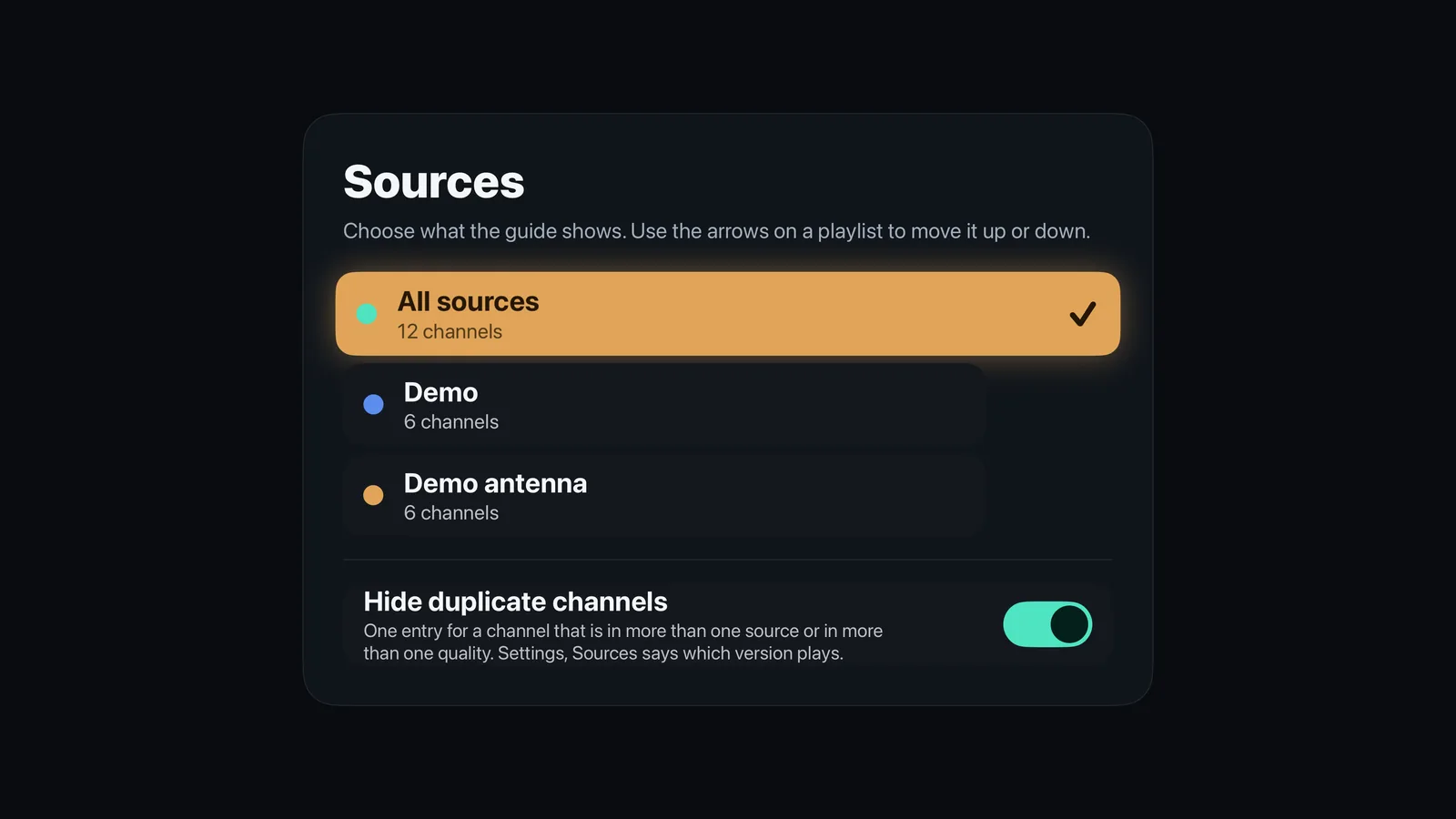
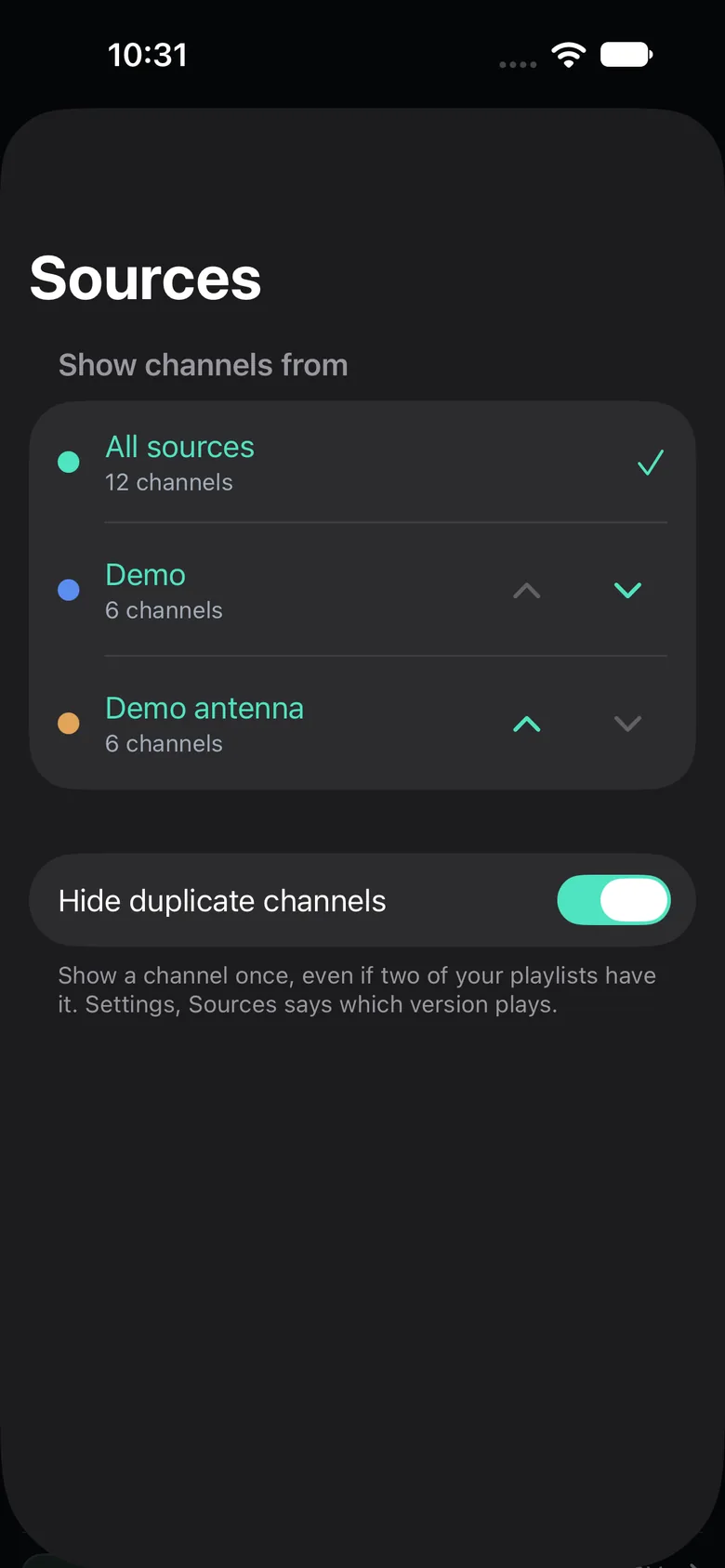
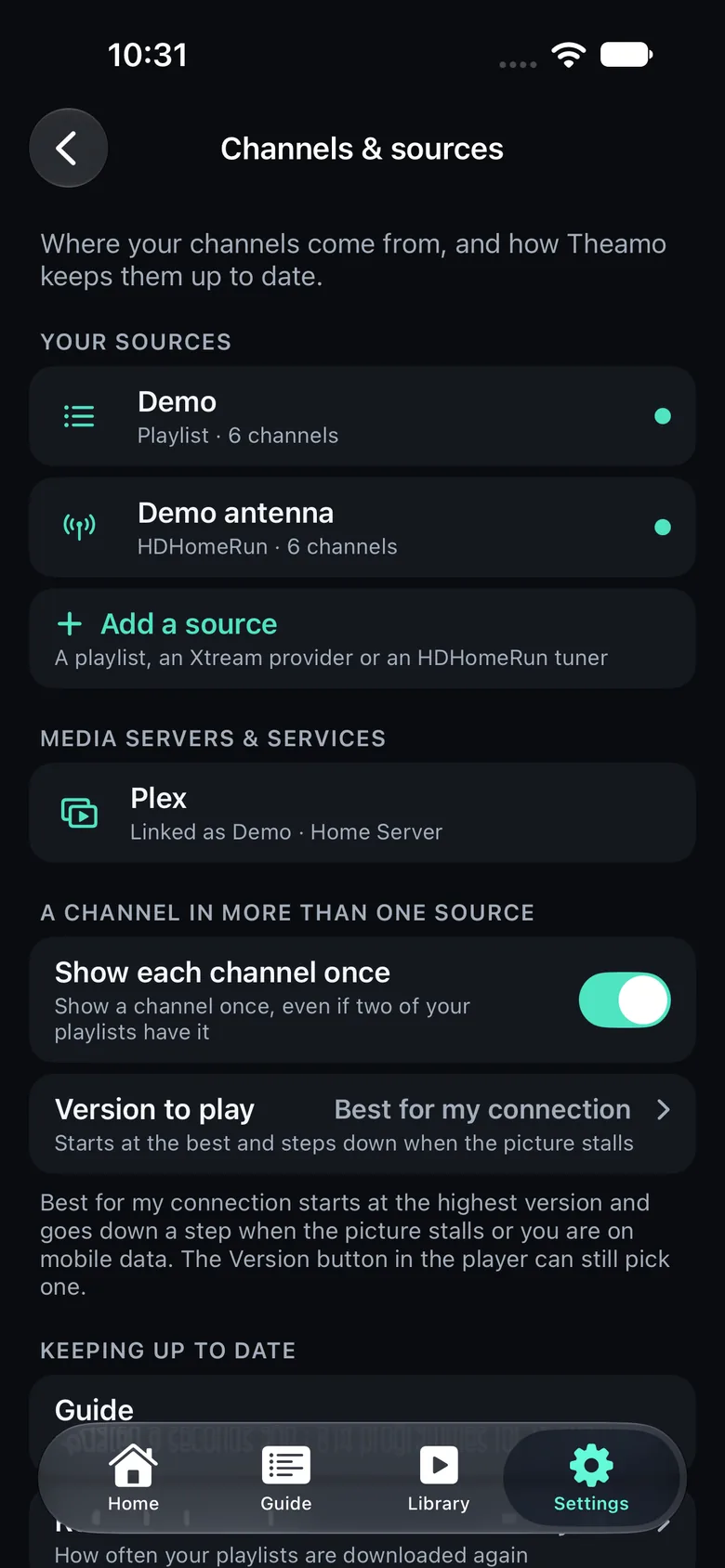
Add an HDHomeRun tuner and watch broadcast channels alongside your IPTV list. The guide can come from the tuner itself.
Movies and series
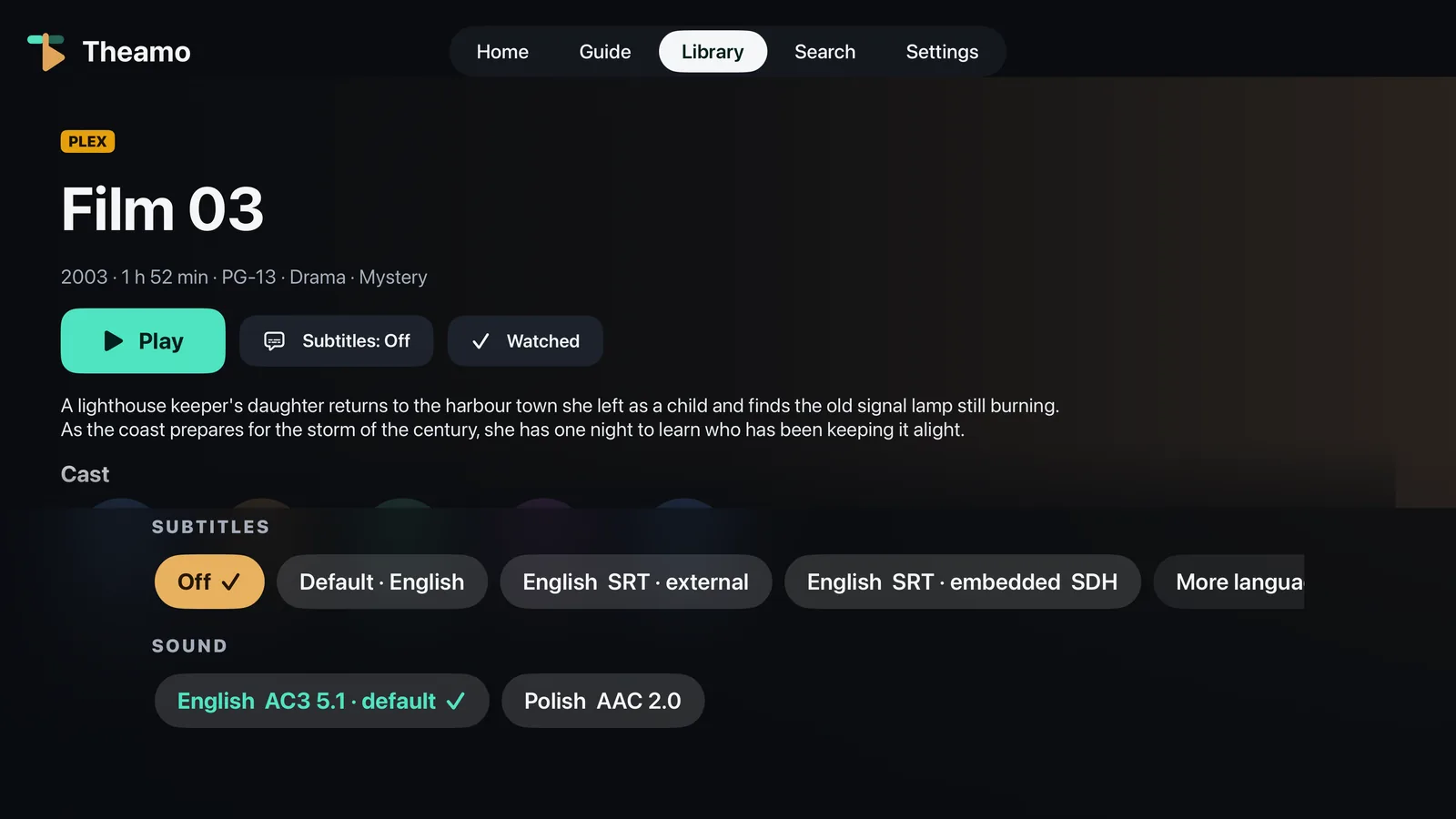
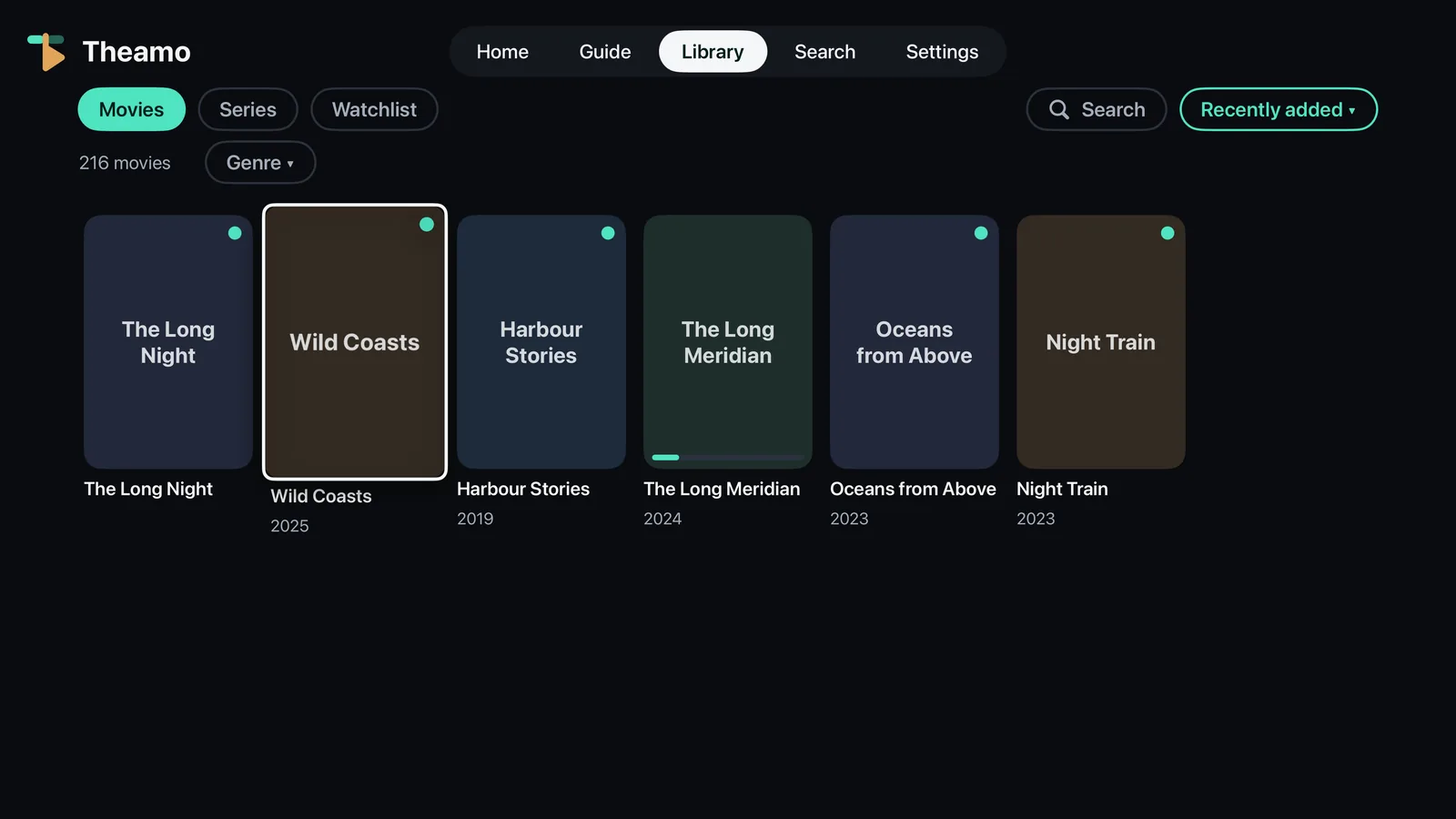
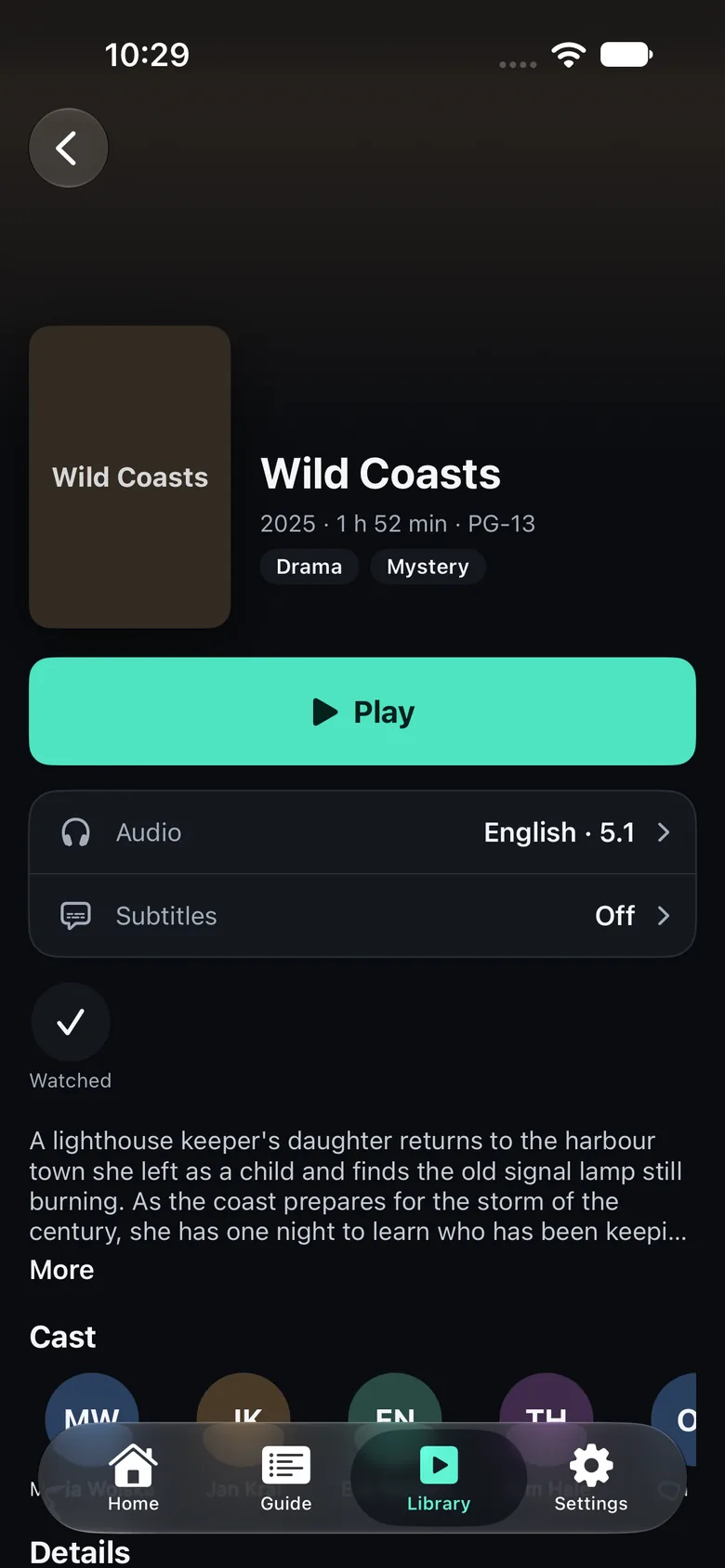
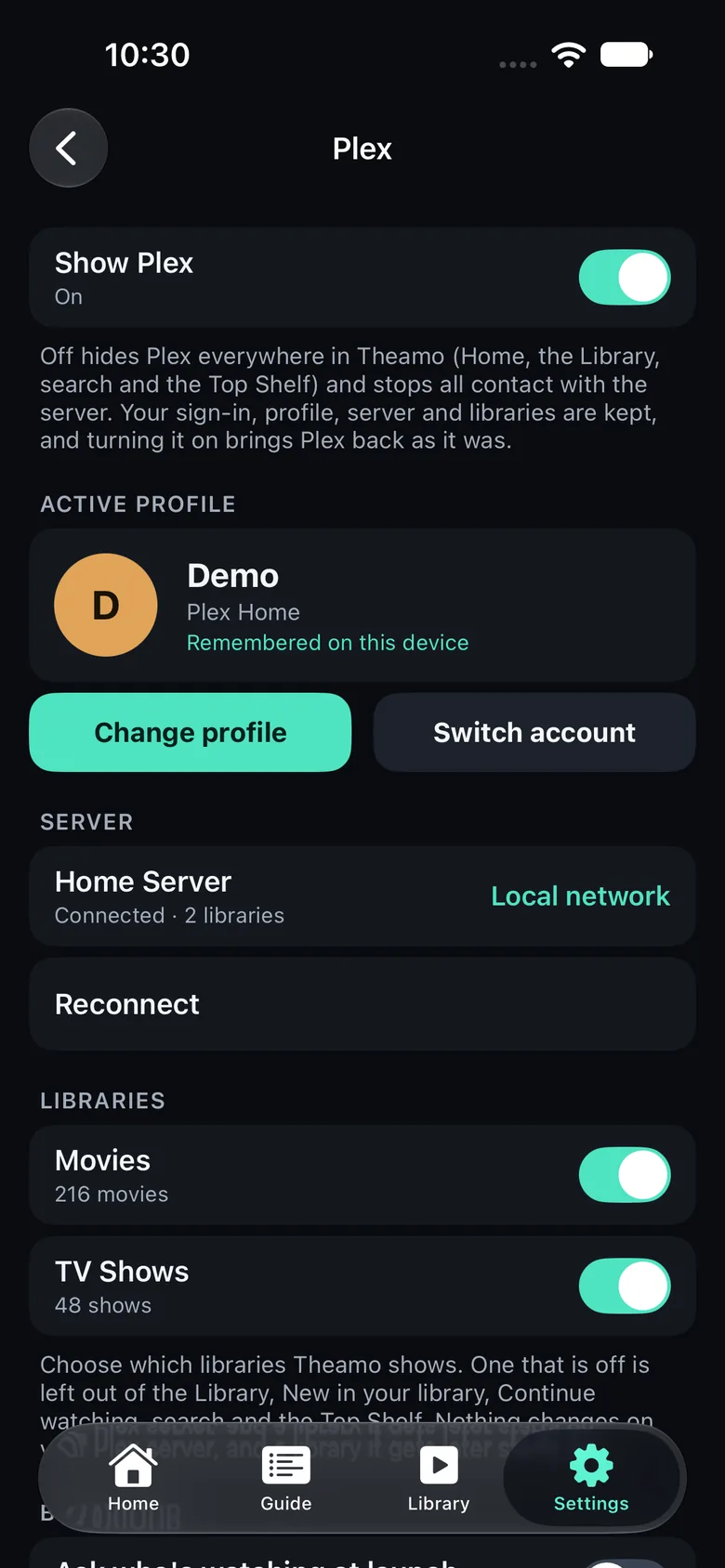
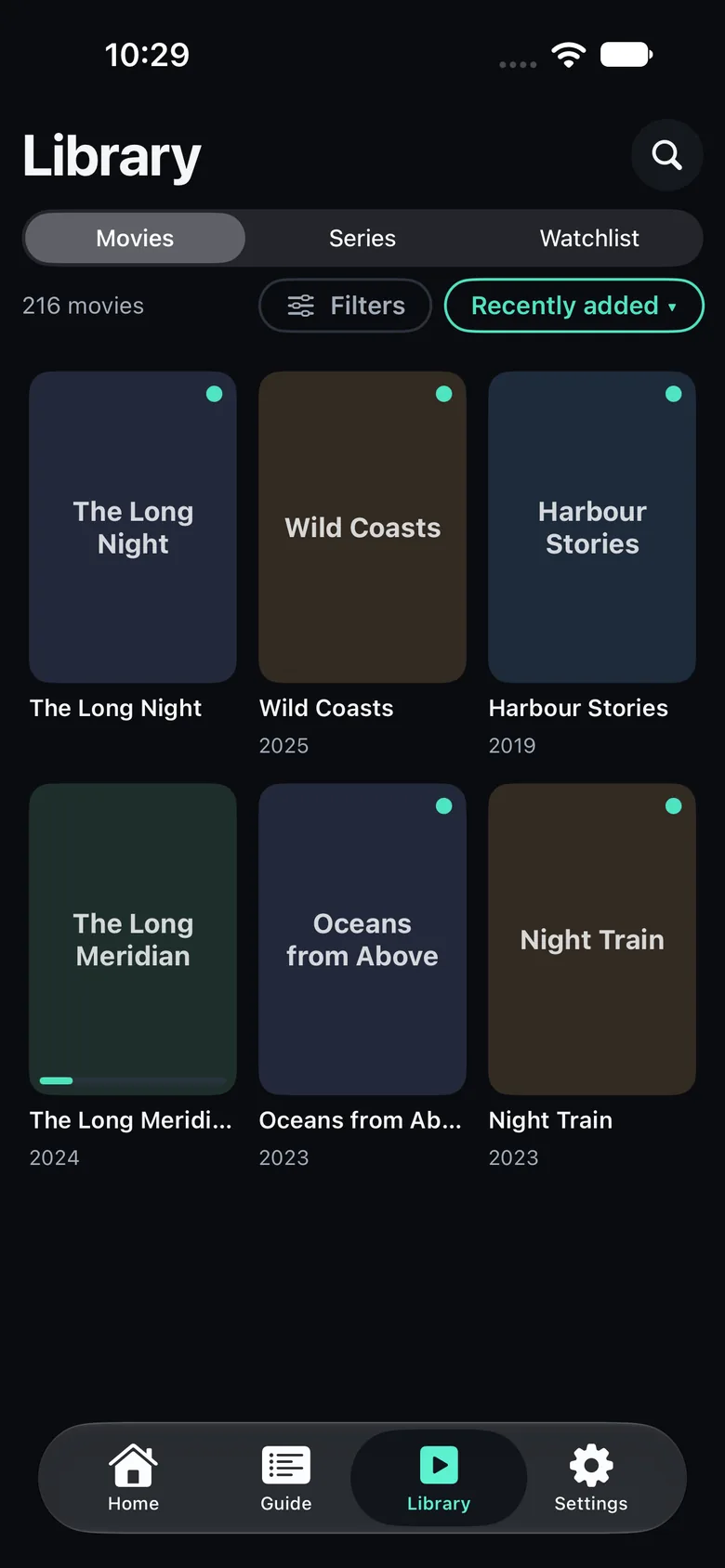
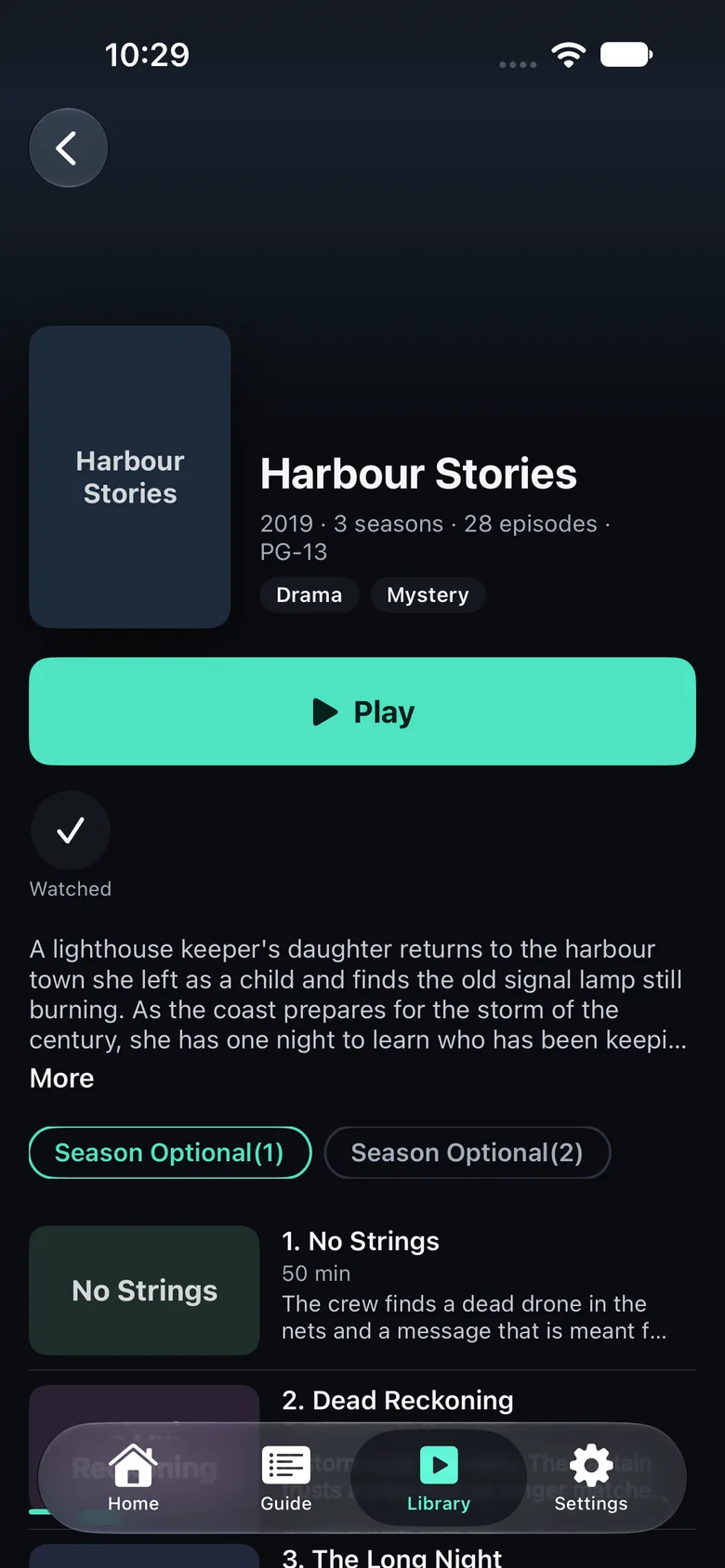
Browse your provider's movies and series, and your Plex libraries, in one place.
Search everything
One search for channels, programs, movies, series and Plex titles.
Simple settings, deep when needed
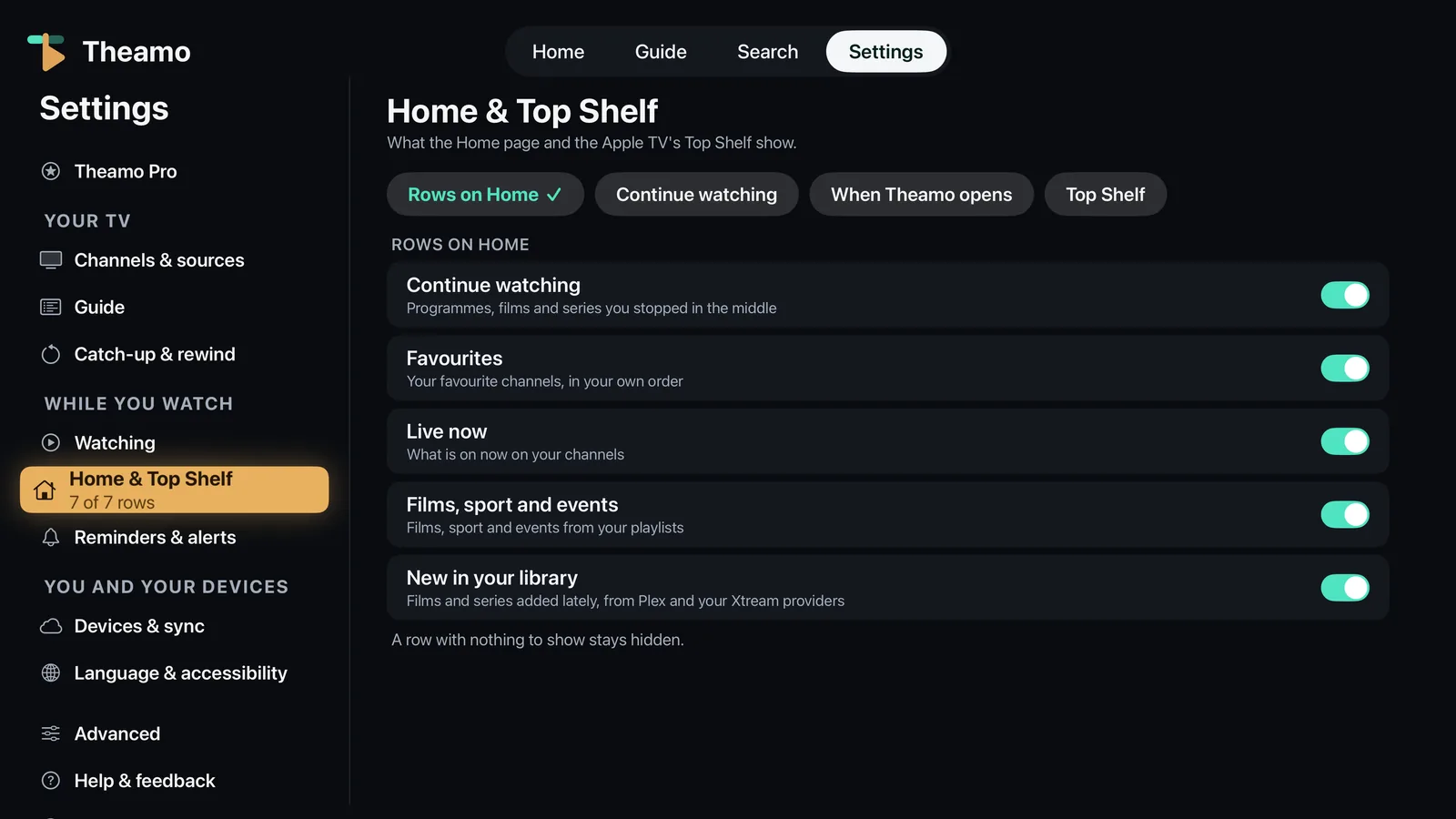
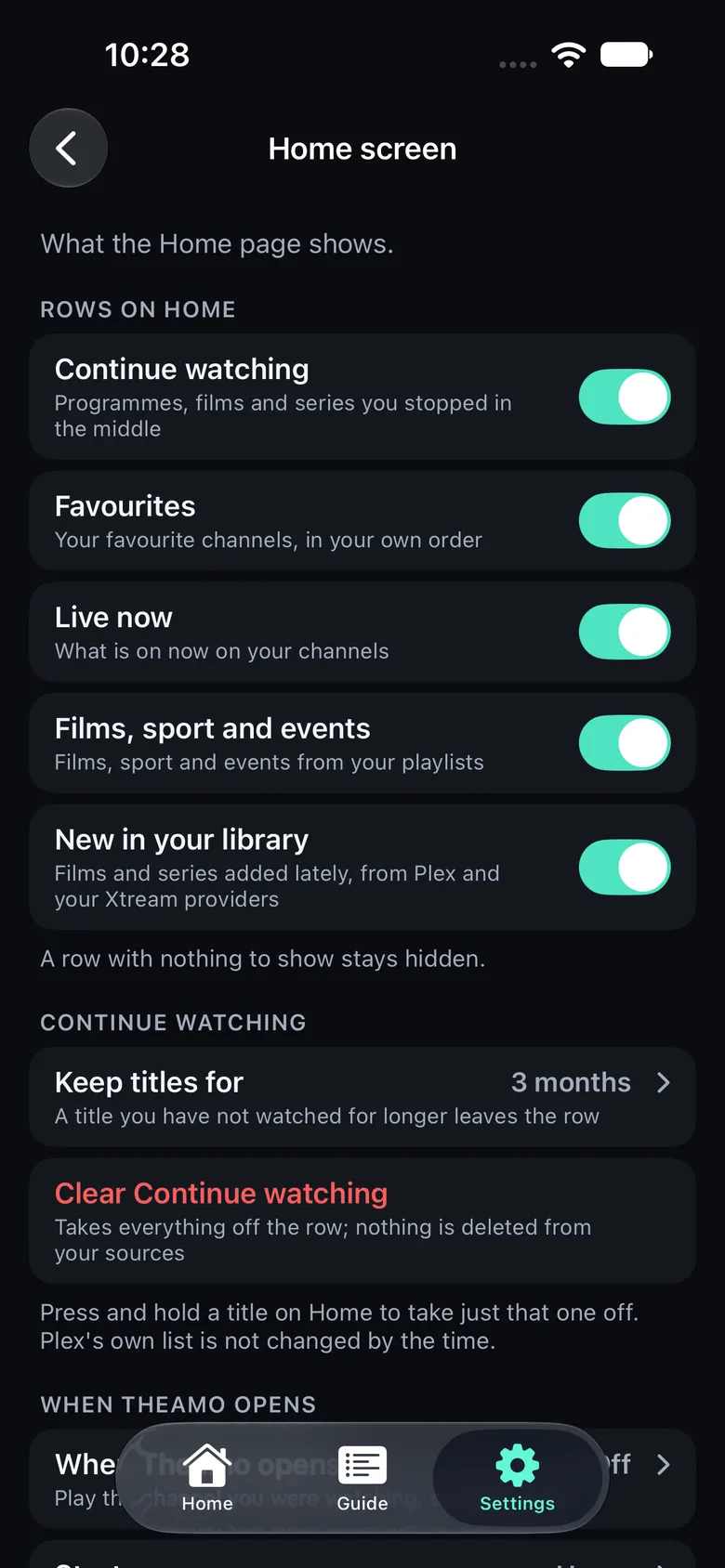
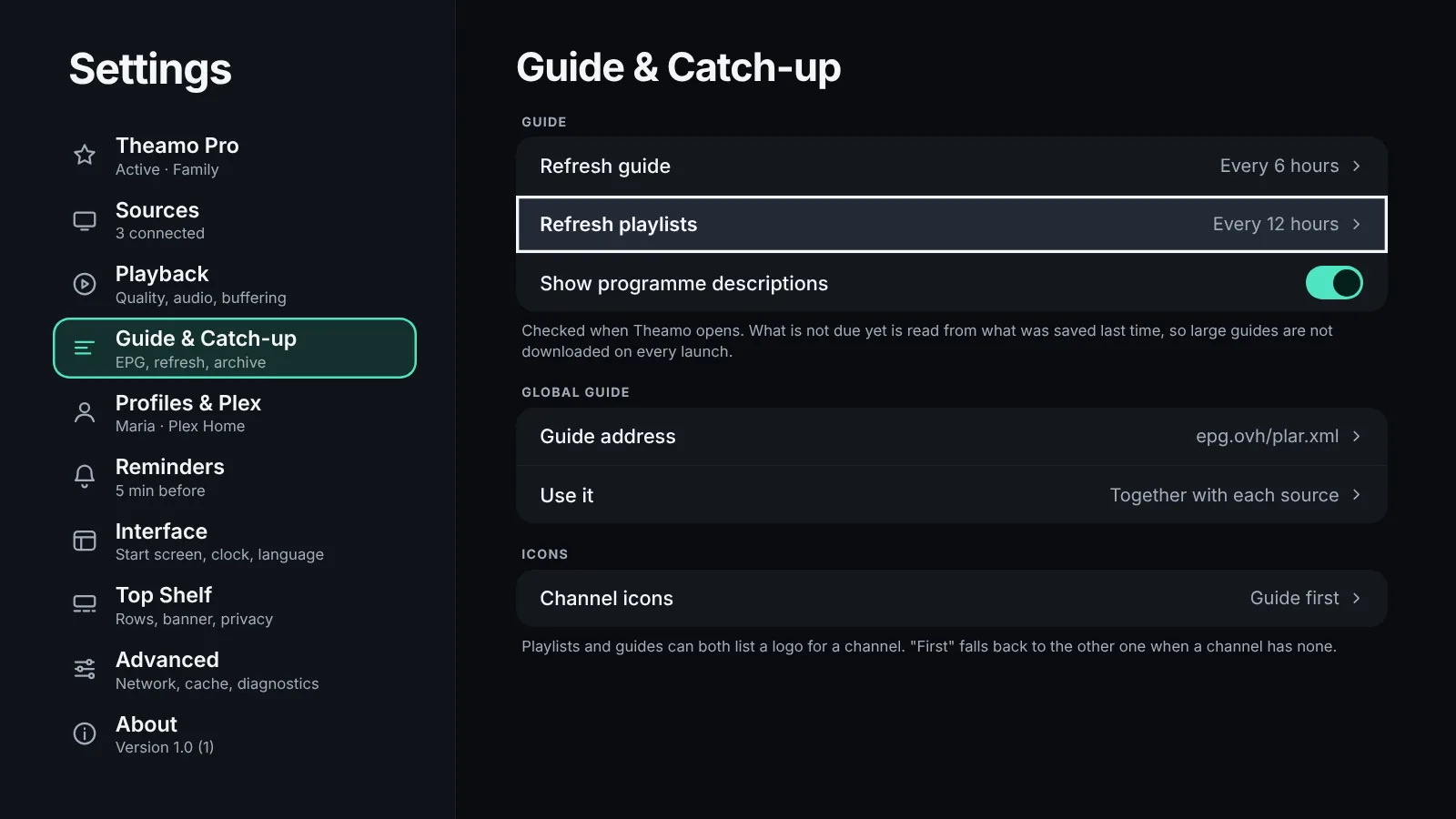
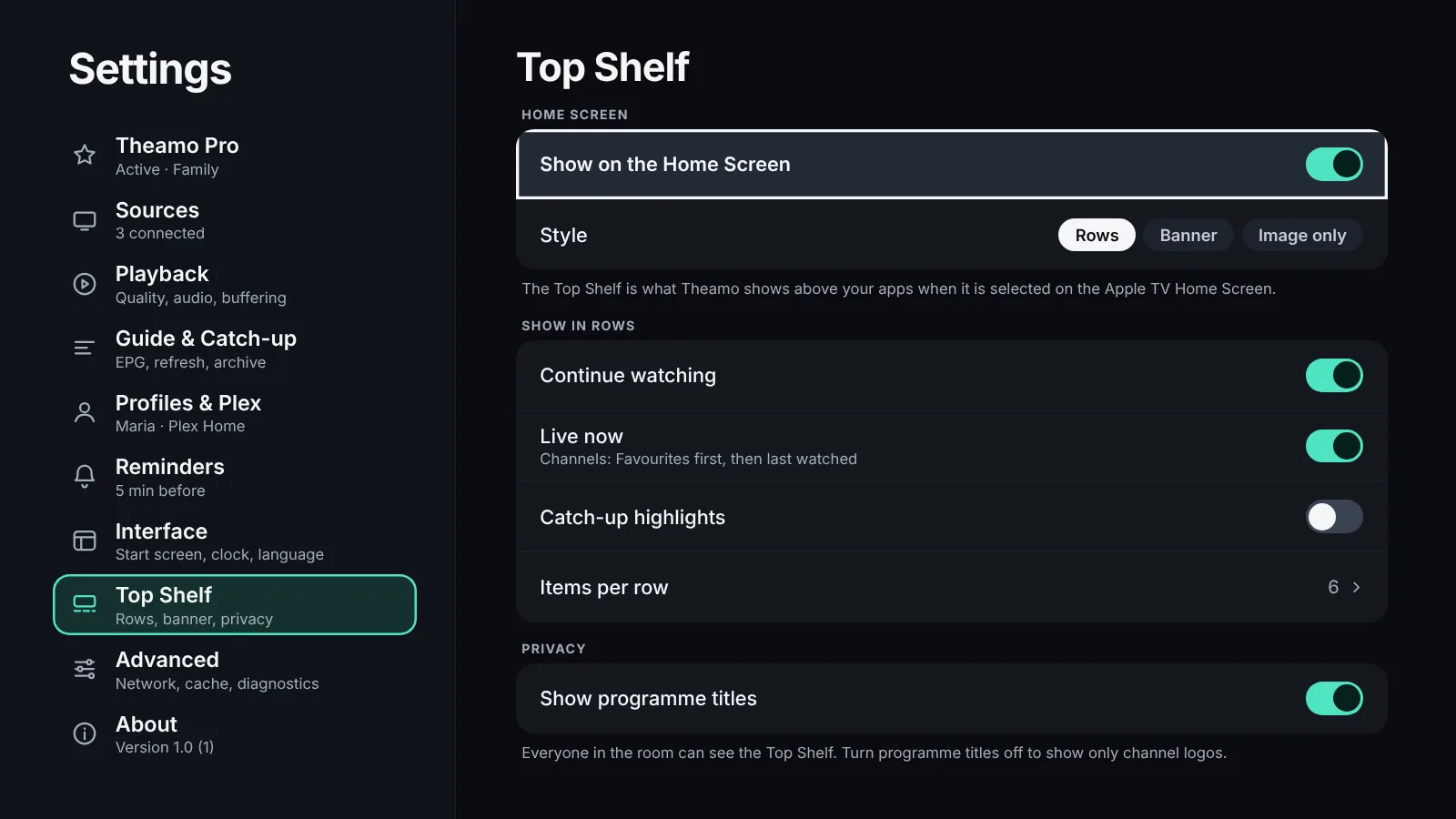
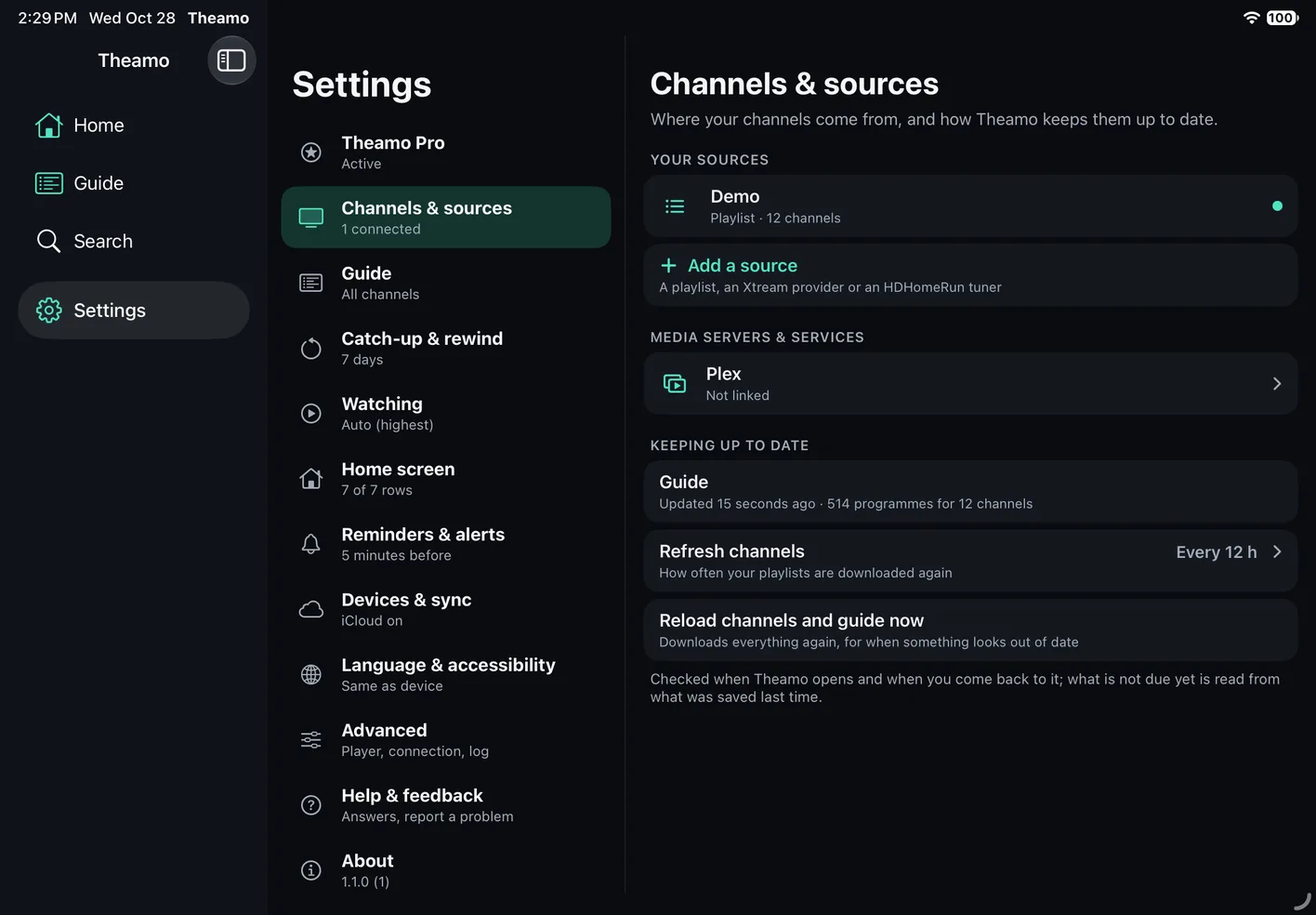
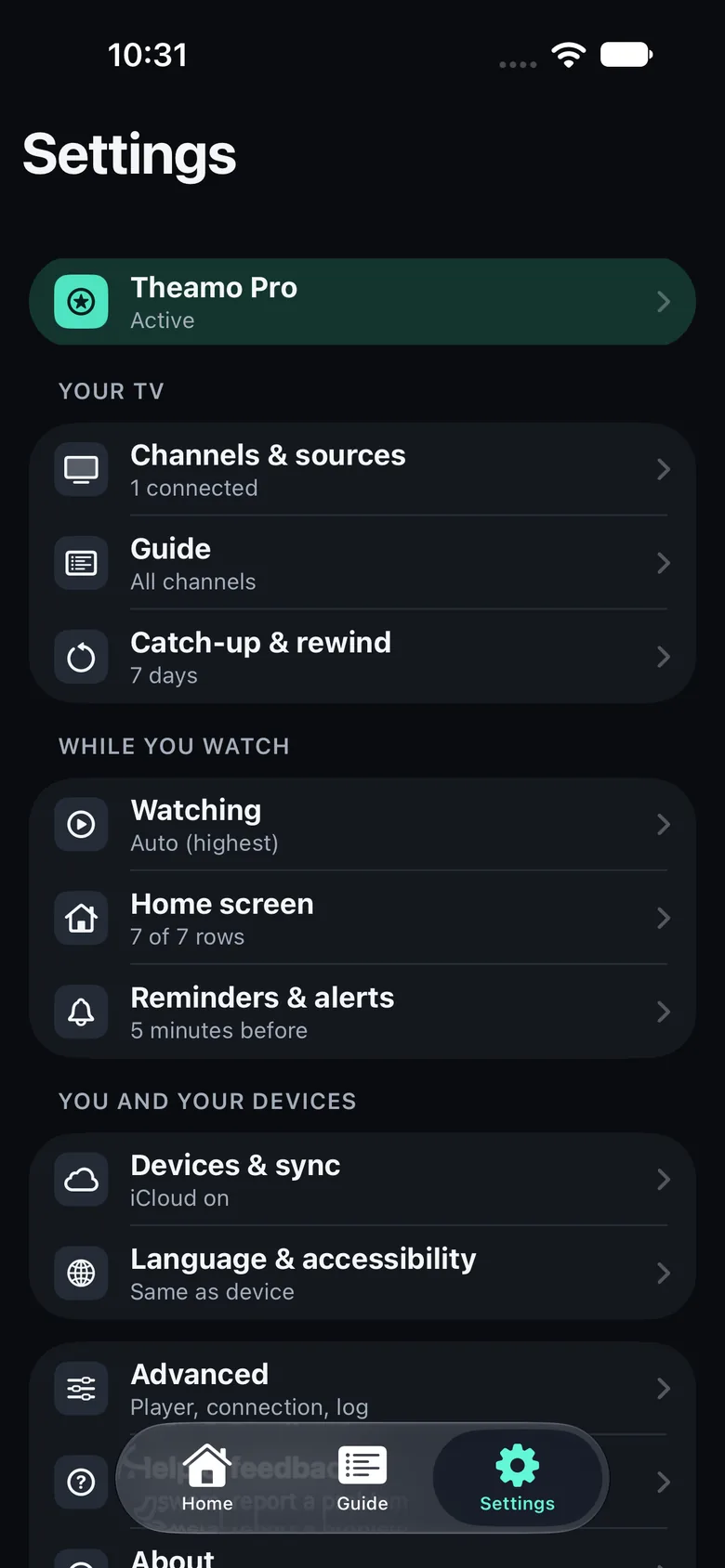
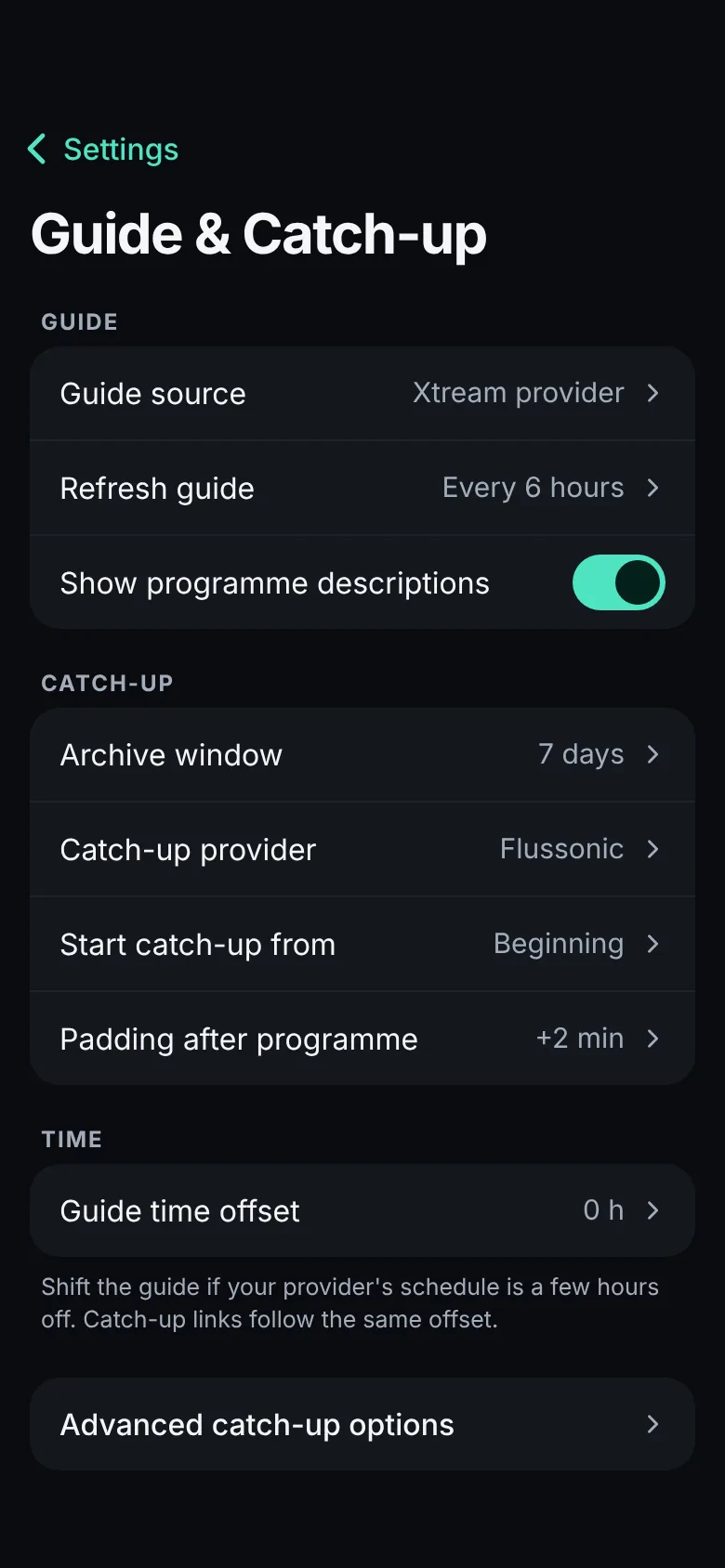
Settings look the same on iPhone, iPad and Apple TV: one card for each setting, clear switches, and a list of pages that stays beside the one you have open. Advanced options such as guide time offset and custom catch-up links stay out of the way.
Made for the remote
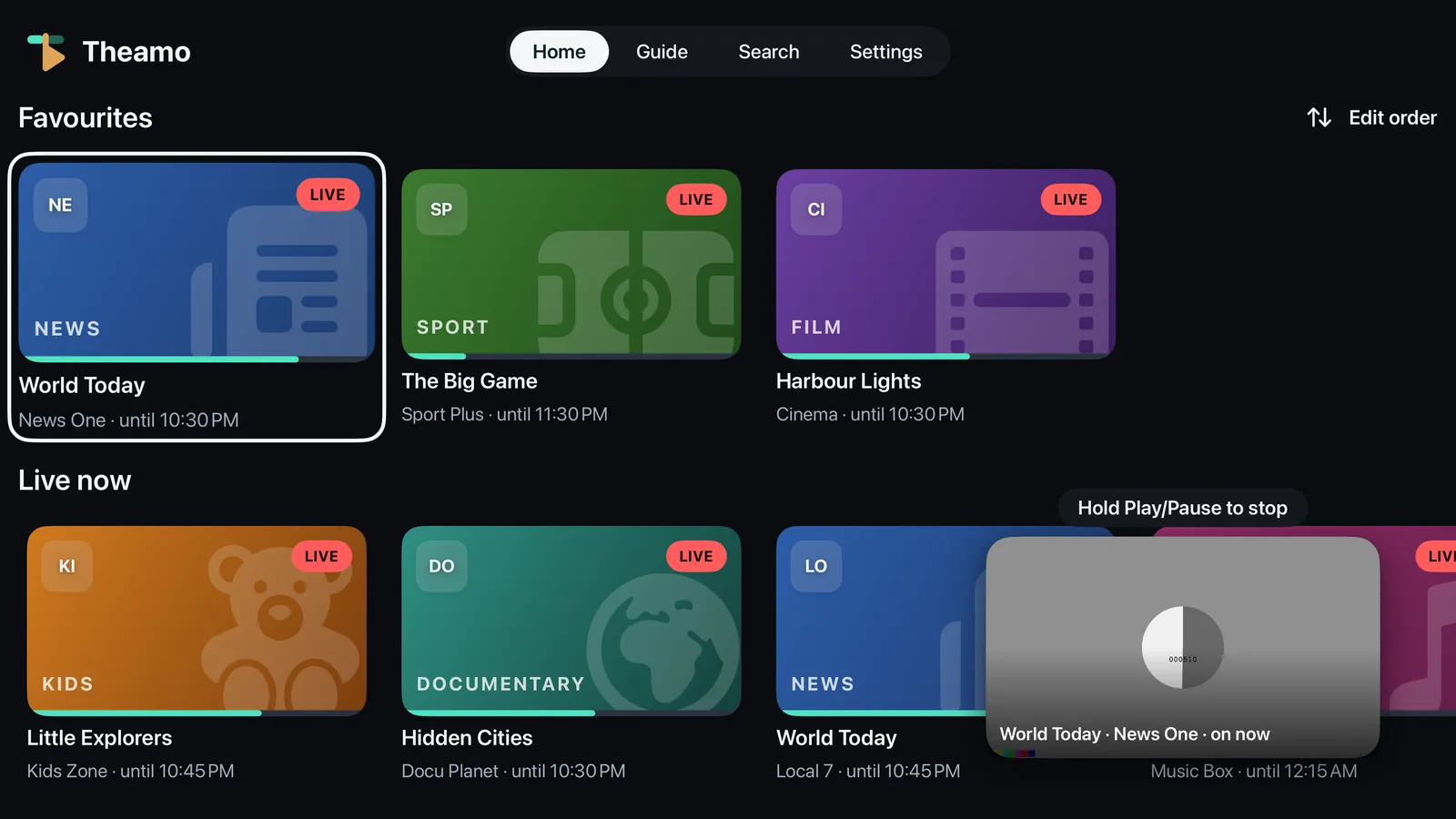
Large targets and short paths on Apple TV. The program you are on glows amber and grows, so you always know where you are, and one press up from Home reaches the tabs.
Scrub with the remote
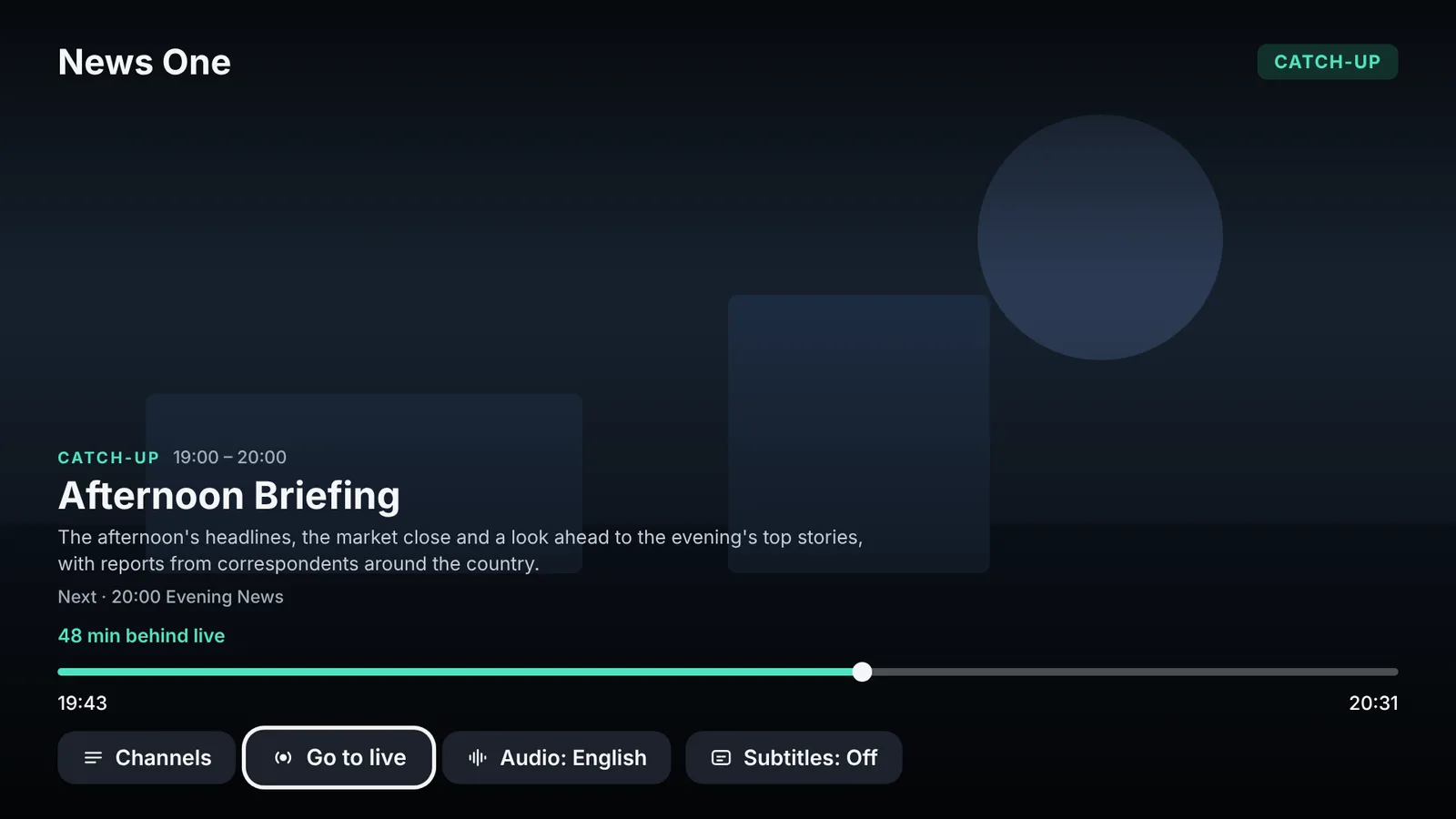
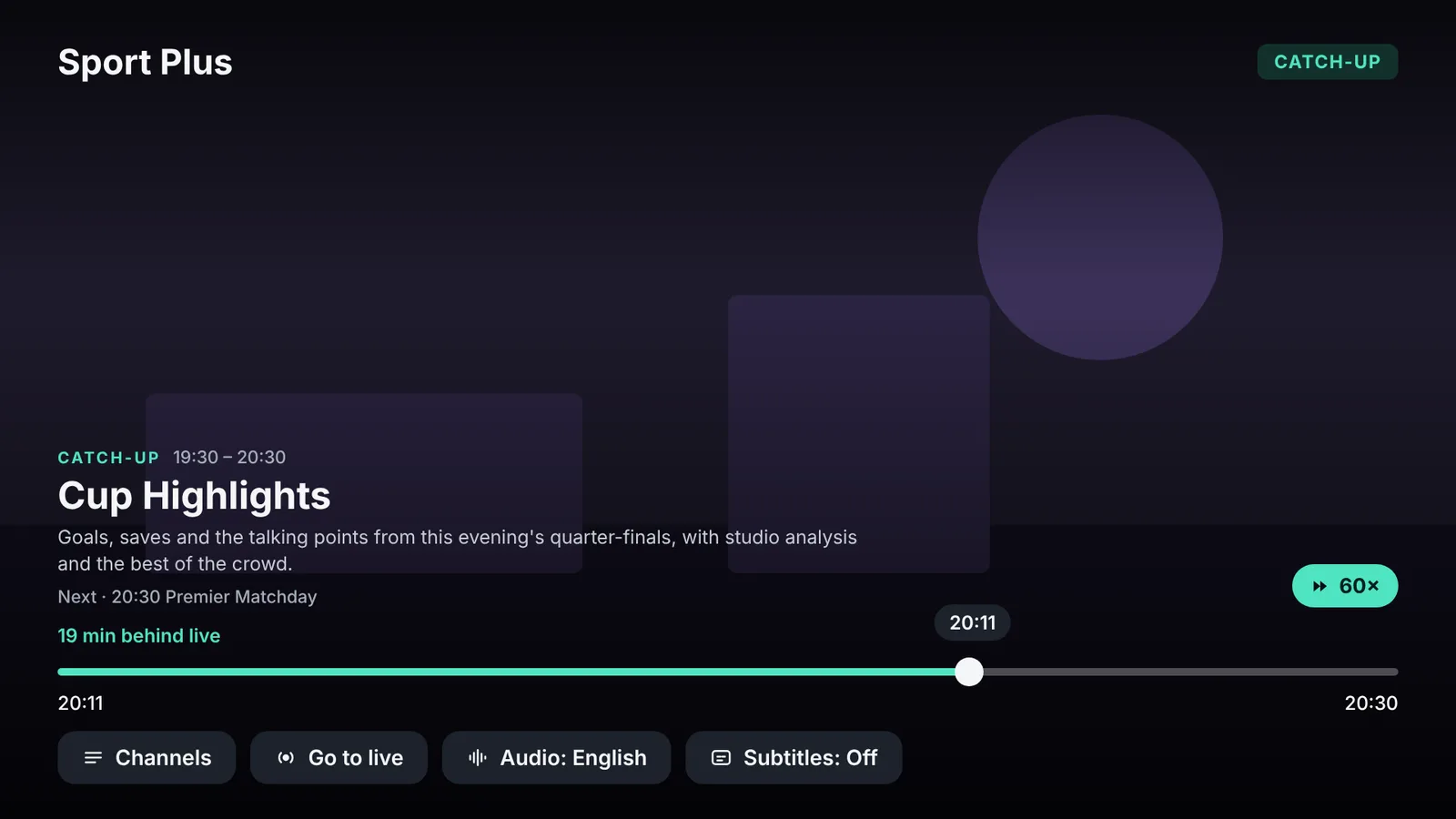
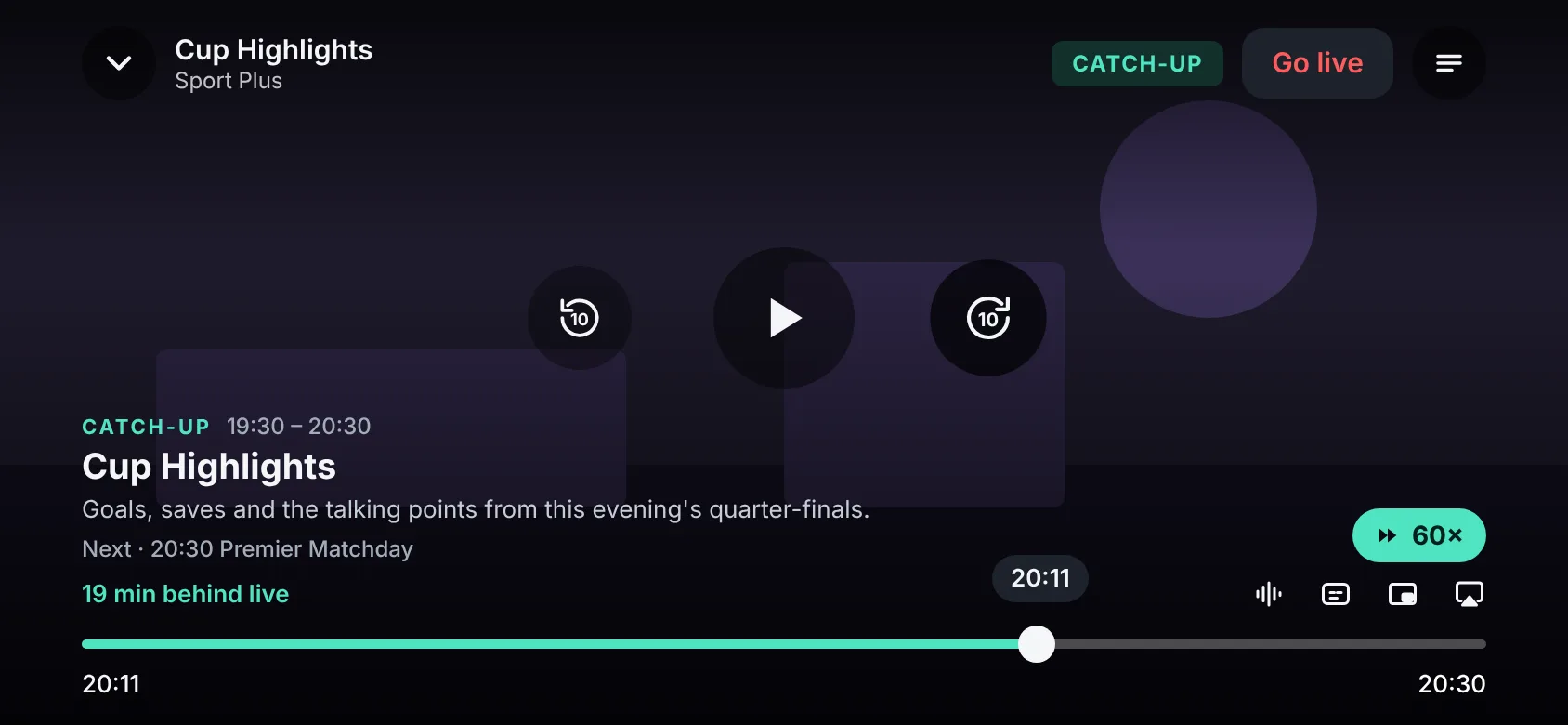
Press down to the progress bar on Apple TV, then left and right to move through the program in steps of ten seconds. Hold to go faster.
Knows where you are
Off your home Wi-Fi, Theamo does not look for your antenna tuner, and Plex tries the address that works on mobile data first. It follows you from Wi-Fi to cellular and back.
Plays what Apple's player can't
Raw MPEG-TS and Matroska streams, Dolby Vision, lossless surround and TV mode switching are handled by Theamo's own Aether player, which takes over on its own. With Pro you can also pick the player yourself, even while watching.
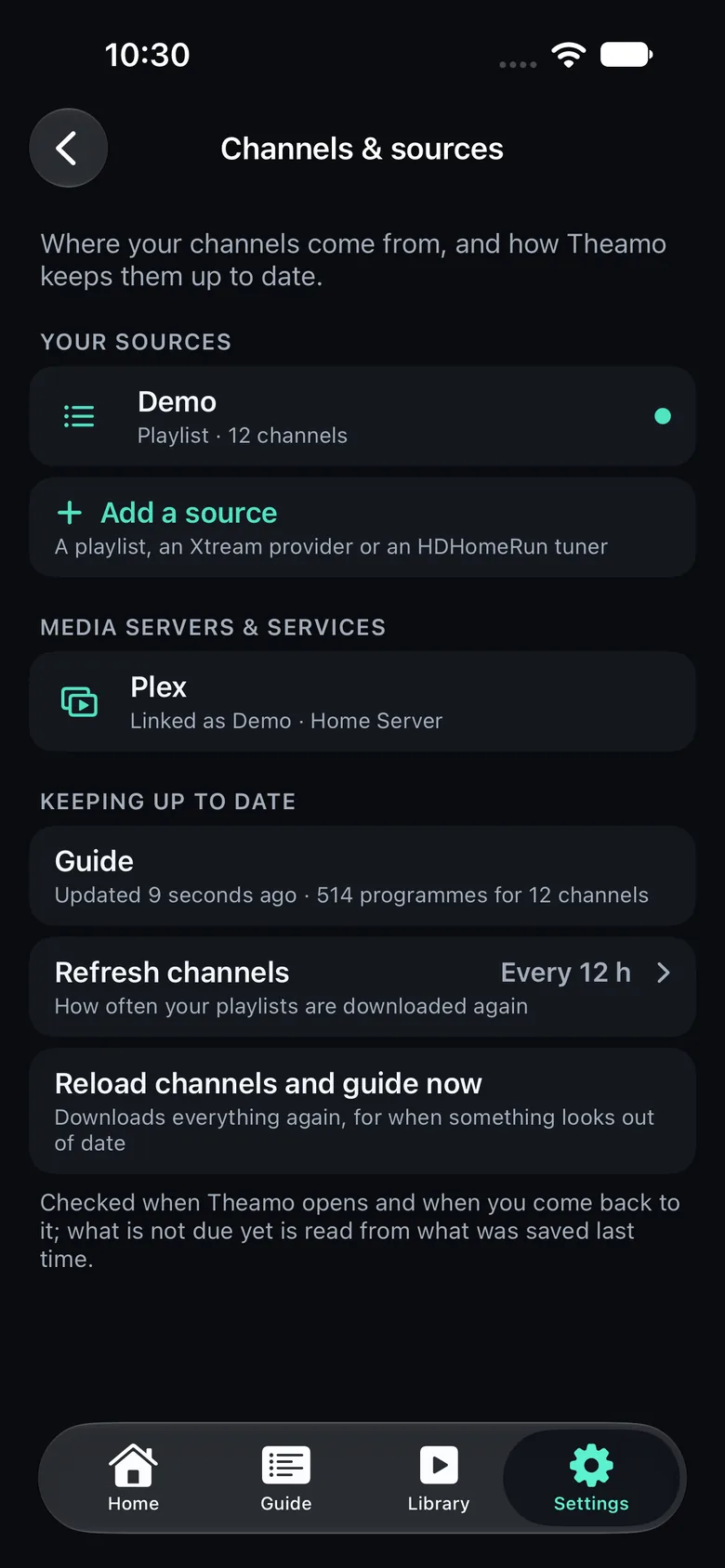
Refresh on your terms
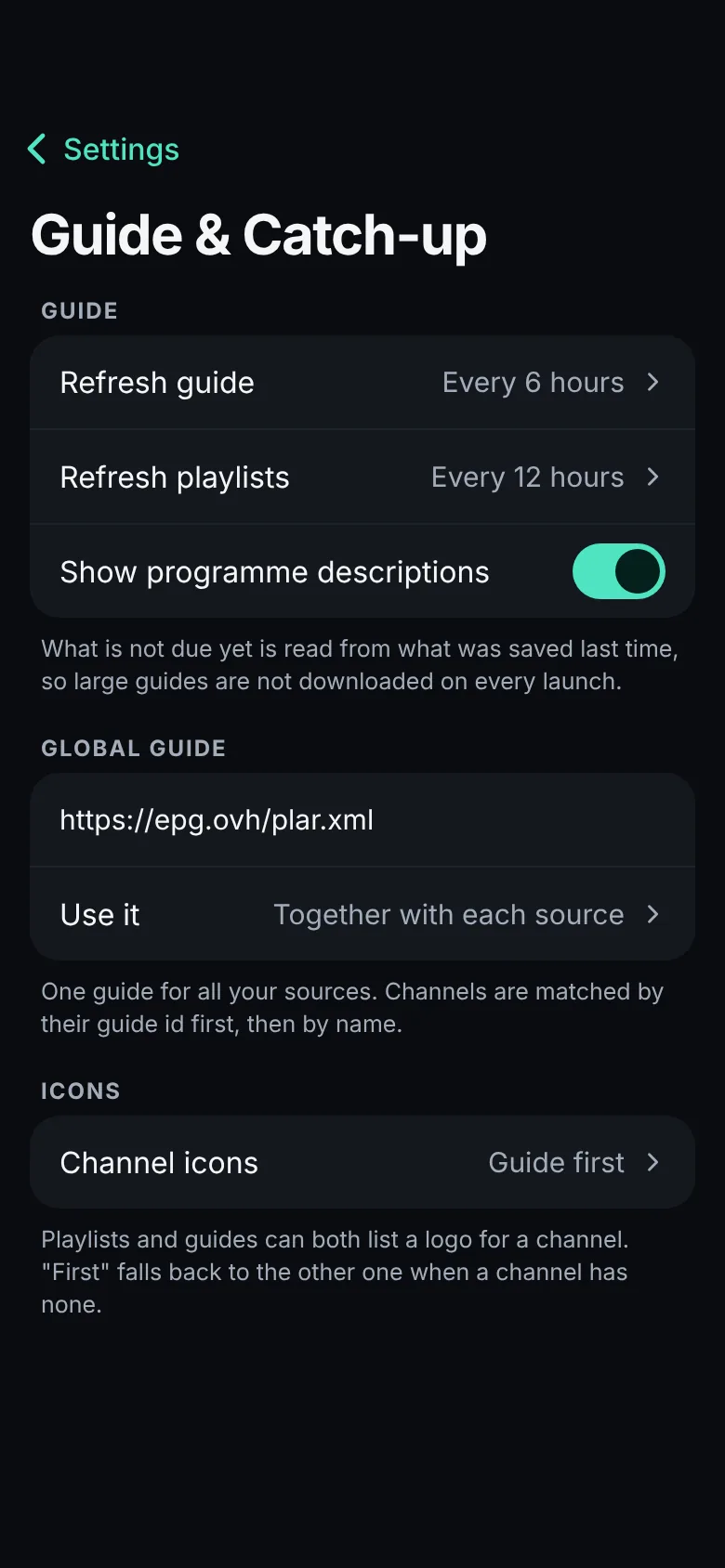
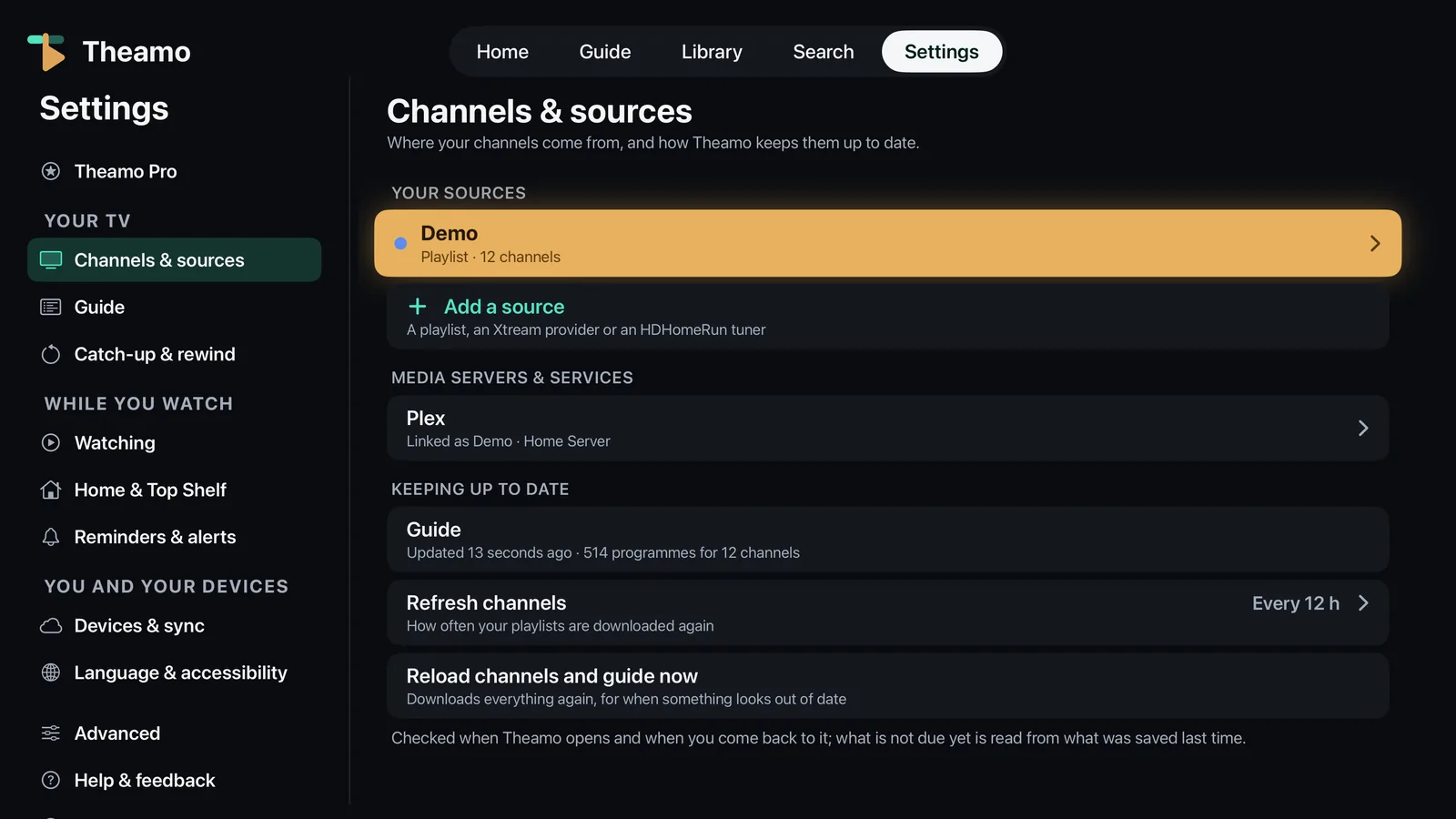
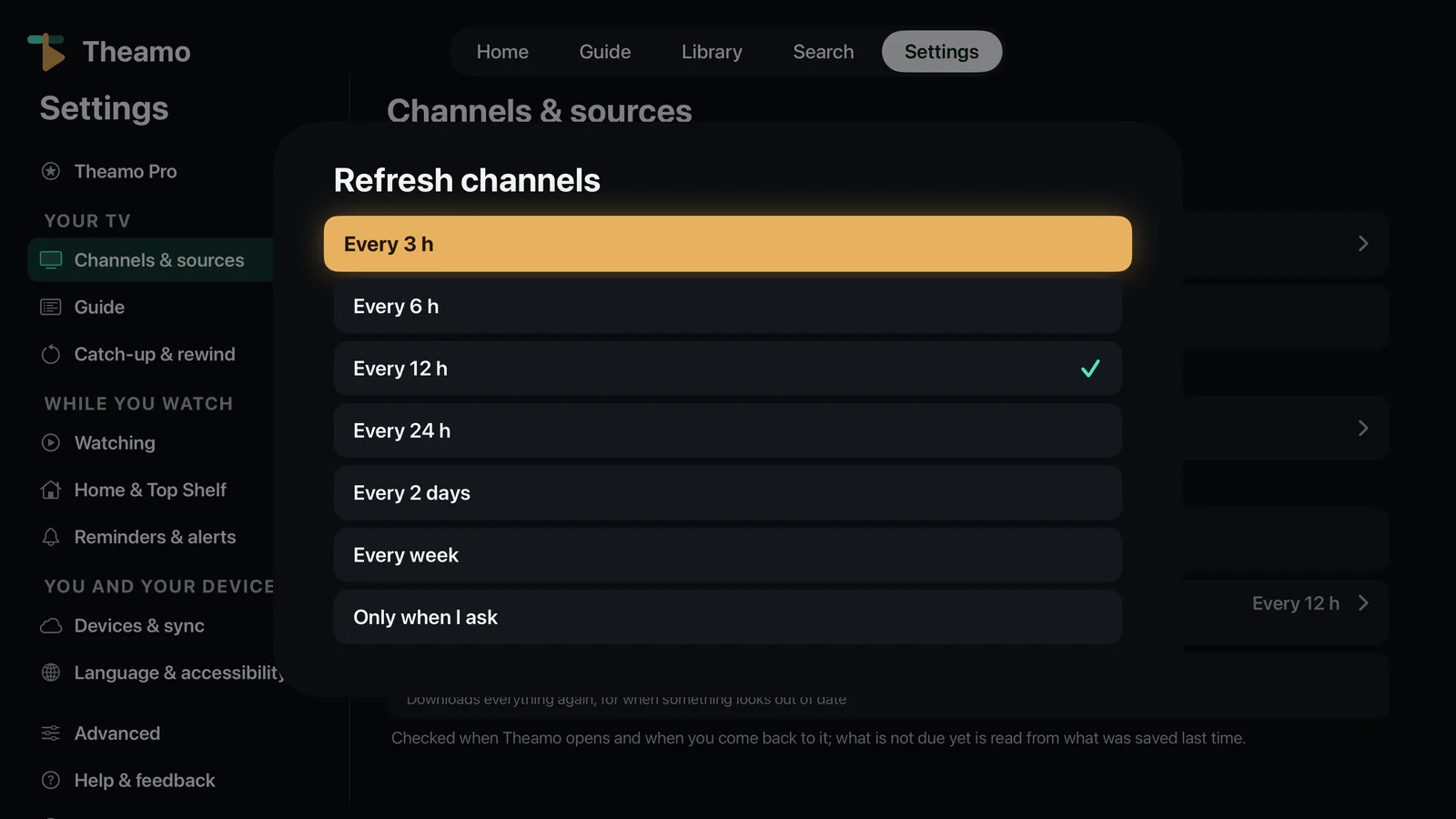
Playlists and the guide each have their own refresh interval, or refresh only when you ask. What is not due is read from your device, not downloaded again.
Picks up where you left off
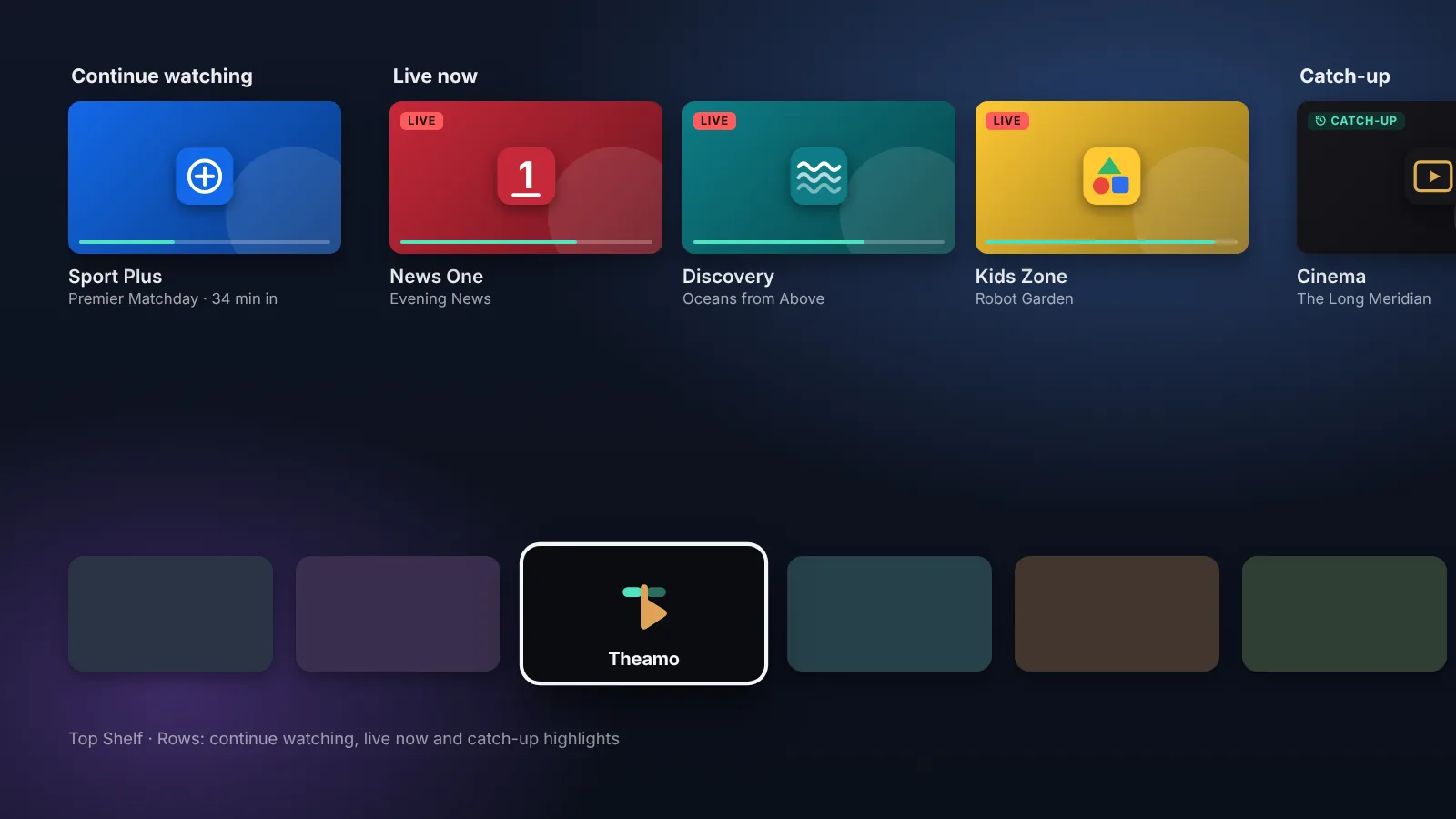
The channel you watched last is marked in the guide. The guide opens on it, and on Apple TV focus starts there too, so you never scroll from the top to find it again.
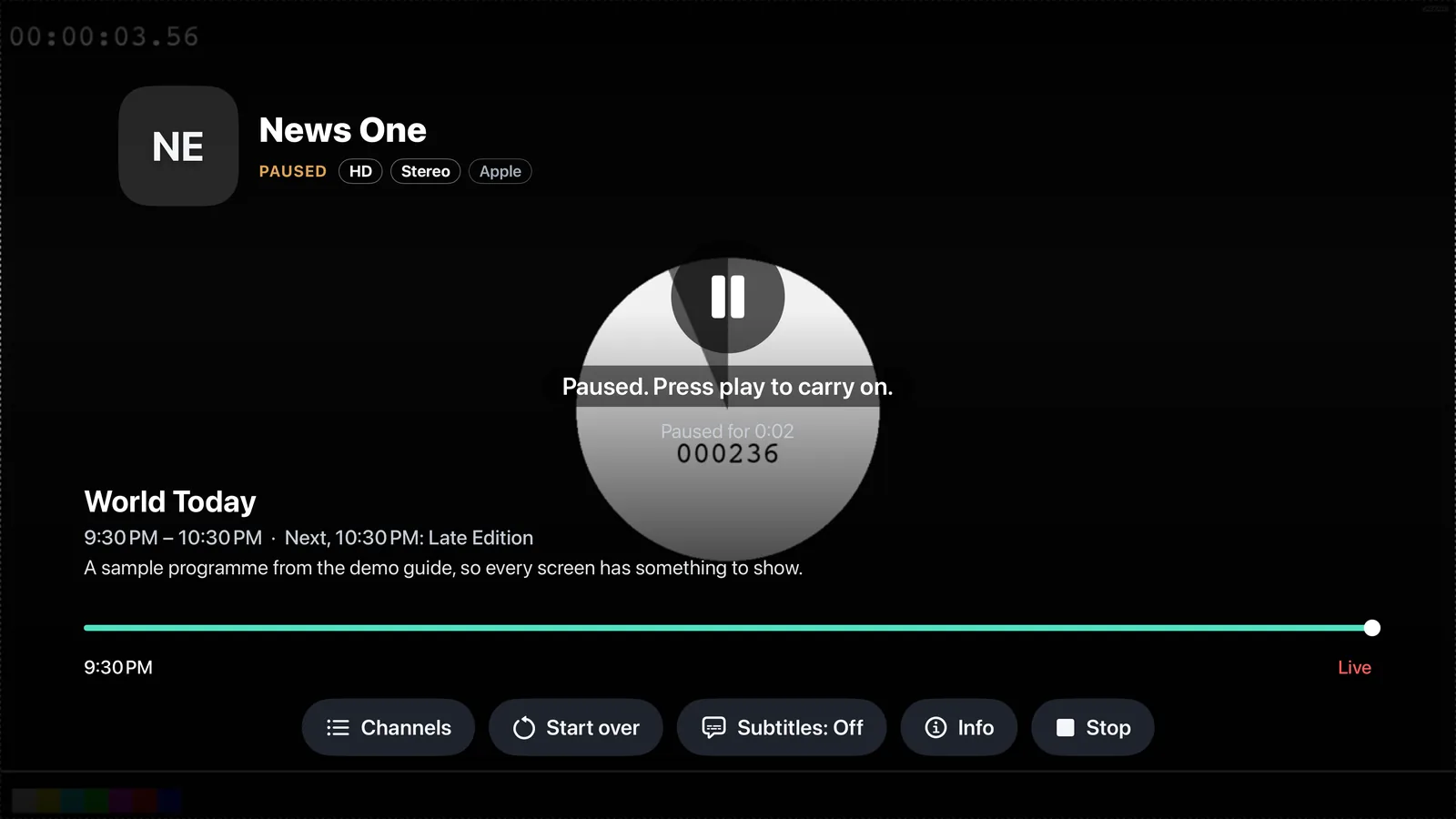
Paused says paused
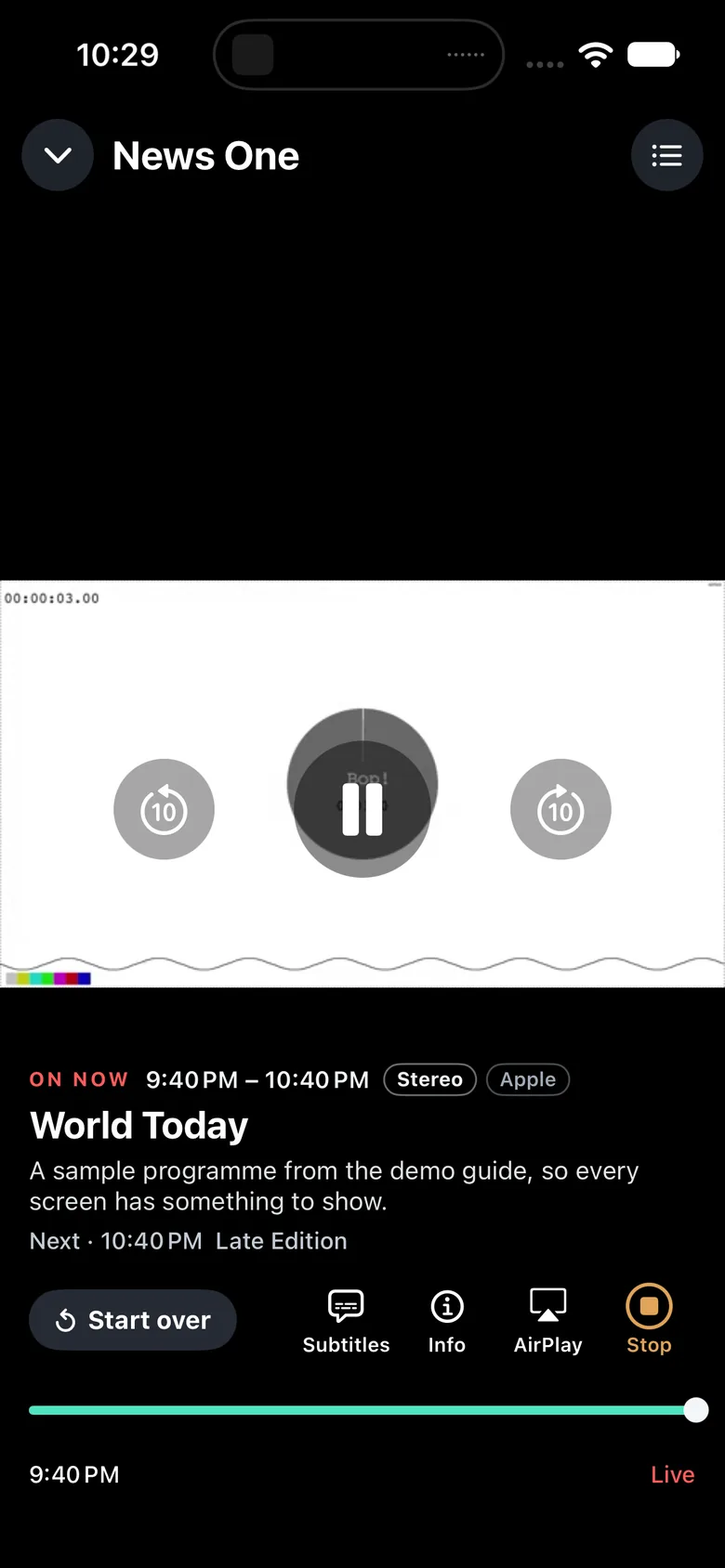
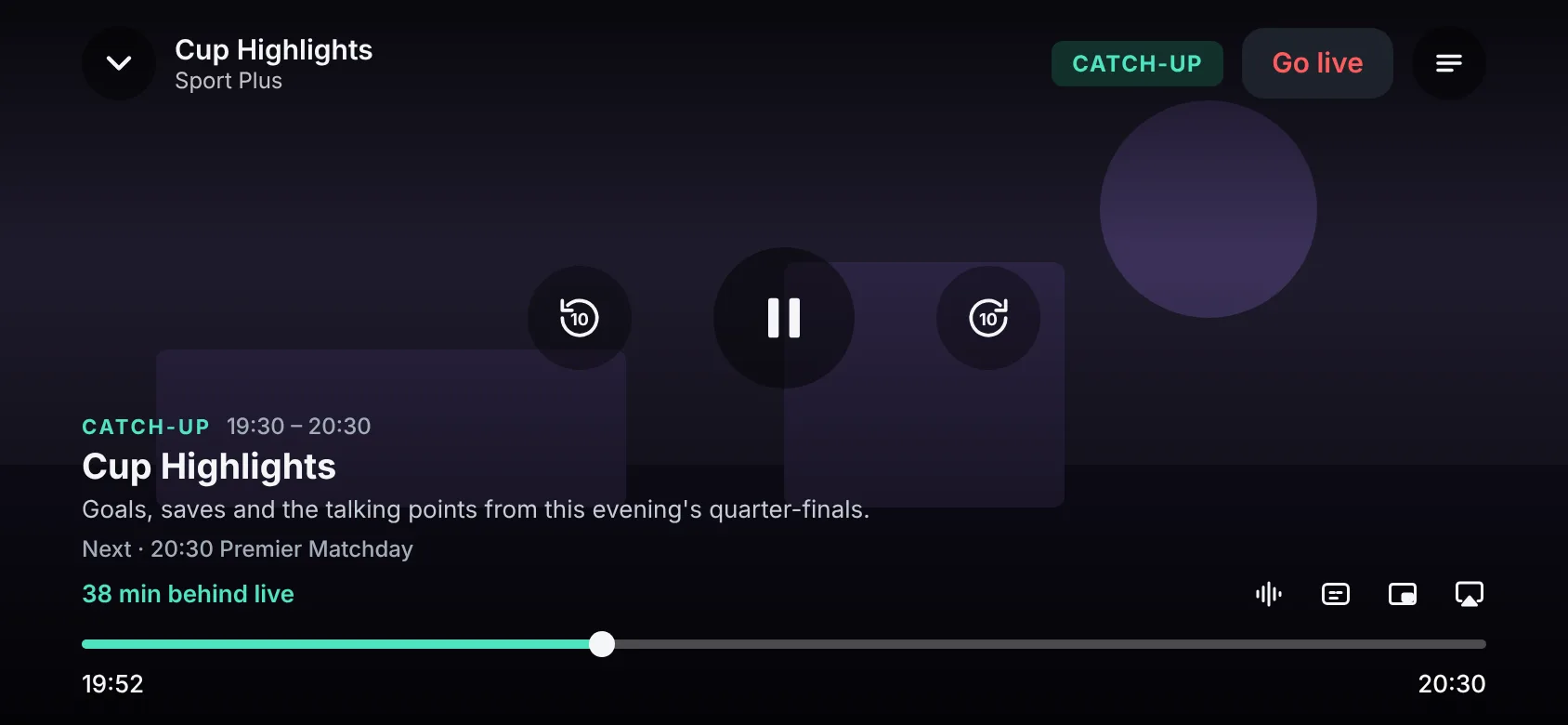
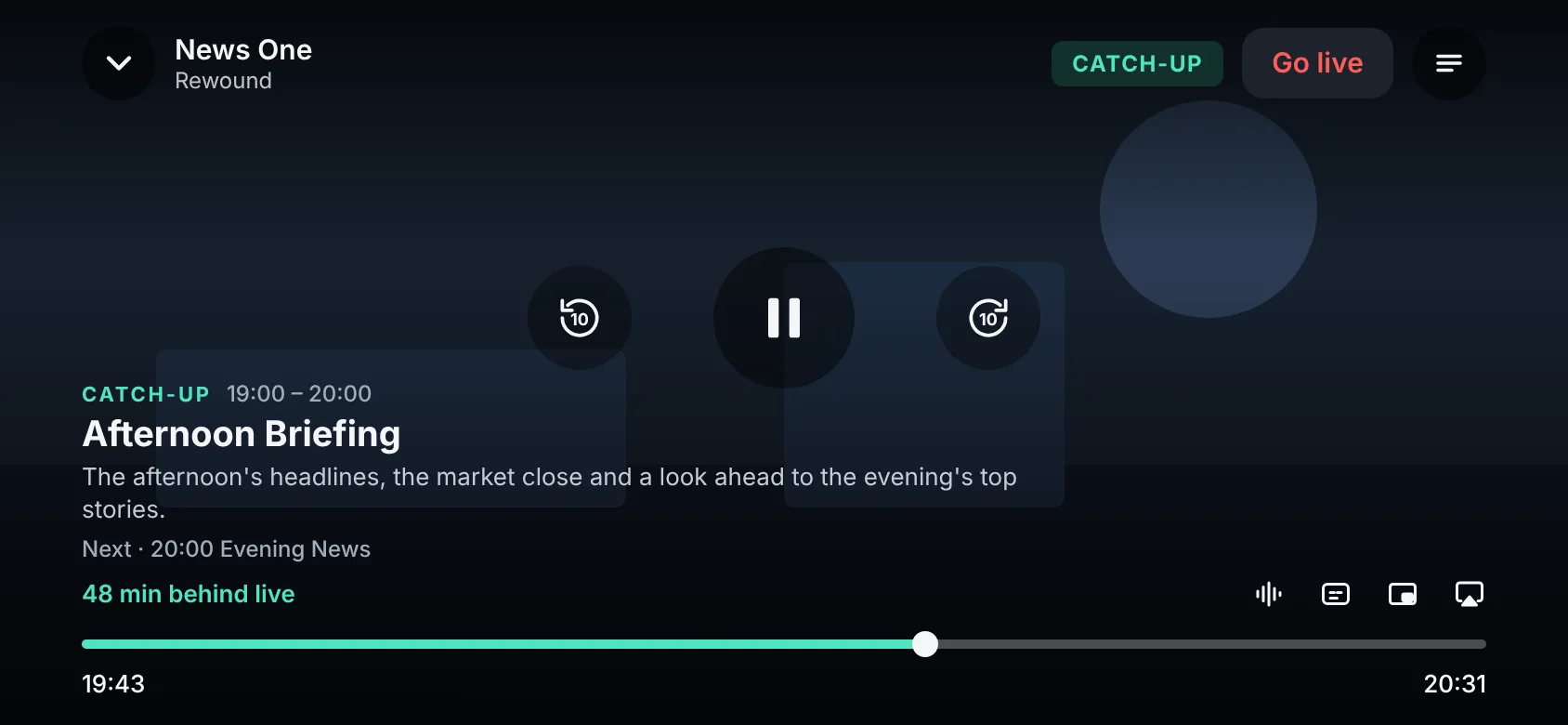
Pause a live channel and a label shows how long it has been paused, so it never looks like the picture is only buffering.
A player that tells you things
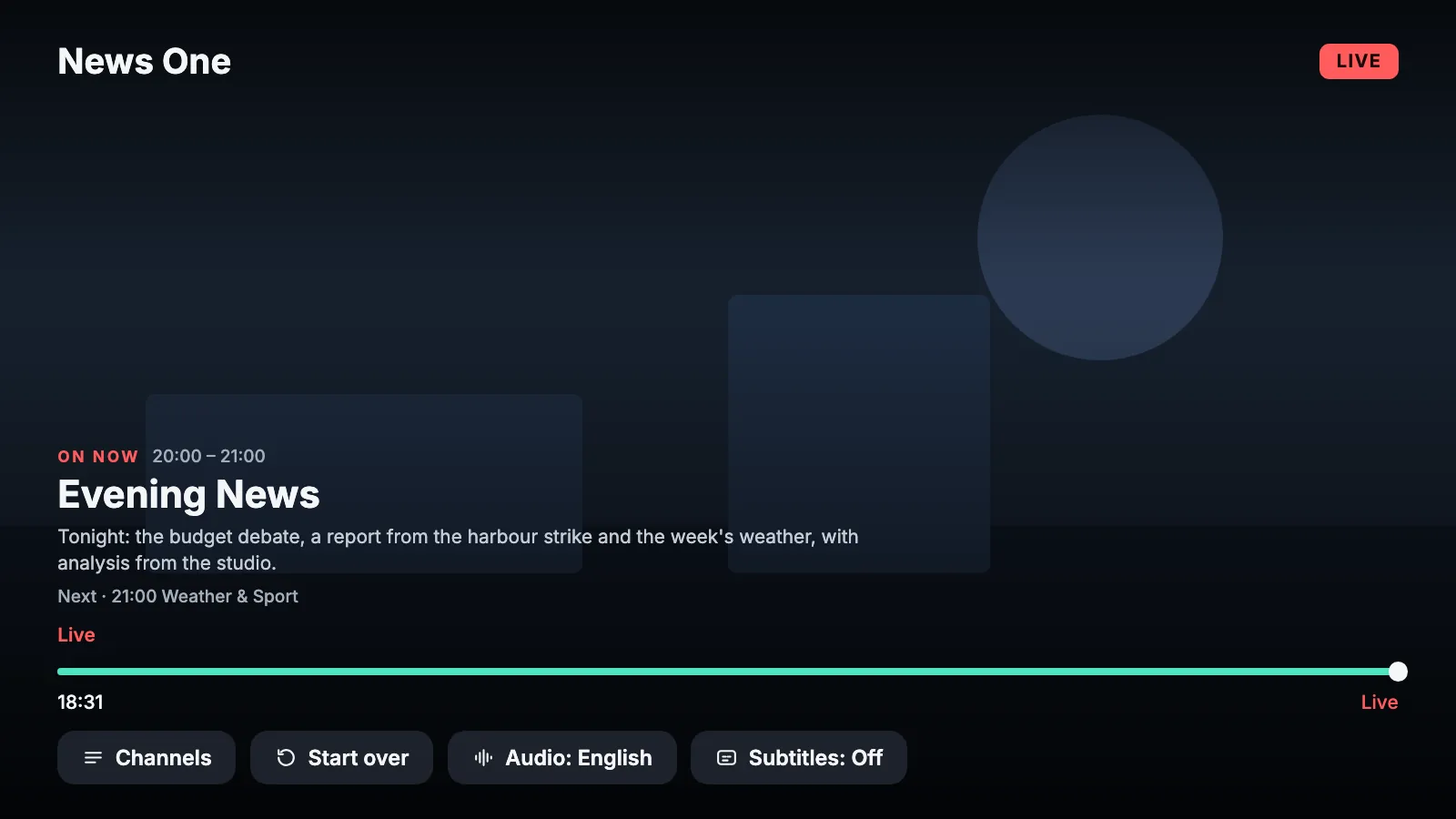
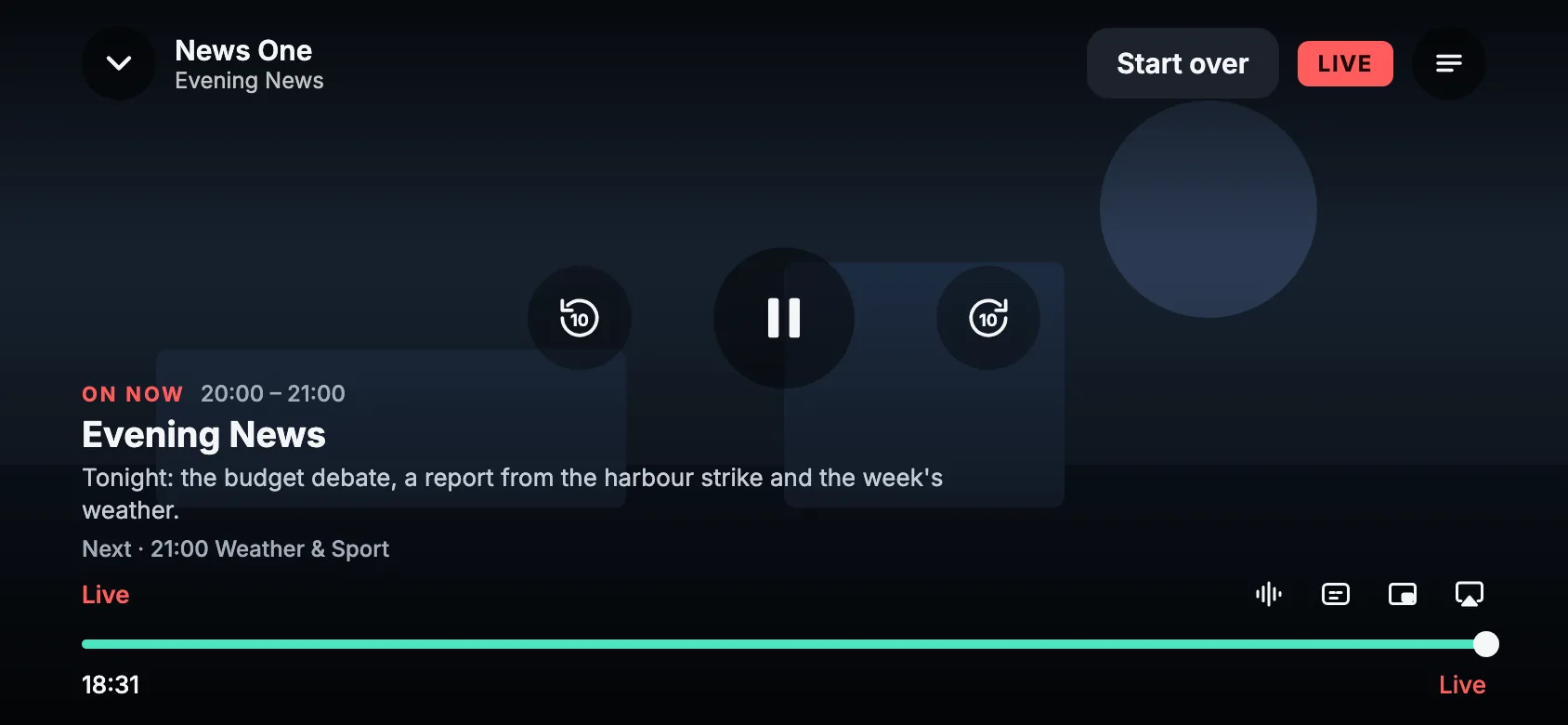
Press Info for what you are watching: picture, sound, speed and which player is playing it. Buttons carry words under their icons, a paused channel says how long it has been paused, and a station that is slow to start shows what it is doing instead of a blank screen.
Subtitles your way
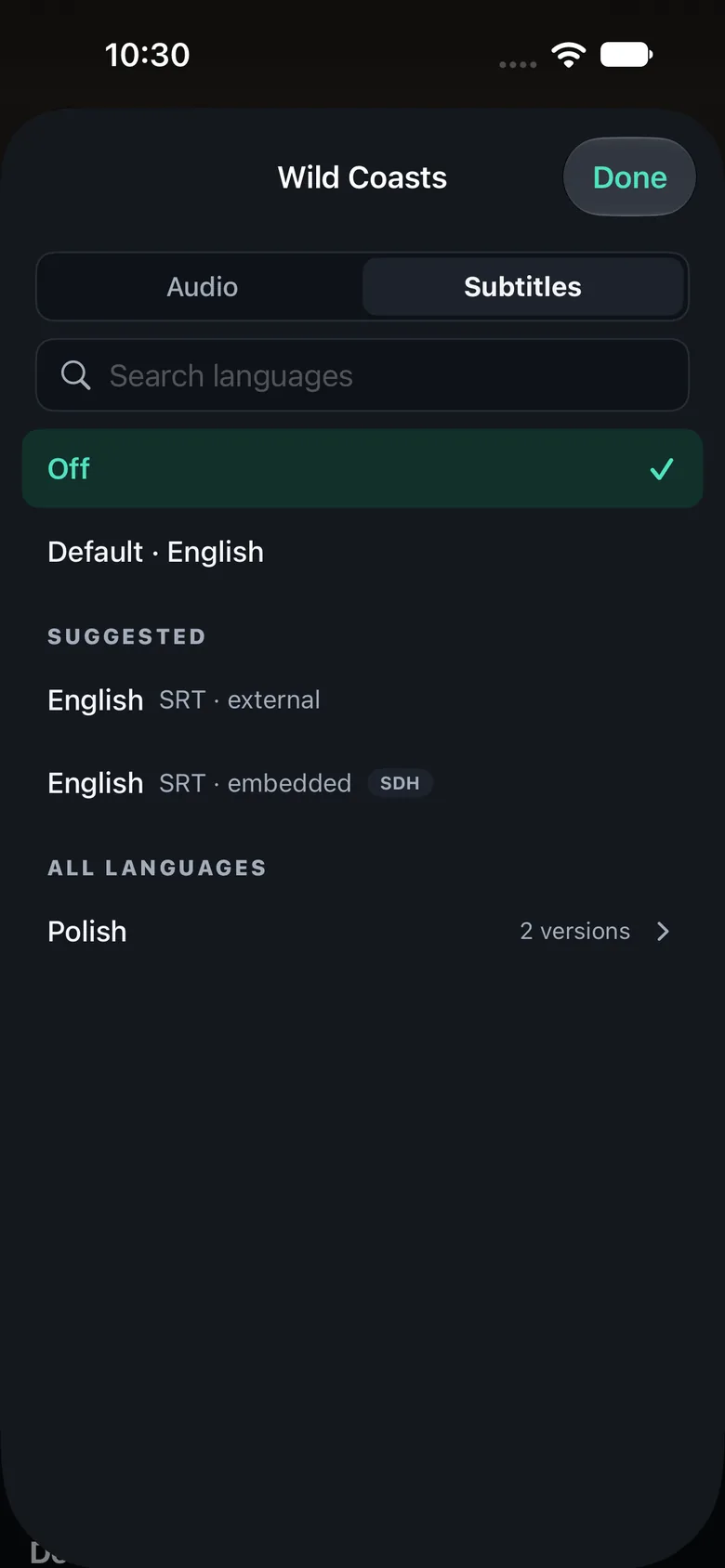
Choose subtitle size, place, background and color, and shift their timing when they run early or late. The settings are one tap away in the player's subtitle list, not buried at the bottom of it.
See where you are going
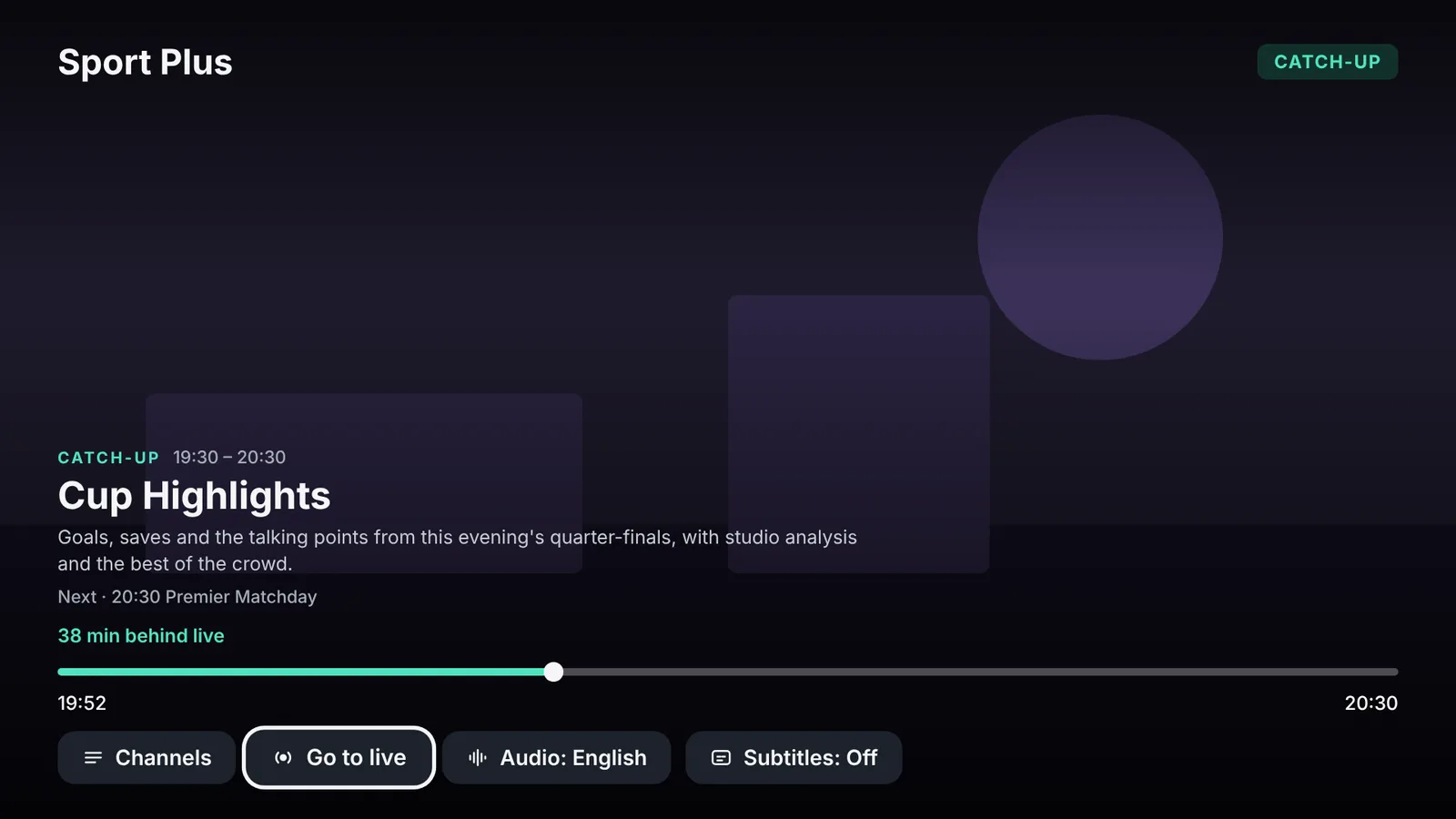
Drag along the progress bar and a small picture shows the scene you would land on. On Apple TV it follows the remote as you scrub.
Lossless surround and sharper old channels
Send surround sound untouched to your receiver, and let Theamo sharpen low-resolution channels on newer devices. Both are switches in Settings, Watching, and both come with a plain line saying what they do.
Stop with one hold
Hold Play/Pause on Apple TV to stop what is playing: a live channel goes back to the guide, a Plex film to its page, and the small window in the corner just stops. In the guide, hold the middle button for a menu to jump to the first channel or refresh.
A short welcome
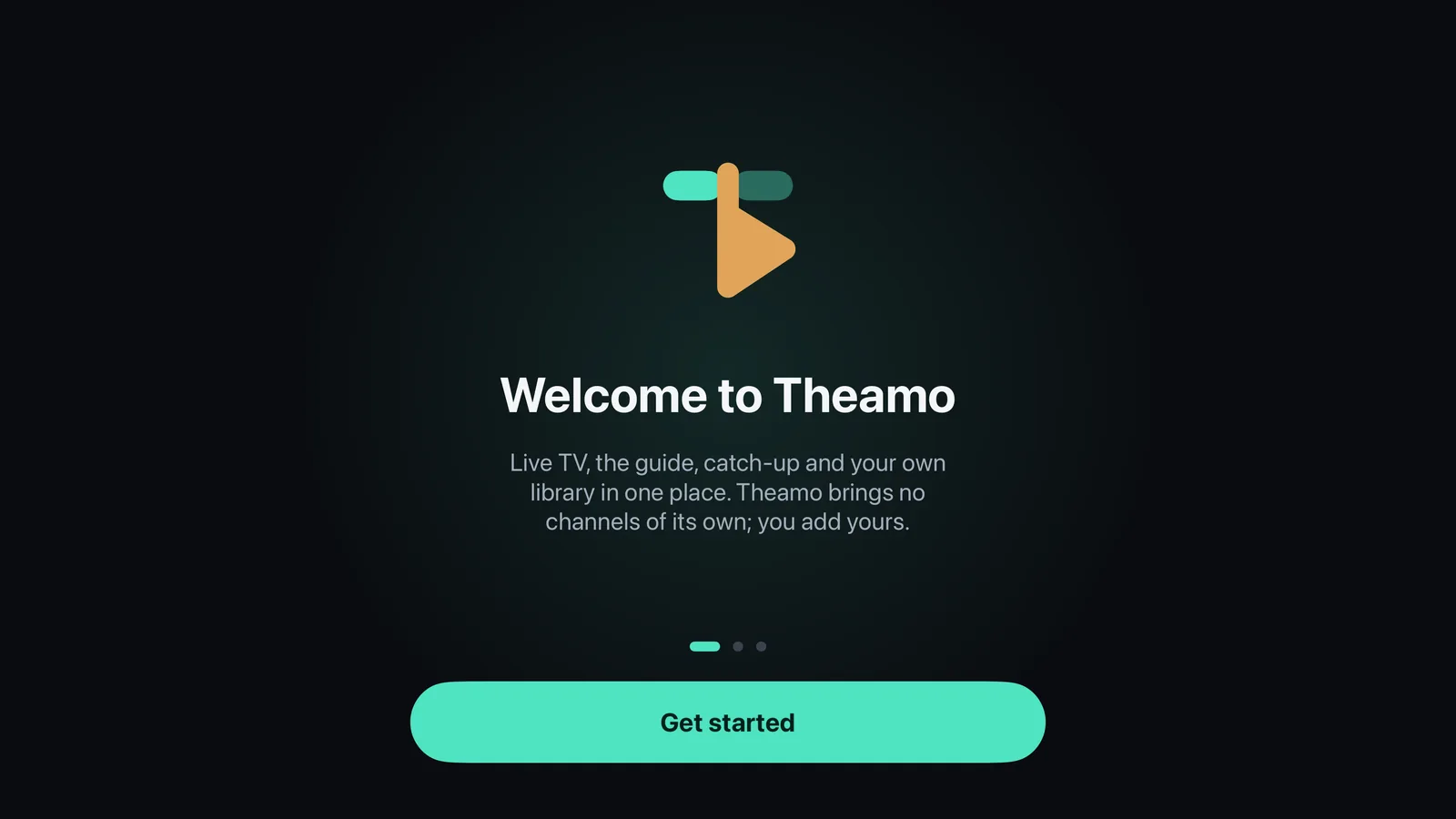
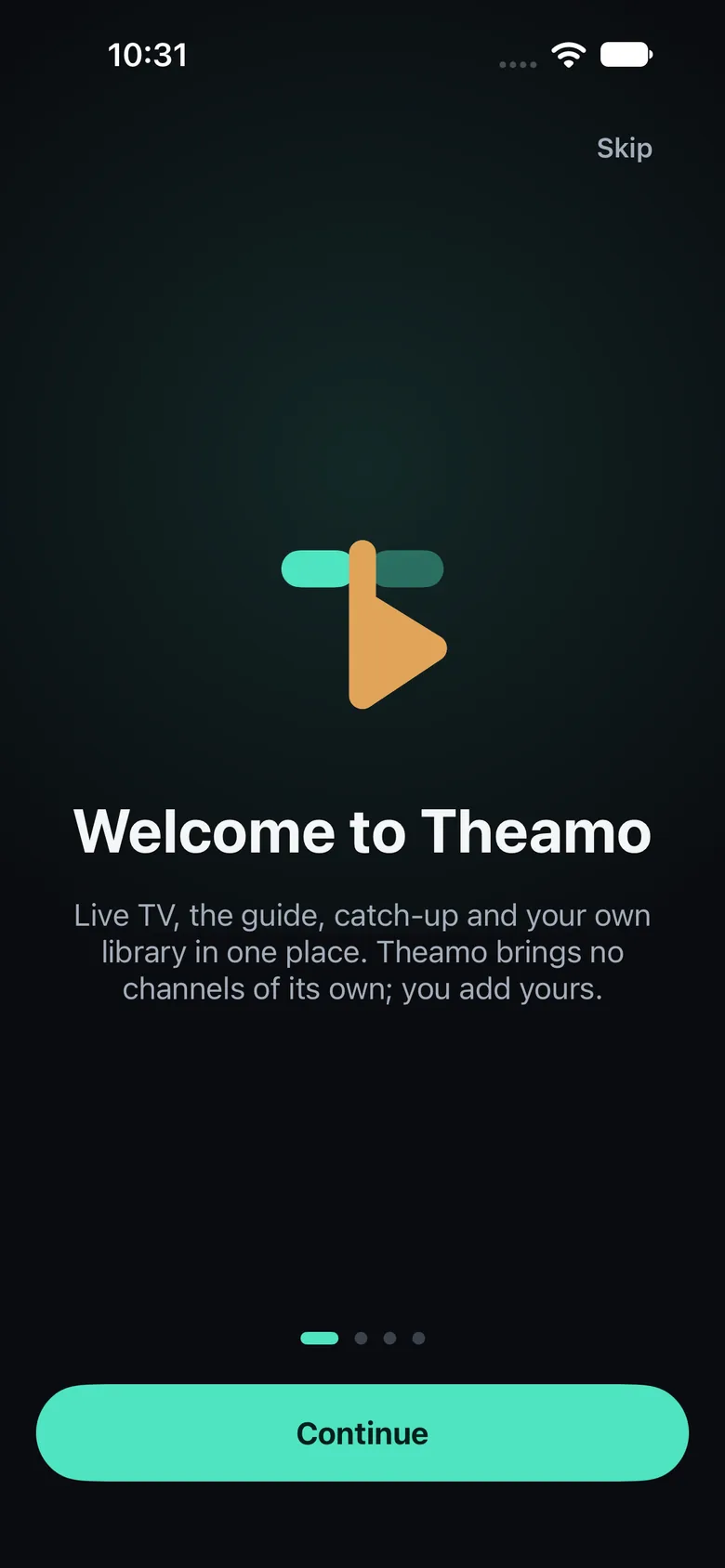
The first time you open Theamo, three short screens explain how to add a source and what to expect. After that it stays out of the way.
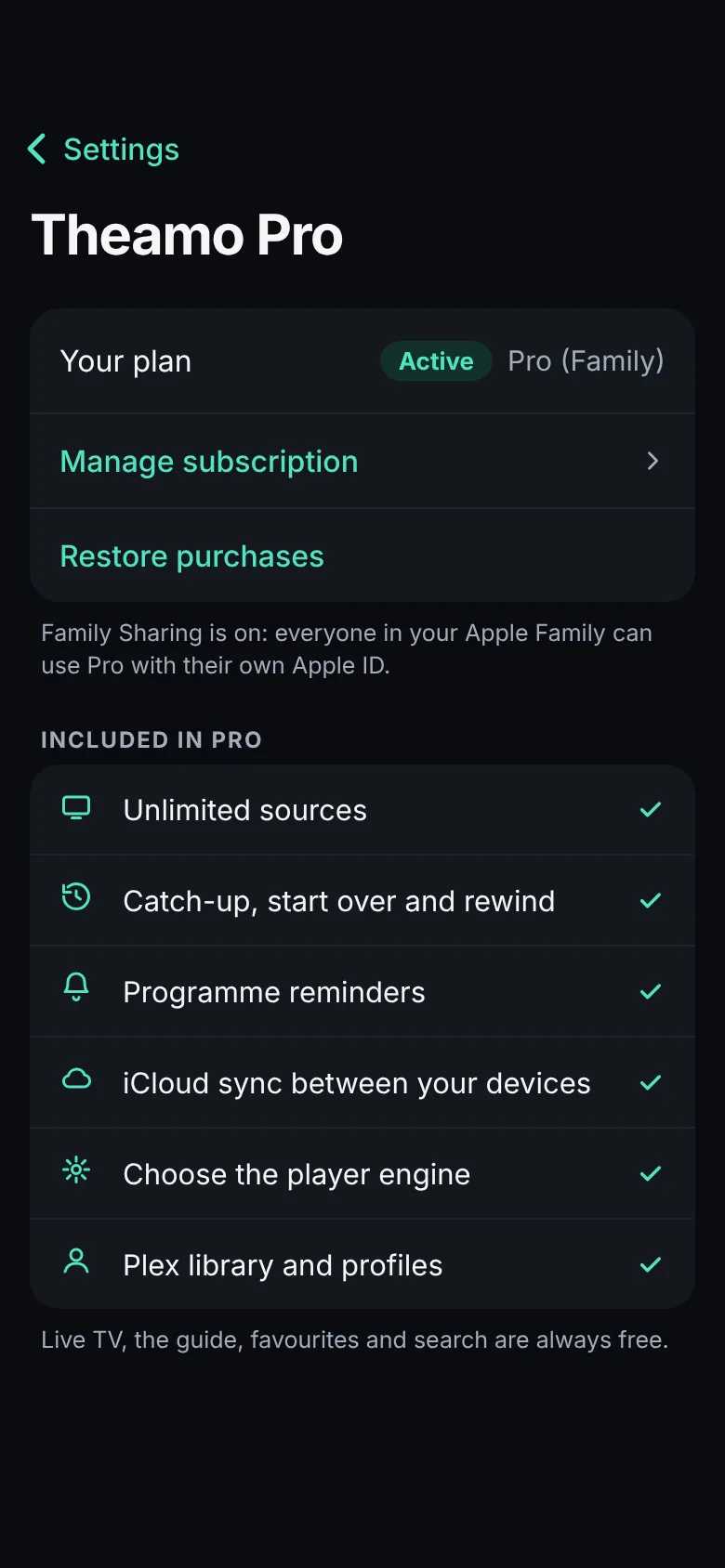
One plan for the family
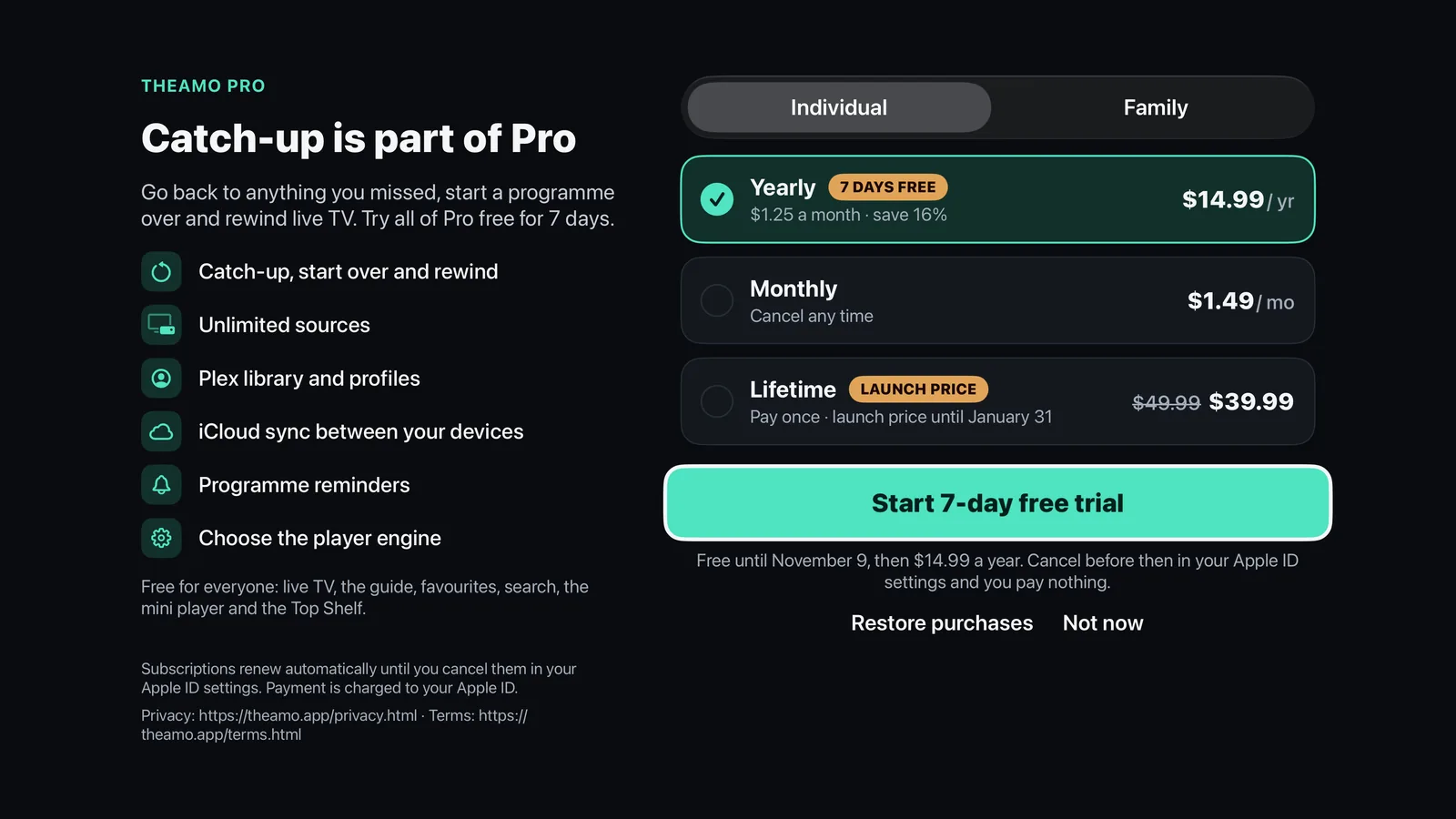
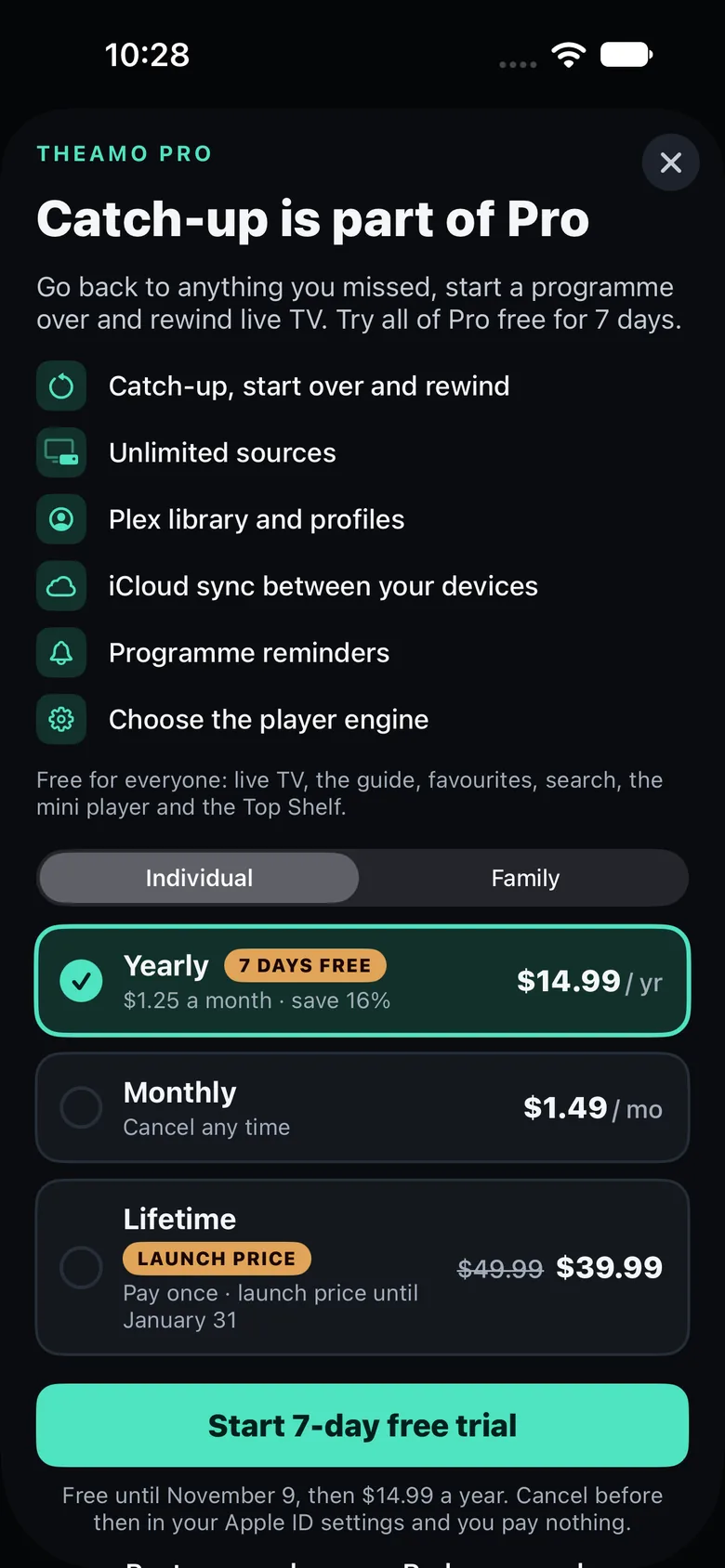
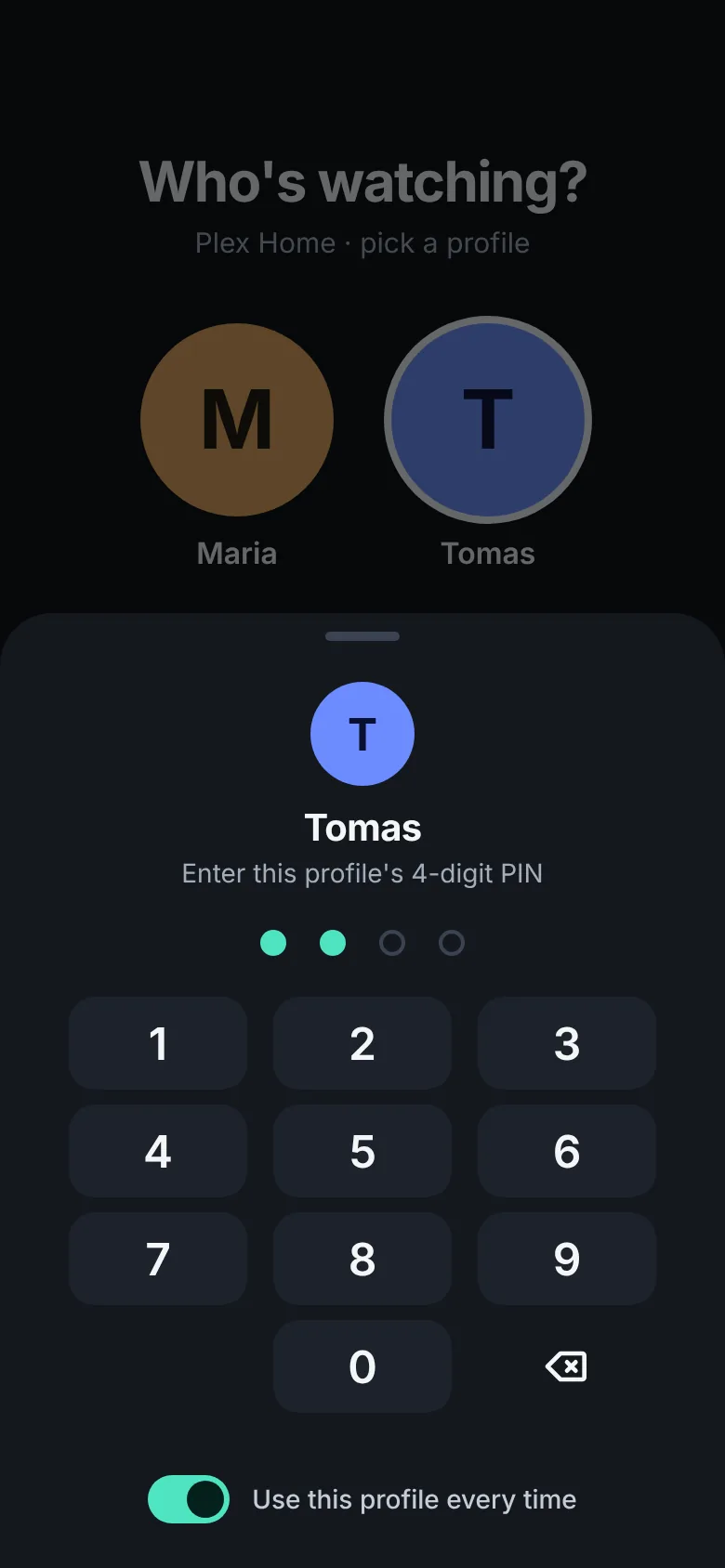
Pro for the whole household through Apple Family Sharing: up to five other people, each on their own Apple ID.