Remote and gestures
Every press, swipe and tap, on one page
Print it and keep it next to the TV. Steps with pictures: Getting started
On the iPhone and iPad, in the app
- Tap the pictureShows or hides the buttons
- Swipe from the left edge, or tap the list button at the top rightThe list of channels
- Swipe the picture downKeeps it playing in a small player
- Tap the heart on a channel's picture in the guide (iPad: double tap the channel)Makes it a favorite, or takes it out of your favorites
- Tap the heart on a channel's pageMakes it a favorite
- Double tap the left or the right of the pictureGoes back or forward 10 seconds; each further double tap adds 10 more
- Pull a list downLoads the channels and the guide again
On Apple TV, with the Siri Remote
ClickPress down on the edge of the touch surface.
SwipeSlide your thumb without pressing.
HoldPress and keep it pressed for a second.
Live channel
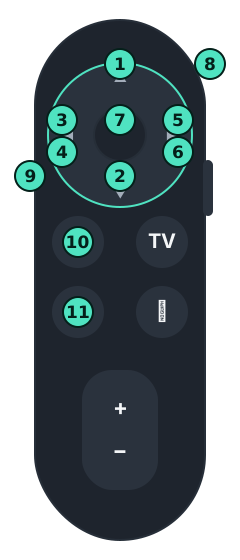
- Click the topNext channel
- Click the bottomPrevious channel
- Click the leftBack 10 seconds, if the channel keeps a recording
- Hold the leftRewinds while you hold it
- Click the rightForward 30 seconds when you are behind live
- Hold the middleA small menu with the most used things
- Menu, the button with the arrowGoes back. On a channel it hides the buttons first, then leaves, and the channel keeps playing in a small window.
- Hold Play and PauseStops the channel and shows the guide
Archive and Plex
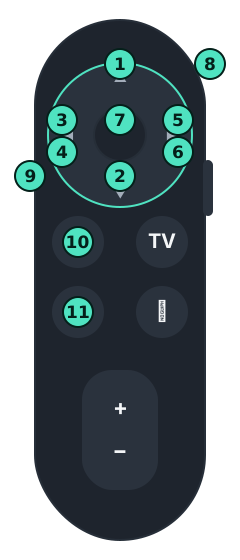
- Click the topShows what you are watching
- Click the bottomShows the progress bar
- Click the leftBack 10 seconds
- Hold the leftRewinds while you hold it
- Click the rightForward 30 seconds
- Hold the rightFast-forwards while you hold it
- Hold the middleA small menu with the most used things
- Swipe downShows what you are watching
- Menu, the button with the arrowGoes back. On a channel it hides the buttons first, then leaves, and the channel keeps playing in a small window.
- Hold Play and PauseStops it and shows its page (a program from the archive: the guide)
- Hold Play and PauseStops the channel and shows the guide
In the guide
- Click the middle
- Watches the program on now; on a past program, plays it from the archive
- Hold the middle
- A small menu: back to now, when the table shows another day; go to the first channel, however far down the list you are; refresh the channels and the guide (the pill at the end of the header does the same); and, with a channel playing in the window, stop it
- Click Play and Pause
- Opens the categories, from any channel
- Hold Play and Pause
- Stops the channel playing in the small window, on any page
- Menu, the button with the arrow
- Goes up to the tabs, from any channel; Left and Right along the tabs open them
- Hold Menu
- The Apple TV's own gesture: the Home Screen. Theamo cannot change it, so click Menu instead.